The Licensing Wizard
The Licensing Wizard automatically runs the first time that the application is opened, allowing you to specify your license information. With the wizard you can review or update licensing info. To open the wizard, go to the Start menu and scroll to the JewelSuite application where you will find the Licensing Wizard next to it.
Opening the wizard
-
Open the Licensing Wizard and click Next.
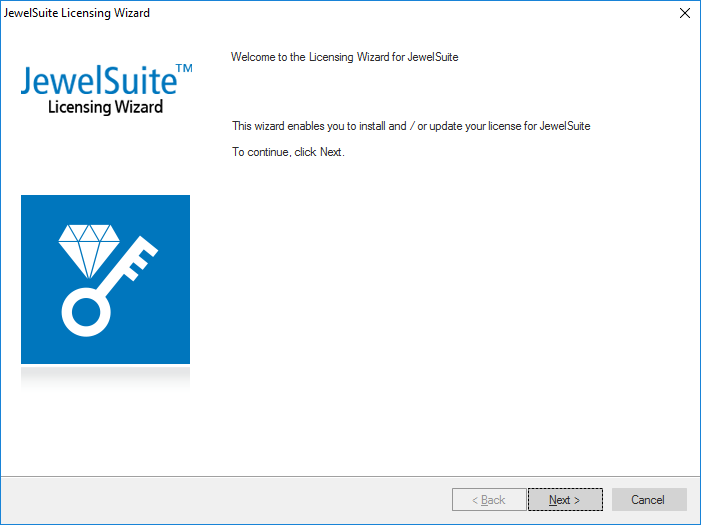

Licensing Wizard click to enlarge
-
The Import License panel appears.
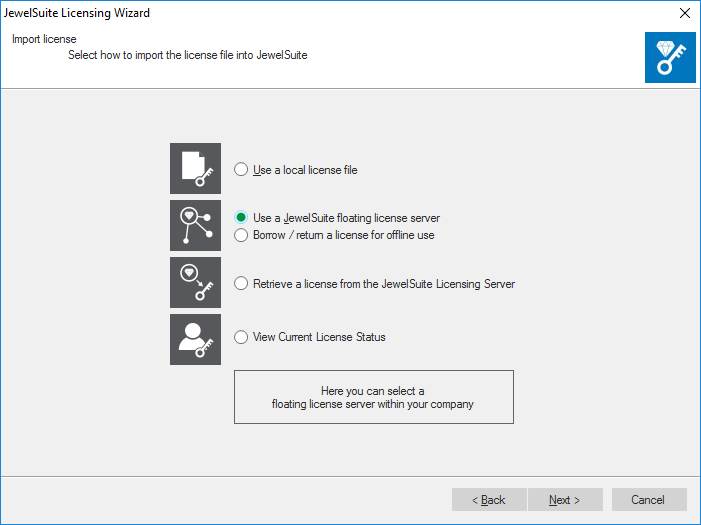

Import license click to enlarge
There are four options for importing a license, plus an option to view your current license status:
Use a local license file Browse for a license file on your hard drive. See Using a local license file.
Use a JewelSuite floating license from server Import the license file from a floating license server on your network. See Using a floating license from a server.
Borrow / early return a license Borrow or return a license from or to your company’s floating license for offline use. See Borrowing or returning a license for offline use.
Retrieve a license from the JewelSuite Licensing Server Connect to the JewelSuite Licensing Server to download your license file. See Retrieving a license from the Licensing Server.
View Current License Status View your current license status information, including license type, feature information, server and port information.
Using a local license file
Use this option if you already have a node-locked license file for your computer.
- Select Use a local license file option and click Next.
-
Click Browse to select the license file saved on the machine. The information from the selected license is populated in the License file information. Click Next.
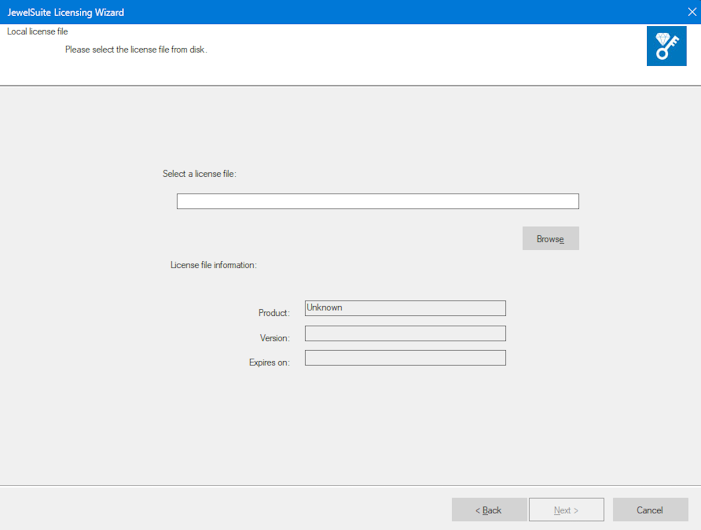

Import license click to enlarge
Using a floating license from a server
This option allows you to import a license from a floating license server on your network by entering the server name and port.
- Select Use a floating license server option and click Next.
-
Enter the floating license server details as below and click Next.
Contact your system administrator for the floating license server name and port used by your organization, for example:
Server : SERVERNAME
Port : 10000
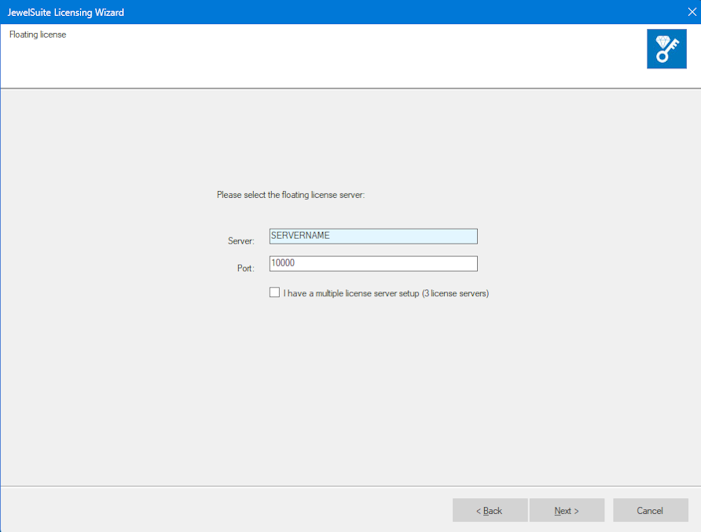

Floating license server details click to enlarge
-
The Licensing Wizard verifies the license and displays the current license status page. Click Next.
Borrowing or returning a license for offline use
When you have a floating license, you can borrow a license for offline use, for example when a laptop is taken off-site or when running JewelSuite where you are not connected to the license server. When a license is borrowed, it can be used even if the license server is unreachable. You must return the license and borrow a new one before the maximum period to extend it.
Borrowing a license
-
Select Borrow / return a license for offline use and click Next.
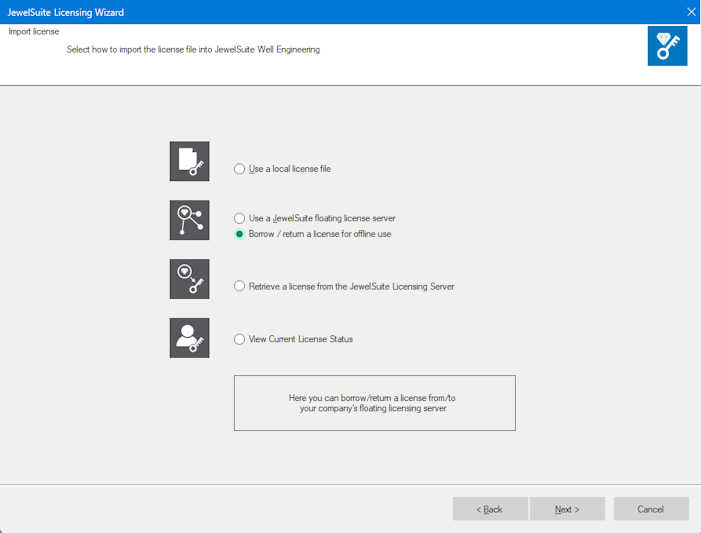

Borrow / return license click to enlarge
-
Select how long the offline license should remain valid. Max. Borrow Date displays the end date based on your current date, defaulting to a 500-hour borrow period. Once this date is reached, the offline license is invalidated and automatically returned to the license server. The maximum borrow duration is ultimately controlled by the license file and license server configuration. Borrow licenses only for the required period and return them early when possible to maximize license availability.
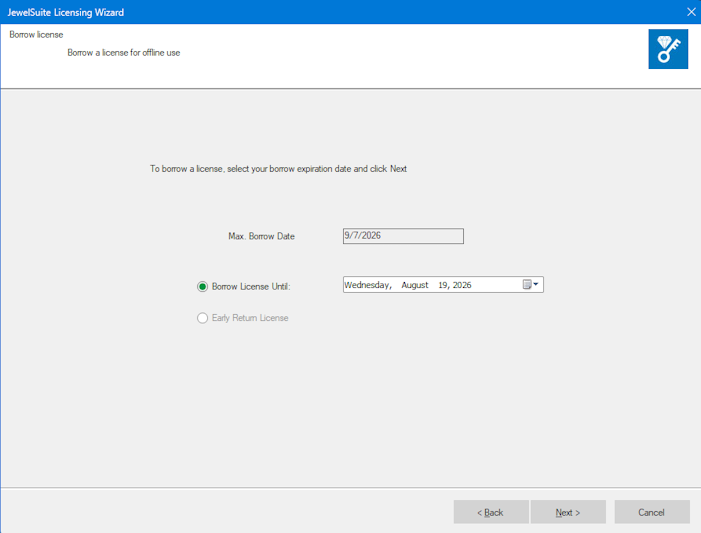

Borrow period click to enlarge
-
In the License selection for offline use dialog, select the licenses you need for offline use. Make sure to include the required data connectors and the Data Management Solution Client license. Click OK to start the borrow process. This can take a minute.
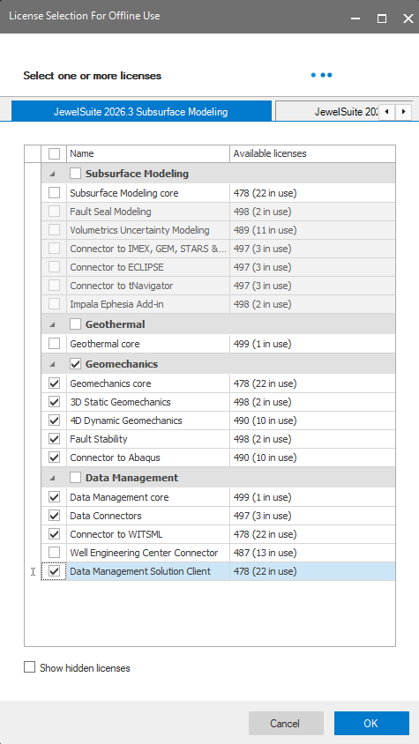

License selection for offline use click to enlarge
-
The Licensing Wizard displays your current license status. Confirm that the License type and Status fields show (Borrowed). You can use these licenses online and offline until the expiration date.
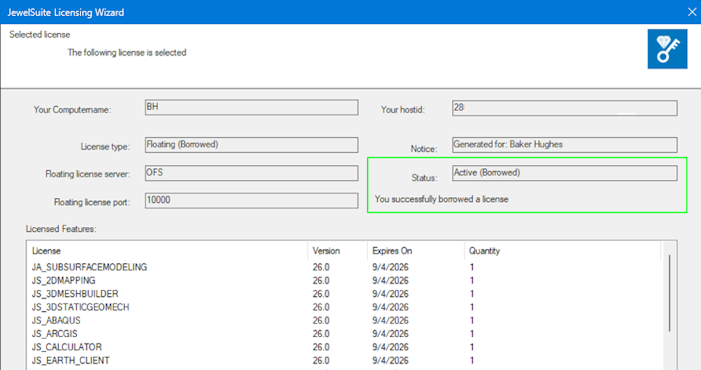
Borrowed license click to enlarge
- Click Next to finish and close the Licensing Wizard. Your license is now configured to support offline use until the chosen expiration date.
Returning a borrowed license early
You can return a borrowed license to the license server before its expiration date, for example after you reconnect to the license server.
-
Select Borrow / return a license for offline use and click Next.
Borrow / return license click to enlarge
- Select Early Return License.
- The Licensing Wizard confirms that you successfully returned your license, and shows the licenses that are available again on the license server.
- Click Next to finish and close the Licensing Wizard.
Retrieving a license from the Licensing Server
This is an online activation method to retrieve a node-locked license file for the current computer. Use this option to activate your license directly from the JewelSuite Licensing Server over the internet. You must have received a JewelSuite license information email containing your credentials before you can use this option.
- Select Retrieve a license from the JewelSuite Licensing Server option and click Next.
-
Enter your user name and assigned password, then click Next.
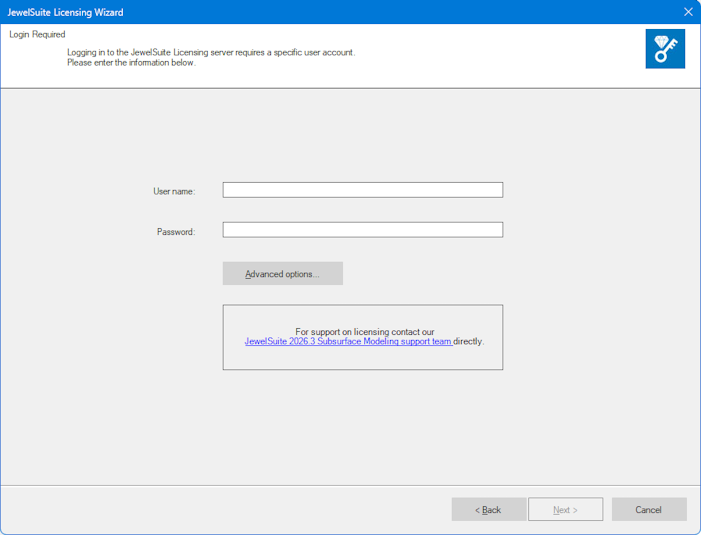

Internet activation click to enlarge
The user name and password are provided by SoftwareSupport@bakerhughes.com. - Select the network adapter whose MAC address will be tied to the license, and click Next. It is irrelevant which adapter you choose, but it is recommended to select an Ethernet adapter over a WiFi adapter. As long as the adapter remains available in the system, the link to the license stays valid.
- You are prompted to save the license (.lic) file to your computer. It does not matter where you save the file, as long as you do not move it after saving it to disk.
- The Licensing Wizard downloads and activates your license, then displays the current license status page. Click Next.
Viewing your current license status
The View Current License Status option allows you to view your current license status information, including license type, feature information, server and port information.
Regardless of which option you choose, click Finish to complete the license activation process.