Show DS View
Using the settings on the Depth Stretching View, you select how and from where you want to stretch the logs. You can open the by clicking the Show DS View button (1D model > Mapping > Show DS View). In this view with a table format, you can review the top and base depth for each zone defined by two successive well markers, both in the source well and the target well. By default, the table is filled based on the markers from the source and the target case, but you can adjust it manually.
For more information about the view and the different options, see Depth Stretching view.
To continue with the workflow, click the Open in Workflow icon  located at the bottom right corner of the view.
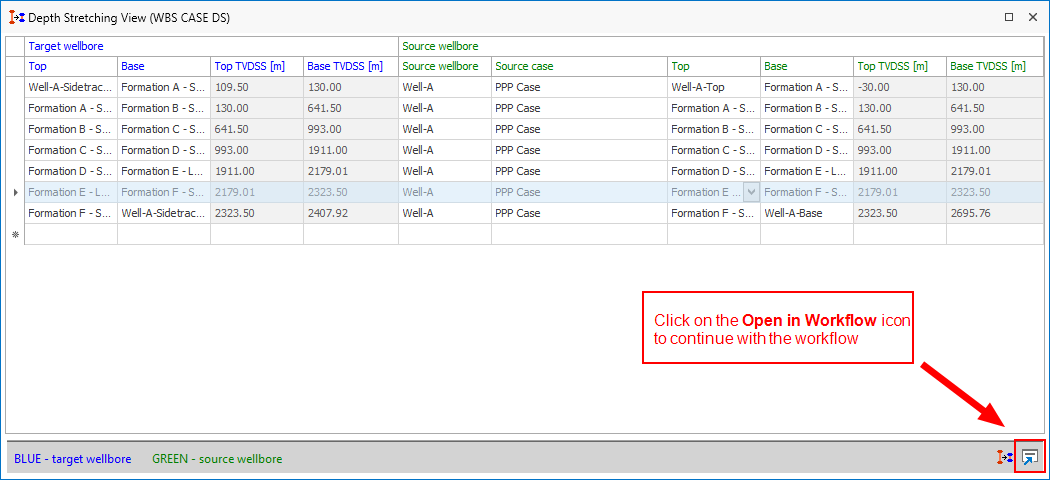
Continue with the workflow using the Open in Workflow icon in the Depth Stretching view click to enlarge