Case Mapping
The Case Mapping form lets you copy all settings: equations, trends, parameters, methods and models through the 1D Model workflow that have been used in a previous case. Although you can create a new case from this form, the case mapping will successfully copy parameters from the source case only if composite logs already exist in the target case.
Copying from and to multiple cases is possible using this form.
- Select a target case using the drop-down list at the top of the form. The list shows all available cases in your solution. The name of the wellbore connected to the case is listed in brackets after the name of the case. To select a target case, select the checkbox. You can also select multiple cases. If you select one case, it will be listed as target case. If you select multiple cases, the target entry shows <multiple selection>. After making your selection, click OK at the bottom of the drop-down list.
- Workflows Lists all the workflows that are available for mapping.
- Source Case From the drop-down, select a source case that you want to map to the selected case.
- For all the workflows you want to map to the target case, select a source case. Click Apply to map the selected data and keep the form open, or click OK to map the data and close the form.
The table on the form has two columns:
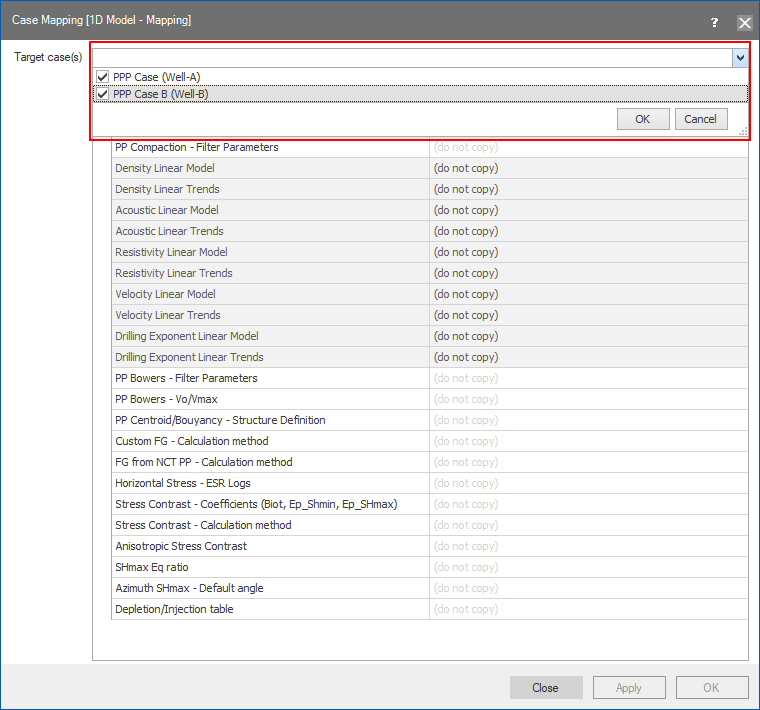
From the drop-down list, select multiple target cases to map your data to. click to enlarge