Logs Prediction
Using the Logs Prediction form (AI / ML > Logs Prediction), you can run the Log Prediction algorithm to create a new log using selected ML model, or to fill gaps in the existed log.
The form has two sections:
- Specify Model section.
- Run Prediction section.
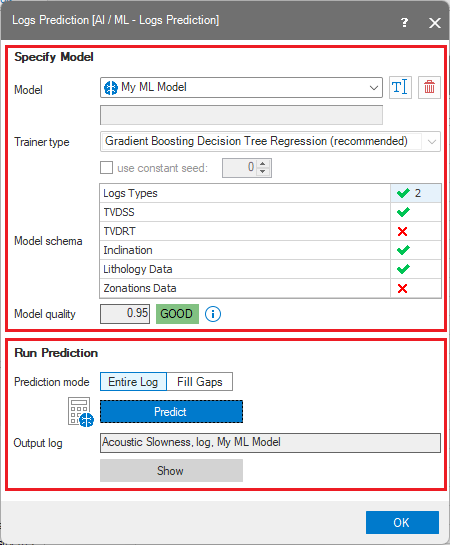
The two sections on the Log Prediction form click to enlarge
Using this form you can create the new ML model based on the training data set defined on the Model Definition form and use it for the prediction data set from the same model definition, or you can select an existed model and use it for the prediction data set only.
Creating the new ML model
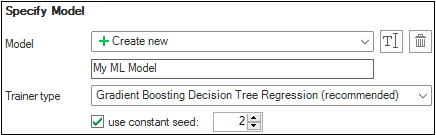
Creating the new ML model click to enlarge
- The Model drop-down lists all the models that are available in your solution. Select 'Create new' option to create a new ML model.
- Specify the model name in the text-box below.
- Select the Trainer type. Note: the 'Gradient Boosting Decision Tree Regression' trainer is marked as 'recommended' based on better results produced for the number of standard data sets. However each dataset is unique and other trainers can produce better results for your specific data. You can try to create models using different trainers and then compare results to decide which trainer is more suitable for the data in your solution.
- You can choose the option to use a specific seed which trainer will use during the model training. This is an optional parameter. If not set - the default seed will be used. Note: models trained by the same trainer but with different seeds will produce different results.
Selecting existed ML model
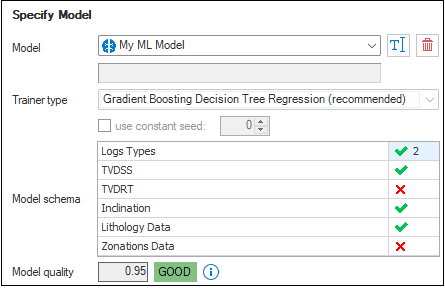
Selecting existed ML model click to enlarge
- The Model drop-down lists all the models that are available in your solution. Select existed ML model from the list.
- Note that the Trainer type and the seed controls are disabled and show the trainer and the seed used for the selected model training.
- The Model schema control shows the data types used in the Training dataset during selected model training. This information could be useful for the case when only Prediction data-set is specified in the Model Definition form, so you can analyze if data selected for prediction has the same schema as selected model. In order to run Log Prediction algorithm, you should select a model which has the same schema as the Prediction data-set from the Model Definition.
- Model quality control represents the quality of the trained model. The unitless value in the text-box is the R-squared (R2), or Coefficient of determination. This value represents the predictive power of the model as a value between -inf and 1.00. 1.00 means there is a perfect fit, and the fit can be arbitrarily poor so the scores can be negative. A score of 0.00 means the model is guessing the expected value for the label. A negative R2 value indicates the fit does not follow the trend of the data and the model performs worse than random guessing. This is only possible with non-linear regression models or constrained linear regression. R2 measures how close the actual test data values are to the predicted values. In general, the closer R2 to 1.00, the better quality of the model. However, sometimes low R-squared values (such as 0.50) can be entirely normal or good enough for your scenario and high R-squared values are not always good and be suspicious.
Model quality control uses the following code names and color codes: 0.8 <= R2 <= 1.0
 0.5<= R2 < 0.8
 R2 < 0.5
 - You can use the toolbar buttons available next to the model's drop-down to Rename or Remove selected model.
Predicting log values using selected ML model
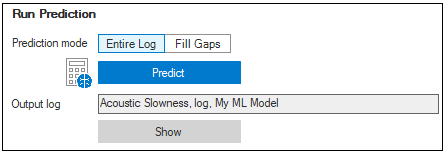
Prediction log values using selected ML model click to enlarge
- Use the Prediction mode toggle to specify the way how Log Prediction algorithm will use log values generated by ML model. Select 'Entire Log' to create new log using predicted values or 'Fill Gaps' to use predicted values only for samples where 'lot-to-predict' (or 'Label') does not have values. Note that if Label log is not specified in the Prediction data set, 'Fill Gaps' button will be disabled.
- Click the Predict button to execute the Log Prediction algorithm. If you selected a 'Create new' mode in the Specify Model section, algorithm will create a new model and then train it using the specified settings and the Training data set from the Model Definition. Then trained model will be used in order to predict values for the 'Label' using 'Features' from the Prediction data set. If you select existed model in the Specify Model section, then model training part will be skipped and algorithm will do the prediction only.
- Predicted values will be used to create a new log or to update an existed log. If new log was created, the default name will have the following format: '<log type>, <model name>'.
- You can rename the resulting log using standard renaming options (via JewelExplorer, context-menu, Inspector etc) or directly in the Log Prediction form. For that you can double-click the 'Output log' text box, provide the new name and then click the green Apply button.

Renaming output log click to enlarge
As a last step on this form you can click Show to open a dedicated Well View, with all the training and predicted logs selected.