Model Definition
On the Model Definition form (AI / ML > Logs Prediction), you specify the data that the trainer (which you select on the Logs Prediction form) will learn from, and what type of log data will be used for prediction.
The form has two sections:
- A source type and data selection section (on the left).
- A training / prediction dataset section (on the right).
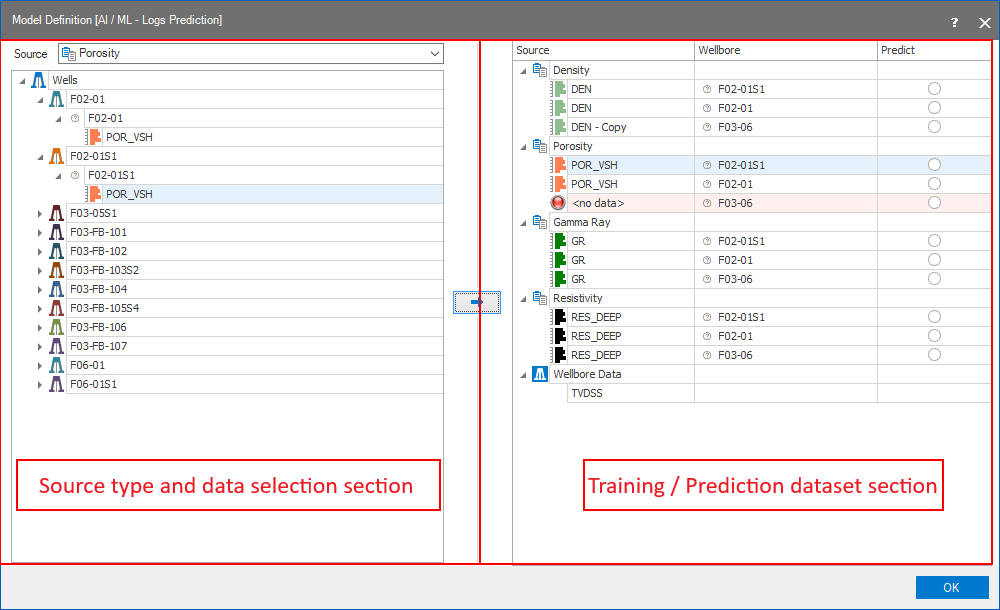
The two sections on the Model Definition form click to enlarge
Upon opening the form, all source objects (wells or cases) in your solution that have specified data are listed in the source type and data selection section.
Selecting the data to learn from
- The Source drop-down lists all the log types that are available in your solution, and also allows you to select the zonation, lithology or wellbore data to use as an input parameter. Select the source of interest.
- When you select a log type or choose zonation, lithology, or well data as a data source, it acts as a filter - only data of the selected type will be listed in the section below. By default, only wellbores that contain data of the selected type will appear in the input data tree. You can disable this wellbore filter by right-clicking the Wells item and selecting the "Show wellbores without Source" option from the context menu.
- Select the input data of interest by clicking once in the row. You can only select one row at a time. The selected row is highlighted in blue. This will activate the blue arrow button in the between the two sections.
- Click the blue arrow to assign the selected data from the well or case to the training / prediction dataset section (same can be done by using the double click on the highlighted row). Selected input also referred to as the 'Feature' for the ML algorithm.
- If there is no data of the selected type available for the well of interest, but you still want to add this data to your prediction dataset (for example, to use it as a Label), you can right-click the wellbore item and select the "Add Source" option from the context menu. This option is only available if other data for this wellbore has already been added to the training / prediction dataset.
- When you are ready with the model definition for the selected source, you can continue to select input data from another source, or continue with the step below.
- Once you have created your Model Definition you should specify for which log you want to predict the data values. To do so, select the radio button in the Predict column in the training / prediction dataset section. Thus you specify the 'Label' for the ML algorithm.
- You can now continue with the Logs Prediction step.
- You can keep the Model Definition form open, or click OK to close the form.
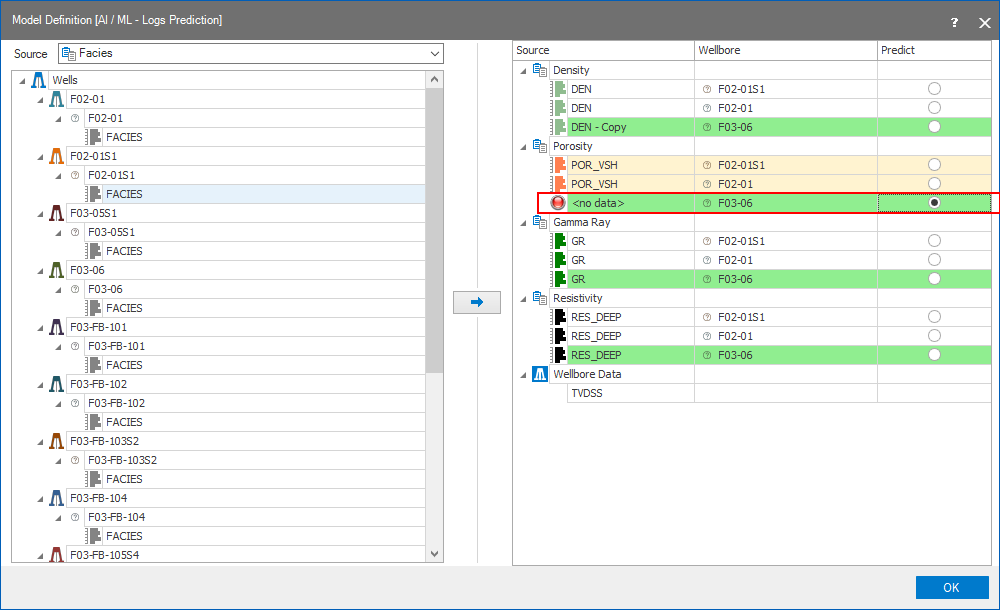
The Model Definition form with selected data for Training and Prediction click to enlarge
The training / prediction dataset table is color coded:
- Row highlighted in green: indicates the prediction dataset, the row which belongs to the well for which you want to predict the log data for is highlighted for each data type.
- Row highlighted in yellow: for the log type that you have selected to predict, the logs that are used as input are highlighted in yellow. These logs are also referred to as the 'Label' for the ML algorithm (which will use 'Features' to learn from).
- Row highlighted in red: if there is no data selected or available for a data type for a well, the row is highlighted in red, and you will see a red warning icon. In order to run the ML algorithm all input data must be specified except the 'Label' for the well of interest. If 'log-to-predict' is not specified, it can be created by the Logs Prediction algorithm.
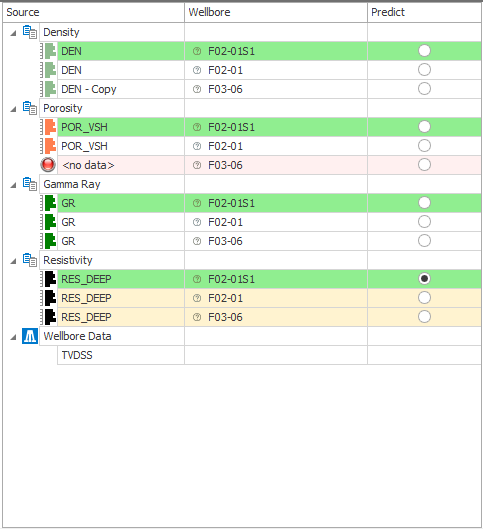
The color coded rows representing Training and Prediction data sets on the Model Definition form click to enlarge