Perforation Orientation Scenarios
When you have a cased hole, on the Perforation Orientation Scenarios form (solids production > Sanding Analysis > Perforation Orientation Scenarios) you specify the orientation of perforations. This information is necessary for the sanding evaluation calculations. The calculations are executed for every orientation angle, which means that one set of output logs will be calculated per each perforation orientation.
In case you want to perform sanding volume calculations (with the Sanding Volume CH form of the same strip), you need to specify multiple perforation orientation scenarios. See 'Scenarios' below for more information.
To define the perforation orientation scenarios
Perforation Orientation Reference The perforation orientations are referenced against a 'zero' point (angle of 0 degrees). Choose one of the following references as the zero angle:
- GEO - zero degrees is defined by the geographic north.
- Azimuth - zero degrees is based on the corresponding wellbore azimuth value.
- Shmin or SHmax - zero degrees is the direction of the respective stress direction.
For vertical wells, all perforations are horizontal. Therefore, the perforation optimization plot represents the perforation azimuth. Depending on the stress regime and the magnitude of the horizontal stress anisotropy (SHmax - Shmin), some perforation azimuths may be more stable than others, resulting in a higher critical drawdown pressure. For example, in a normal faulting stress regime (Sv > SHmax > Shmin), perforations oriented in the SHmax direction are generally less stable because they are subjected to the effects of Sv and Shmin.
For vertical wells, when Azimuth is selected as the reference, the zero perforation angle corresponds to the wellbore azimuth.
For inclined wells, the zero perforation angle is always referenced to the Top of Hole (TOH) direction, which corresponds to the wellbore azimuth direction.
Scenarios
Select Single if you want to create a single perforation orientation scenario, or Multiple if you want to create multiple perforation orientation scenarios. Note the following:
- If you want to do a sanding evaluation (with the Sanding Evaluation Log form) you need to create a single perforation orientation scenario (select Single on the form). Output logs are calculated per each perforation orientation.
- If you want to calculate sanding volumes for a cased hole (with the Sanding Volume CH form), you need to create multiple perforation orientation scenarios (select Multiple on the form). The reason is that sand in a cased hole is produced not from the plastic area around the wellbore like in an open hole situation, but from the perforations. For this reason you have to provide multiple different perforation orientation scenarios so that the optimal distribution (or placement) of perforations can be found.
- The Parameters Variation tool (also located in the same strip) is only active when you select Single scenario.
Single
Create your single scenario of perforation orientations with one of the following three options:
- Single Specify only one perforation orientation in the table.
- Regular Create a set of perforation orientations by defining a minimum, a maximum perforation orientation and the increment between them. Based on these values, a range of perforation orientations is created in the table.
- Custom Define as many custom perforation orientations as needed.
Multiple
To create multiple perforation orientation scenarios you need to enter the following information:
Perforation Density Specify the number of perforations per given length. See image below.
Perforation Phase A perforation is made every <x> degrees. See image below.
Angle of 1st perforation Angle (with the chosen reference) of first perforation. Each next perforation will be at the next <perforation phase>. After defining the density and phasing, the variation in the scenarios comes from the angle(s) of the first perforation, entered in the table below. The amount of entries in the table depends on the selected angle of perforation. Three options are available for the angle of 1st perforation orientation:
- Single Specify the angle of the first perforation in the table below.
- Regular Create a range of angles for the first perforation based on a minimum angle, a maximum angle and the increment between them. Based on these values, a range of angles for the first perforation orientations is created in the table.
- Custom Define as many angles for the first perforation as needed.
When you have finished setting up multiple perforation orientation scenarios, continue on the Sanding Volume CH form to calculate produced sand mass and analyze the different scenarios.
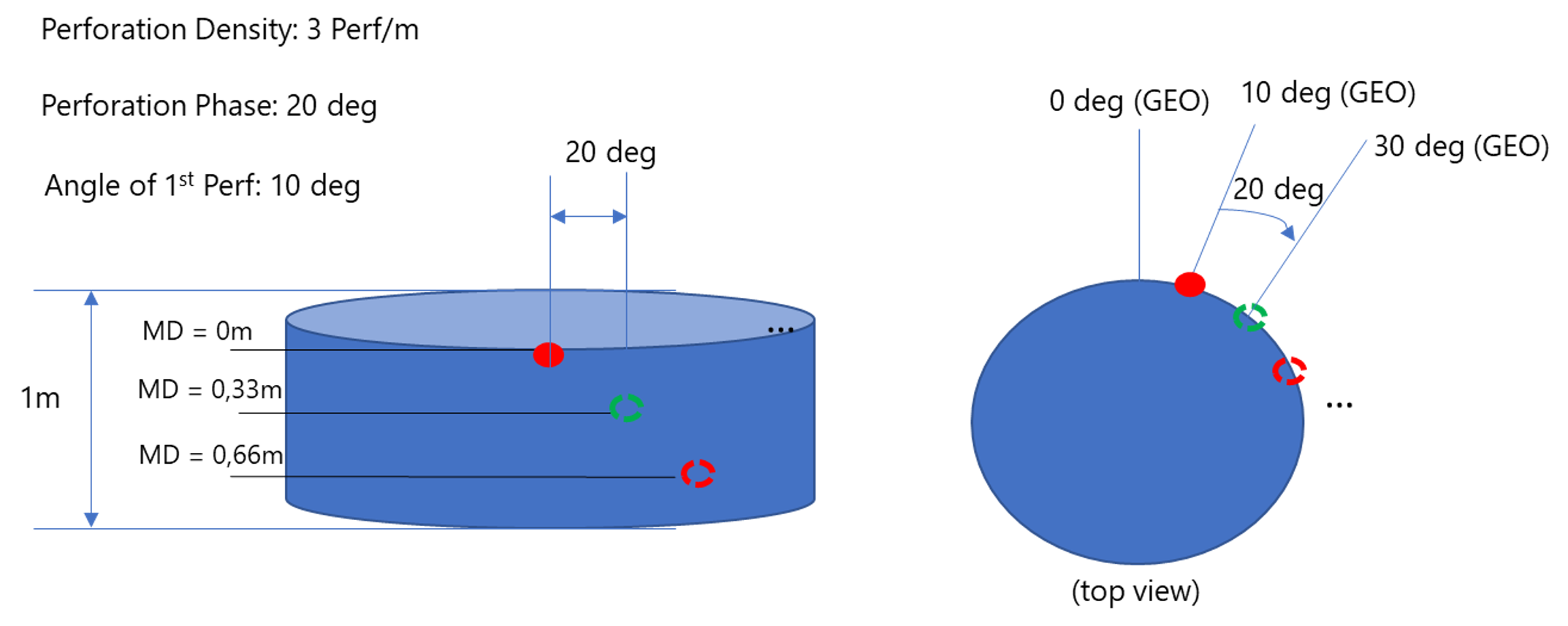
Graphical representation of a perforation orientation scenario, with perforation density of 3 Perf/m and perforation phase of 20 deg. In this example, the chosen reference is GEO (i.e. the geographic north is 0 degrees). click to enlarge