Mud Weight vs UCS view (CMW workflow)
The Mud weight vs UCS view shows the relationship between mud weight, breakout width, and uniaxial compressive rock strength under the current set of wellbore and stress conditions. Before generating this view, ensure that you have specified the depth of analysis on the Depth Based CMW form.
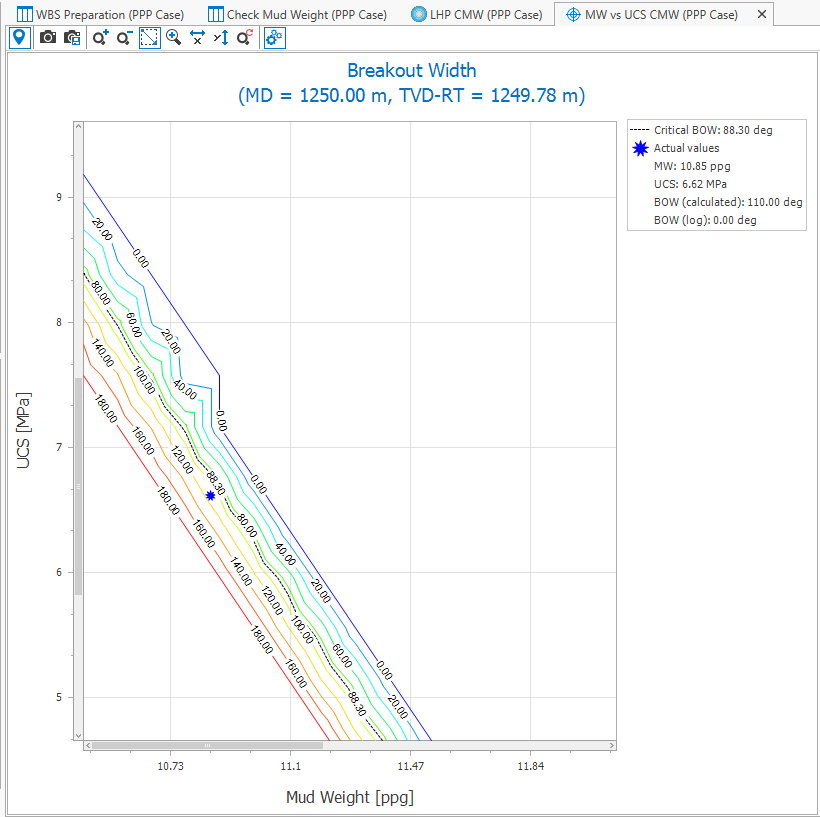
Mud Weight vs UCS view click to enlarge
To open the Mud Weight vs UCS view, click the Show button in the MW vs UCS tab on the Depth Based CMW (wellbore stability > Check Mud Weight) form.
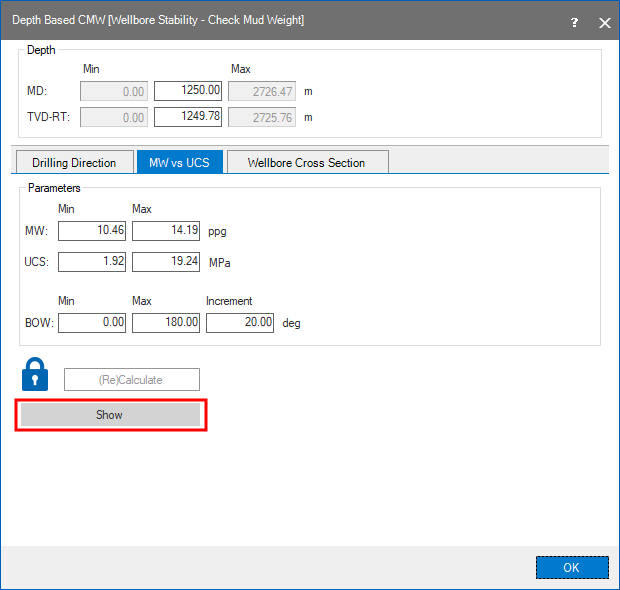
MW vs UCS tab of Depth Based CMW form click to enlarge
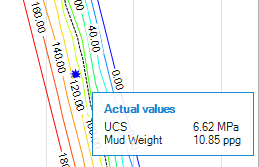
To display values, use the Probe tool click to enlarge
The plot displayed shows mud weight along the x-axis, rock strength along the y-axis, and contours for breakout width at each combination of mud weight and rock strength. To display the exact values at any point in the plot, click the Probe tool and then select the point of interest.
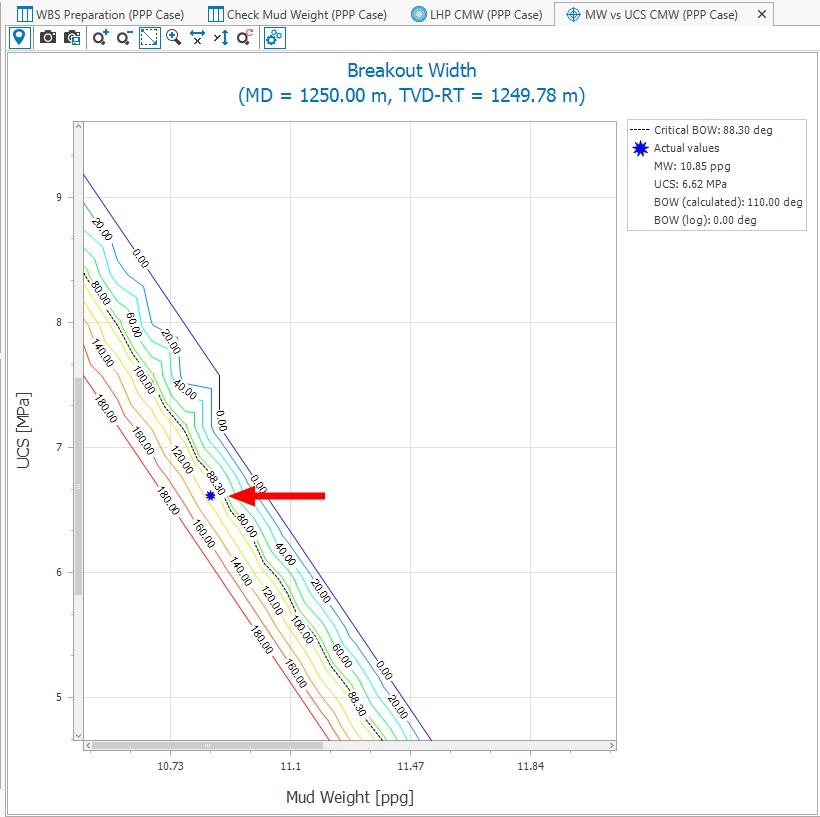
Blue stars indicate the parameter values corresponding to actual values at the current depth. Here in the CMW section it indicates the actual mud weight selected in the model and shows the resulting breakout width.
click to enlarge
The Mud weight vs UCS CMWview toolbar

|
The probe tool displays object and property info when hovering over the plot. |

|
Copies the view to the clipboard as an image, allowing it to be pasted into external applications. |

|
Opens a Save As dialog where you can save the view as an image. |

|
Incrementally zooms in on the plot. |

|
Incrementally zooms out of the plot |

|
Zoom rectangle Turns the cursor into a zooming tool. When this option is active, click and drag a box around the data you want to view in better detail. |

|
Zoom on both axes Incrementally zooms in equally along both axes. |

|
Zoom on the horizontal axis Zooms the view only along the horizontal direction. |

|
Zoom on the vertical axis Zooms the view only along the vertical direction. |

|
Resets the zoom back to the original level. |

|
Copies the numerical plot data to the clipboard, allowing it to be pasted into external applications. |

|
Exports the numerical plot data to a *.txt. file. |

|
Opens the Profile Settings dialog with the following options: Single Allows you to adjust the profile value using the slider or by typing the value into the text box. Regular/Custom These two options allow you to simultaneously plot profiles for multiple deviation or azimuth values. The Regular option applies the minimum, maximum and increment values to the view and automatically generates the color to value combination for the profiles. This means, for example, that specifying a 5° increment will result in the generation of profiles every 5° over the range specified in the Min and Max text boxes. Note that the values in the Azimuth column are locked when in Regular mode. If you wish to use custom defined increments, select Custom, which unlocks the values in the Azimuth column and allows you to specify the value for each profile you want plotted. |