Advanced Mode
Certain failure modes for the model might be indicated by the data in your project or known from regional observations. As part of the wellbore stability analysis you can incorporate inclined stress field, bedding planes, thermal effects, and other stress factors using the Advanced Mode form (advanced stress & failure > Setup > Advanced Mode or wellbore stability > Setup > Advanced Mode). This form allows you to define constants or assign logs to various parameters and can be a very useful aid in making your analysis. The values you define are applied throughout the workflow as additional factors that can help make the prediction more accurate.
To use the advanced mode
- At the bottom of the Advanced Mode form, check the box for each of the effects you wish to incorporate into your analysis. Details on each of the effects can be found below.
- A new tab will open on the form for each effect you select. Within each tab, specify a log or constant value to be used during the analysis.
- Click OK to validate the data.
By default, the Sv Principal Stresses and Rock Properties tabs are opened when the form is opened. The additional modes can be activated by checking their respective boxes at the bottom of the form. The following links provide more details on each mode:
Default advanced mode (Sv Principal Stresses and Rock Properties)
Upon opening the Advanced Mode form the Sv Principal Stresses and Rock Properties tabs are opened. Each tab contains an input table where you can assign either a log or constant to the given stress characteristic. Working in the default advanced mode can be advantageous because it enables you to define global stress and rock property constants that can be used in experimental runs with the model. Note that defining constants for stresses and rock properties in this manner causes the logs selected in the SV Principal Stresses and Rock Properties forms to be ignored when the calculation is performed.
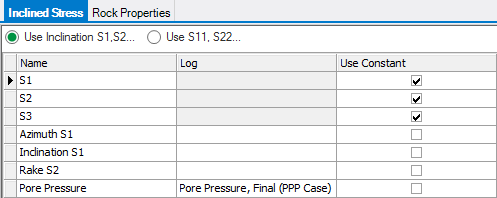
Inclined Stress tab click to enlarge
Inclined stress is present when the principal stresses deviate from the horizontal and vertical directions. Therefore, the SHmax, AziSH, and Shmin parameters no longer have meaning and are not shown.
On the Inclined Stress tab, you can choose between the following options for entering the inclined stress components:
- Principal stress magnitude and their orientation: S1, S2, S3, incl S1, azi S1, rake S2. (This option is the output of GMI WellCheck studies).
- Stress tensor components (S11, S22, S33, S12, S13, S23).
In the stress definition, positive stresses define compression. A fully general stress tensor defined in geographic coordinates: [Sxx, Syy, Szz, Sxy, Syz, Sxz] where x=East, y=North, and z=Up. Make sure you know which coordinate system your tensor stress is based on. JewelSuite Geomechanics and Abaqus display the same coordinate system.
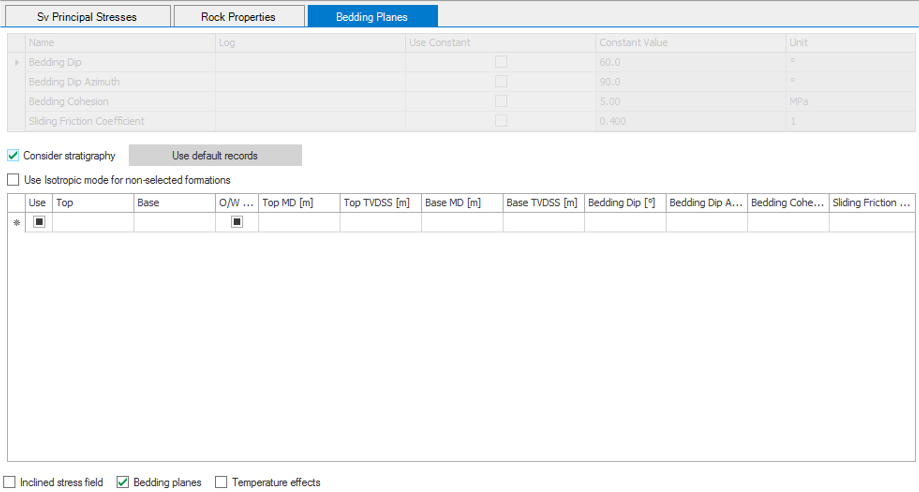
Bedding Planes tab activated. click to enlarge
Bedding planes represent planes of weakness, which allow the borehole wall to fail where the shear stress on bedding exceeds the Mohr-Coulomb limit and causes slip on the bedding plane. The Mohr-Coulomb limit is a function of the stress orientations, bedding orientation, cohesion, and sliding friction coefficient. The application includes bedding plane anisotropy in its calculations if bedding information is provided.
The Bedding Planes tab also contains an option to use existing stratigraphy as the basis of the bedding planes definition. When the Consider Stratigraphy checkbox is selected, you can combine bedding planes with isotropic mode if some of the formations are not selected. This will result in a combined breakout width and a collapse pressure log for the Check Mud Weight and Predict Mud Weight, respectively.
The table initially opens with no values for the input parameters. Define the values and select the checkbox in the Use column to include a row in the calculations. If you have not entered a value for all parameters for a zone, that zone is skipped in the calculations, even if you have it checked to be included.
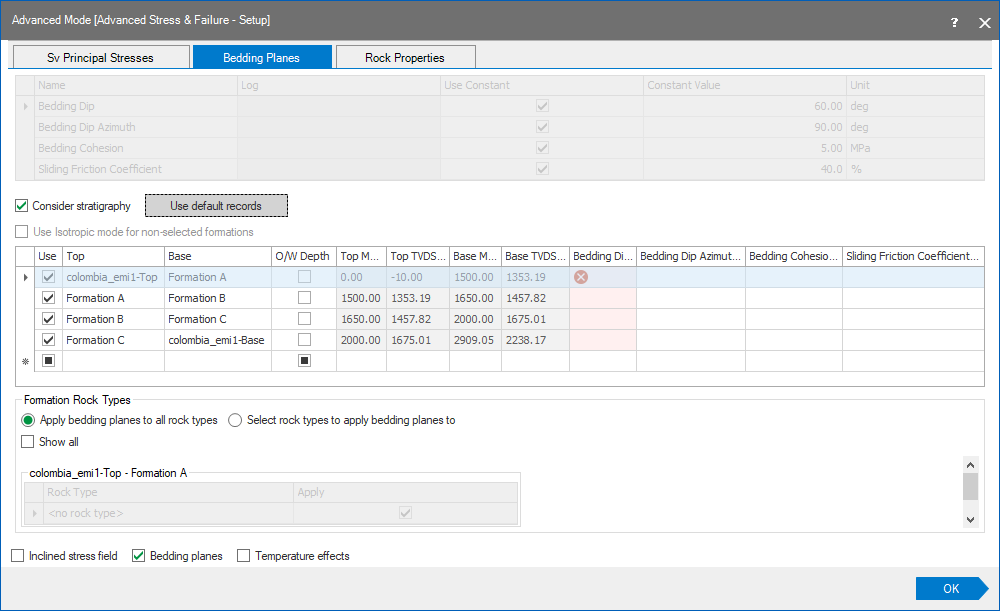
Bedding Planes tab, 'consider stratigraphy' option activated. click to enlarge
Formation Rock types
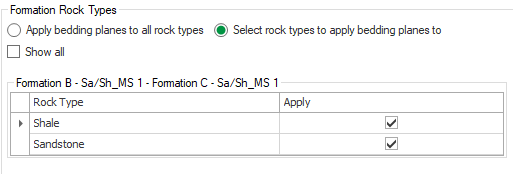
Selecting rock types for the active formation click to enlarge
Only if you have selected the Consider Stratigraphy option, an additional set of options, Formation Rock Types, is available at the bottom of the form.
This allows you to apply the bedding plane properties to the selected rock types in each formation. By default, the option Apply bedding planes to all rock types is selected. By selecting the Select rock types to apply bedding planes to option, you can select the rock types for the active formation (the formation that has focus in the table above). The image below shows an example of this; Formation D has the focus in the table, indicated by the small black arrow to the left of the Formation D row, making Formation D active in the Formation Rock Types section. Next, you can check all the rock types to which you want to apply bedding planes to.
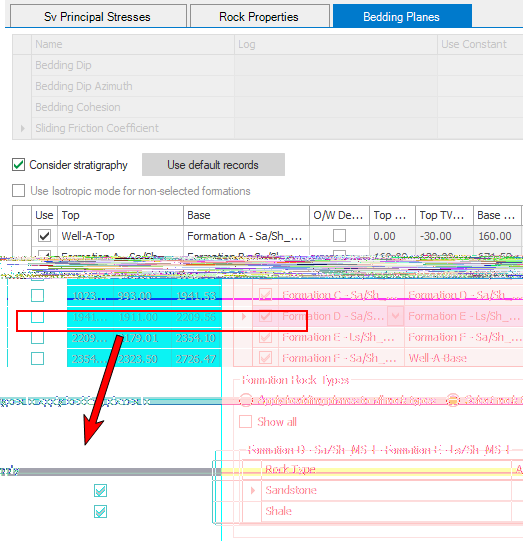
Example of selecting rock type per formation to apply bedding planes to click to enlarge
You can also select to view all of the formations at once by checking the Show All check box.
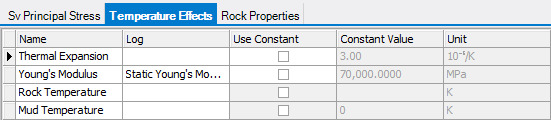
Temperature Effects tab click to enlarge
The stresses at the wellbore wall change when the temperature of the wellbore fluid is significantly different than the rock temperature. If the temperature of the fluid is higher or lower than the ambient in-situ rock temperature, then the stresses at the wellbore wall are more compressive or tensile, respectively.
The rock temperature is defined by a temperature gradient and surface temperature. You can also set the mud temperature as a gradient and starting temperature, or you can define it as a constant offset from the rock temperature. Thermal stresses depend on the temperature differences and are calculated according to approximate formulas for impermeable rock with no thermoelastic coupling (Moos and Zoback 1990; Stephens and Voight, 1982).
You can use these advanced models separately or in combination. You can easily compare with the regular mode to determine their effects. If no advanced model is selected, you can still use the advanced mode input tables for the 'normal' mode, which means that one of the principal stresses is aligned to the vertical (which is equivalent to not using the advanced option).