DMS Options
For some of the functionality provided on the DMS Options form (home > Solution > DMS Options) you need to have System Administrator rights, see image below.
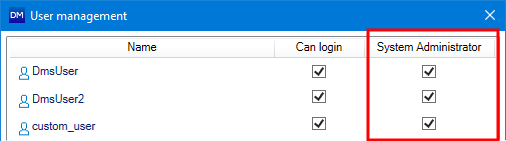
System Administrators have the 'Admin Account' checked on the User management form, accessible via the Manage users button on the DMS Options form. click to enlarge
Note that in order to use the Manage locks, Manage users and Maintenance options on the form, you should not have a DMS Solution open and you need to be connected to DMS. If you are not connected yet, click on one of the three buttons; a connection dialog automatically opens with which you can make the connection. For more on connecting to DMS, see Connecting to DMS.
Manage locks
If you want to lock/unlock a solution but you are no System Administrator, use the Lock button (home > Solution > DMS), see Lock and unlock solution.
Manage users
Maintenance
Click the Maintenance button to open the Maintenance form. On the form, all the folders and solutions that you have deleted using the Folders and Solutions form are listed. You can perform a clean-up of the selected items, using the toolbar at the top of the form, to permanently remove objects from the DMS database.
- Select all the solutions and folders that you want to remove from the database. You can select all files and folders at once using the Select All button (
 ) in the toolbar.
 - Click the Cleanup button (
 ) to clean up the selected files and folders from the database.
 - Click Refresh to update the table on the form.
Other functionality on the DMS Options form
Local storage folder Select the output folder for your solution. Only available when you do not have a DMS Solution open. Click the Ellipsis button  to open the browser and select the preferred location.
JewelCache Check this box to improve the performance of working with DMS. It is recommended to have this option checked. You can specify the maximum size of the JewelCache under 'Disk space to use'. When the JewelCache exceeds the disk space to use, the oldest cached files are removed.
Active cache prefetching You need to have JewelCache checked to use this option. Check this box if you want the application to actively prefetch your solution.
Use custom cache folder You need to have JewelCache checked to use this option. Check this box if you want to overwrite the default JewelCache folder. Click the Ellipsis button to open the browser and select the preferred location.
Click Apply on the DMS Options form to save the changes you have made.