3D View and 3D Time View
The 3D View allows you to show all your reservoir data in one single view and get the best possible overview in 3D space. You can view and adjust or further refine your data. The 3D View can be opened via the Views button in the top-right corner of the application, by pressing Alt+F1 on your keyboard or you can use the Create option of the context menu in the View Explorer.
The 3D View displays objects in the depth domain - it is a depth domain view.
Most of the graphical operations in the 3D View are performed by right-clicking the objects in the JewelExplorer or 3D View and selecting options from the context menu.
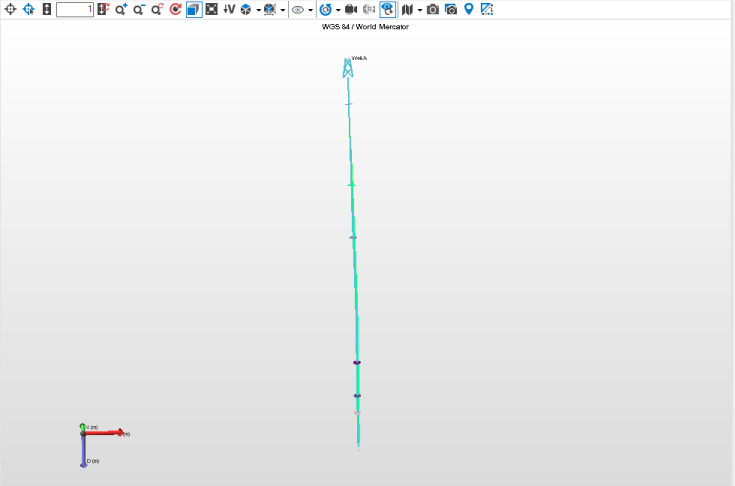
A 3D view click to enlarge
The 3D views have a default background color that you can change. To do this, click on the 3D view tab, to set your view as the active view. Open the Inspector and click on the View Inspector  tab, to change the Background color and/or enable the Shaded background color option(s).
You can perform the following mouse buttons operations:
Right-click Displays the context menu of the selected object. All objects have their own context menu and the options available depend on the active view.
Left-drag Allows you to rotate the 3D model in the view.
Middle-drag or Left+Right-drag Allows you to pan the view.
Right-drag Right mouse click and hold to zoom in and out of the 3D View. Move the mouse backwards and forwards.
Scroll wheel Allows you to zoom in and out. You can change the ‘mouse wheel forward’ from zoom out to zoom in on the Display Settings form (home > Settings).
 Level of detail
While working with wells in the 3D View, you will notice that the level of detail displayed on the wells is reduced when zooming away from the model. While viewing the wells up close, you will see displayed data such as the well name, annotation and the derrick detail.
As you begin to zoom out, this data will disappear from view, allowing for better performance on large scale models with hundreds or thousands of wells. Once you zoom back in to the view, the data will begin to reappear as you get closer to the model.
The following is a list of data that is affected when zooming in and out of the model:
- Well name
- Well log detail
- Derrick detail
- Annotation (MD, markers)
You can also adapt the level of well log detail that is displayed, depending on the zoom depth. Click on the Wells folder in the JewelExplorer to activate it in the Inspector. Review and set the various Hide options as desired. Now, when zooming out from a very detailed display, at a certain zoom depth, the detail will be reduced, depending on your hide parameters.
To set the zoom depth at which the level of displayed well log detail is changed, enter a value for Lo-res log distance in the Property Inspector. The smaller the factor, the deeper the zoom depth at which the display detail is adapted. With a high factor, display detail is retained even when zoomed out considerably. These settings apply to the 3D View and to cross-section view.
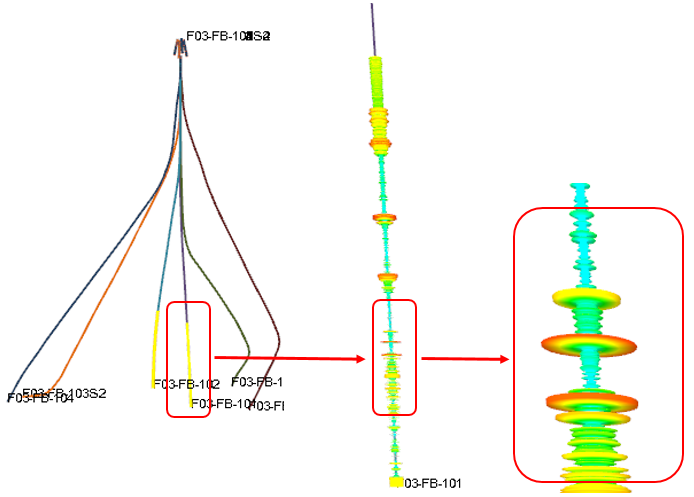
Example of the increase in the 3D log detail as the well is zoomed in click to enlarge