Framework element: Map
The data, or technical content, that is displayed on the canvas in the CoView is visible either on a 'map' or an a 'cross section'. Upon opening a new CoView, the 'map' element is available by default. To start displaying data, use the checkboxes of the data available to you in the JewelExplorer. The data that you select in the JewelExplorer is directly displayed on the map. Data that cannot be displayed in the CoView is grayed out in the JewelExplorer.
All the data objects that you select to display on the map are displayed in a specific, layered, order. The first object you select in the JewelExplorer, is displayed as the base layer on your map. Any object you select next, is displayed in a layer on top of the previous layer. The data that you have selected for display in the JewelExplorer is listed in the Content tab of the CoView Manager, in this specific order as well. The first object you have selected, is listed at the top, the second object is listed below and so on. You can use the arrows in the CoView Manager toolbar to change the order in this list. Changing the order in this list will change the layered order in the CoView as well: listed at the top, is displayed as the bottom layer of the map etc.
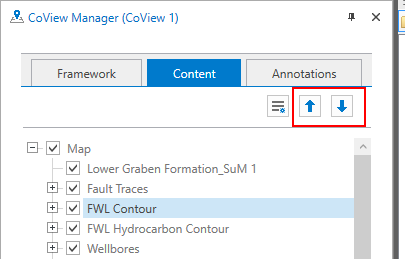
Use the arrows in the CoView Manager to change the display order of your data on the map. click to enlarge
Objects listed in the Content tab of the CoView Manager are not only listed in a specific order, they are also grouped per object type. This allows you to control visibility and display settings per object (e.g. just one wellbore), or per object type (e.g. all wellbores in the solution).
All objects and object types listed have a context menu with the following options:

|
Show All Show all the objects. |

|
Hide All Hide all the objects. |

|
Template Manager Open the Template Manager where you save all the templates. |

|
Create Template Create a template using the current display settings. |

|
Apply Template Select a template from the list. The selected template is applied immediately. |
For wellbores, well markers and point sets you have an additional context menu option to create bubble plots using the  Bubble Plot Tool.
Display settings/styling of the objects on the map
When you are done with selecting all the data you want to display on the map, you can style them using the display settings in the CoView Manager. You can adjust color, font, line styles, labels etc. To save time, you can save the display settings per object type, and apply the same display settings repeatedly. You save the display settings in a template.