The Stratigraphic View
Each stratigraphic level can contain one or more zones defined by their top and base geological event. Only events of type 'horizon', 'unconformity' and 'intrusion' can be used to define zone boundaries in a stratigraphic model.
You can also choose to build your structural model based on a specific hierarchical level. For example, you can build surfaces for the 3D structural model based on the highest hierarchical level (Level 1) only. You can add zones from another (deeper) hierarchical level to the structural model in a second iteration to create, for instance, infill horizons from markers.
Principle behind 'levels' in the Stratigraphic View
For each event that you assign to the stratigraphic model, a surface will be constructed once you create your 3D structural model. The sequential order of construction of these surfaces, together with the 'internal' construction settings (conformable/proportional to surface above/below) is key to the final layout of the internal zonation of the structural model because each surface is constructed relative to a surface that was previously constructed. Within the set of rules that determine the order of surface construction two factors are directly related to the stratigraphic model:
Accessing the Stratigraphic View
The Stratigraphic View is commonly opened as part of the Stratigraphic Modeling workflow in the Stratigraphy strip. In this case, opening the Edit Model form also opens the Stratigraphic View, and the two may be used together when defining the hierarchy. An initial hierarchy is displayed depending on your selection on the Generate Zones form of the workflow.
If a marker set, seismic interpretation or surface set has been assigned, this initial hierarchy is displayed when the view opens. Otherwise, if the Manual option was selected in the Generate Zones form, a blank Stratigraphic View is opened and you can use any of the means described later in this section to manually develop the hierarchy.
To review the stratigraphic model, you can also access the context menu of the stratigraphic model in the JewelExplorer with a right-click and select the option Open In Workflow.
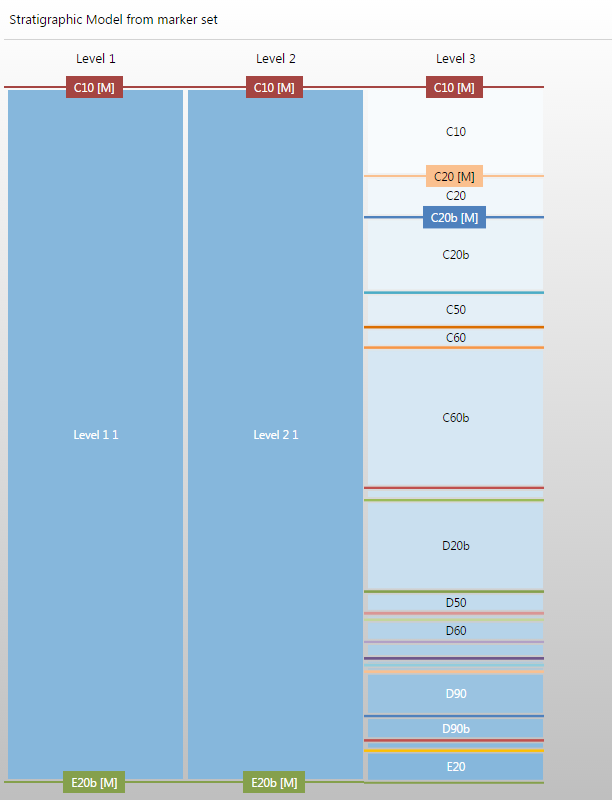
Stratigraphic model, zones derived from events represented by a marker set: markers are by default placed at Stratigraphic Level 3 click to enlarge
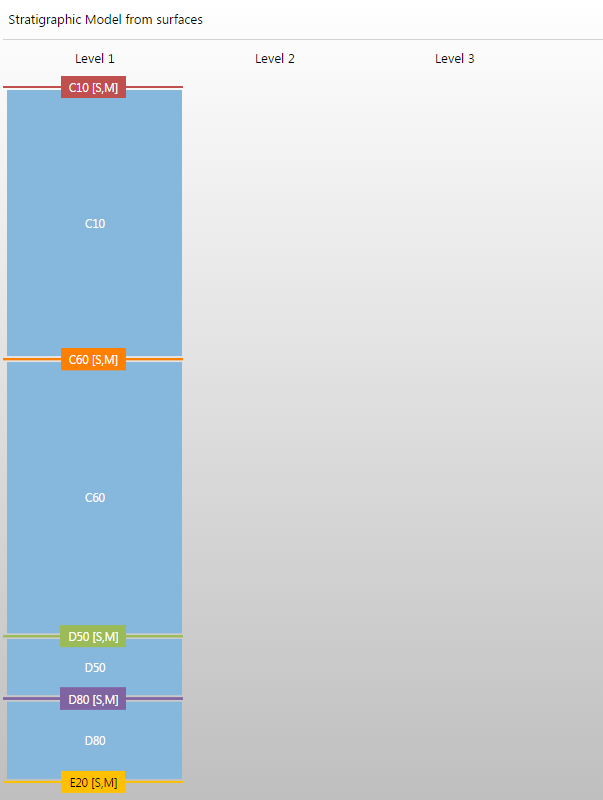
Stratigraphic model, zones derived from events in a seismic interpretation click to enlarge
Stratigraphic View context menu
Select a zone in the Stratigraphic View and right-click to apply one of the following options via the context menu:
Name The name of the selected zone.
 Rename zone Opens the Rename Zone dialog in which you can type a new name for the zone.
 Set top event Choose an existing event (it can be represented by a 2D grid, tri-mesh, point set, polyline set or marker) that you want to use as primary input for modeling the top of the zone.
 Set base event Choose an existing event (it can be represented by a 2D grid, tri-mesh, point set, polyline set or marker) that you want to use as primary input for modeling the base of the zone.
 Insert event from marker You can only use this option when you have selected to generate zones manually on the Generate Zones form. All the markers that are available for selection are listed. From the list, select a marker to be inserted.
 Insert child zone above Creates a child zone at the top of a deeper level. The zone name needs to be unique per stratigraphic level.
 Insert child zone below Create a child zone in the base of a deeper level. The zone name needs to be unique per stratigraphic level.
 Insert zone above Creates a zone directly above the selected zone, in the same level. The zone name needs to be unique per stratigraphic level.
 Insert zone below Creates a zone directly below the selected zone, in the same level. The zone name needs to be unique per stratigraphic level.
 Split zone Splits the selected zone into a specified number of zones at the same level.
 Split zone on deeper level Splits the selected zone into a specified number zones on a deeper level.
 Demote zone Adds a copy of the selected zone to a deeper level, and also moves its children to a deeper level.
 Promote zone Moves the selected zone up to the parent level by splitting the parent zone.
 Promote top event Splits the parent zone into two zones and couples the top surface between these zones.
 Promote base event Splits the parent zone into two zones and couples the base surface between these zones.
 Merge zones The selected zones will be merged into a single zone.
 Set color Select a color for the zone. The child zones of the selected zone will have the same color but in a lighter shade.
 Autocreate colors Select a predefined colorset from the context menu which will be applied to the child zones.
 Delete zone Deletes the selected zone (and its child zones) from the Stratigraphic view.
The features in the toolbar at the top of the Stratigraphic View allow you to change the vertical zoom level of the view, change the zone thickness display size and view basic info for each zone in the hierarchy.
Zoom You can vertically zoom the view in two ways: by pressing Alt and scrolling to the desired zoom level, or by using the Zoom text box to select a level. With the zoom box you can type in a zoom value or select from the drop-down list. If you select a zone in the view and use Alt + scroll to zoom, the selected zone will stay focused in the view.
 Reset zoom Clear all zoom changes, resetting the zoom level back to 100%.
Zone thickness display Set the display of the zones on the lowest hierarchical level to relative (default setting) or equal. In equal thickness mode all zones are equally thick on the lowest hierarchical level present in the view. See the section below for more details on this setting.
Probe (shortcut key: Ctrl+I) Activates the Probe. When you hover over a zone the Zone name and top and bottom events are displayed.
Additional info on zone thickness display
By default, the zone thickness display is set to Relative, where the average zone thicknesses are taken from the input horizons or markers. This thickness is also reflected in the Thickness column of the Edit Model form. When the zone thickness display is set to Equal, all zones on the lowest hierarchical level are displayed with an equal thickness. This is particularly useful if you want to quickly get an overview of all available zones, especially when there is a large thickness variation between the zones (e.g. large overburden). The image below demonstrates the difference between the Relative and Equal zone thickness display settings.
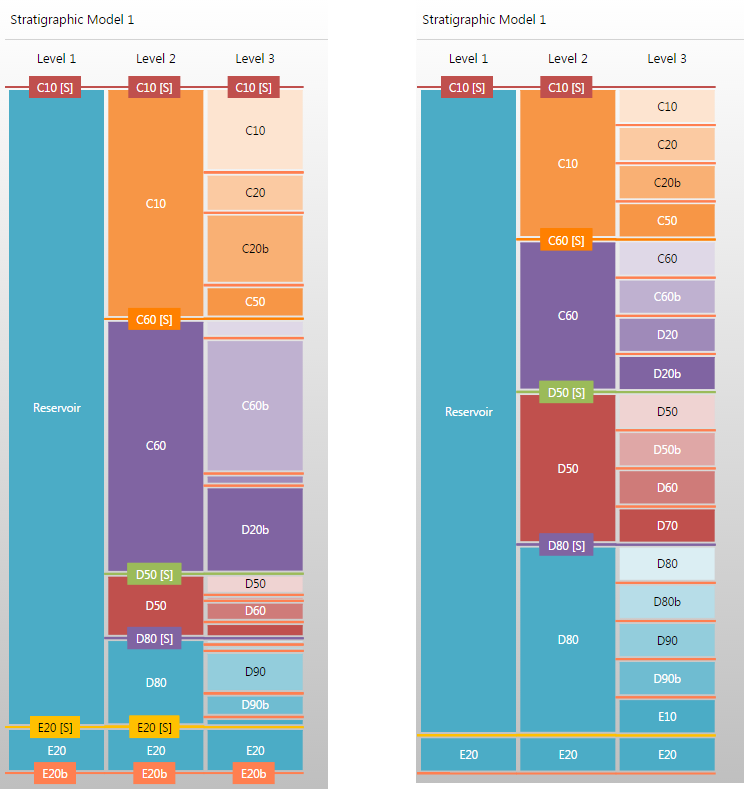
The stratigraphic model, Stratigraphic Model 1, displayed using Relative zone thickness (left) and Equal zone thickness (Right). click to enlarge
Docking the Stratigraphic View
Like most of the views in the application, the Stratigraphic View, 3D Structure Zonation and 3D Grid Zonation View can be docked at any location in the view.
The zones will scale accordingly, and this way you always have an overview of the created stratigraphy at hand.
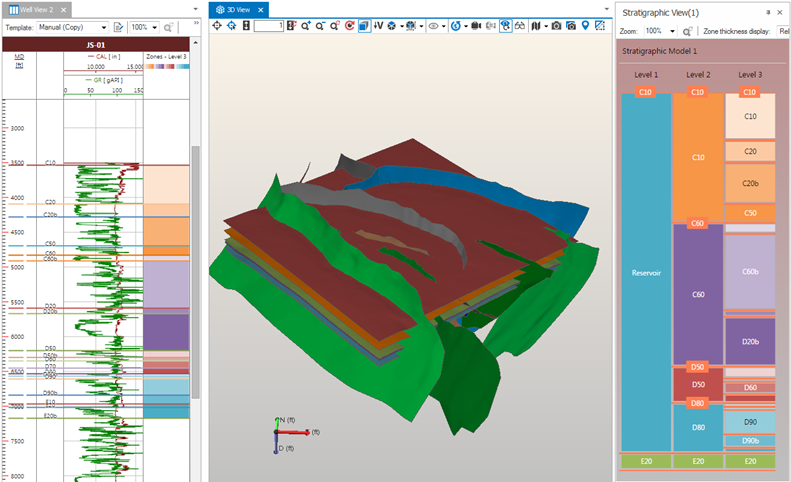
The Stratigraphic View docked side-by-side with the 3D View and Well View. click to enlarge