Setting up time animation
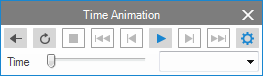
The Time Animation tool can be opened via the Tools button to the right of the main strip or by pressing Shift+F2. You can use Time Animation in the 3D View, 2D View, Well View and Cross Section View. When activated in your views, time based properties can be animated using Time Animation. Animated properties provide a different perspective of the model, allowing you to observe the changes in the model over time. Time based properties can be identified in the JewelExplorer by the number of steps in between angle brackets behind the property, e.g. [5 of 7].
The Time Animation form is used to control the animation. The core controls of the Time Animation toolbar are similar to the traditional controls found on video hardware and applications. In addition to these core controls, the toolbar also features controls for easy replay and time selection.
If no time data is present, the functionality of time animation is not active.

|
Reverse Playback View the animation in reverse. |

|
Repeat Put the animation into a loop, so you can view the animation repeatedly without interruption. The looped animation can be stopped by pressing the stop button or by turning off Repeat. |

|
Stop Stop the animation. |

|
Go to Start Return to the beginning of the animation. |

|
Step Back / Fast Rewind Move the animation backwards one step at a time. |

|
Play Start the animation. |

|
Step Forward / Fast Forward Advance the animation one step at a time. |

|
Go to End Advance the animation to the end. |

|
Settings Opens the Animation Settings form on which you can adjust animation speed and time interval. |
When animating a time property you can select the entire grid or any grid slice. While the animation is running, the grid can still be rotated and moved in the view. In addition, different slices of the grid can be visualized and moved without interrupting the animation.