Using drag and drop import
In addition to using the standard import process, you can also drag and drop data into your project. You can click and drag data from an open folder and drop it into the JewelExplorer. When importing data in this manner, the application attempts to detect the file type. For most file types, you are presented with the data validation dialog prior to the import being completed. For the proprietary JewelSuite file formats, the data is imported automatically.
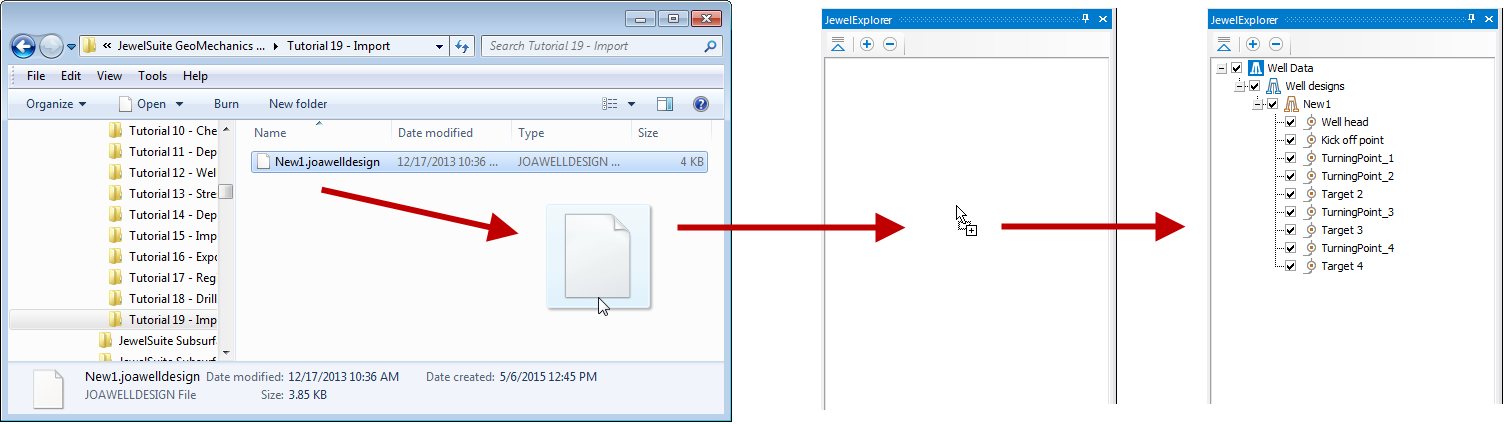
Importing using drag and drop click to enlarge
For larger files, you can view the import progress in the status bar at the bottom of the window.
If the file format is not recognized, or if the file extension qualifies for use as multiple file types, you need to manually select the format for the file.
Binary and User Defined Column Format files are not supported, as neither file type contains keywords to be recognized.
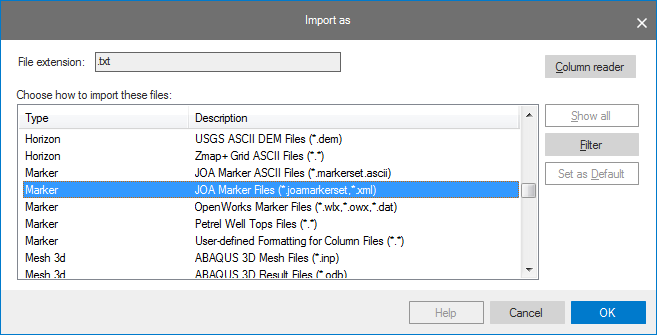
Import As dialog for an unrecognized file format (.txt in this case) click to enlarge