Horizontal Stress view
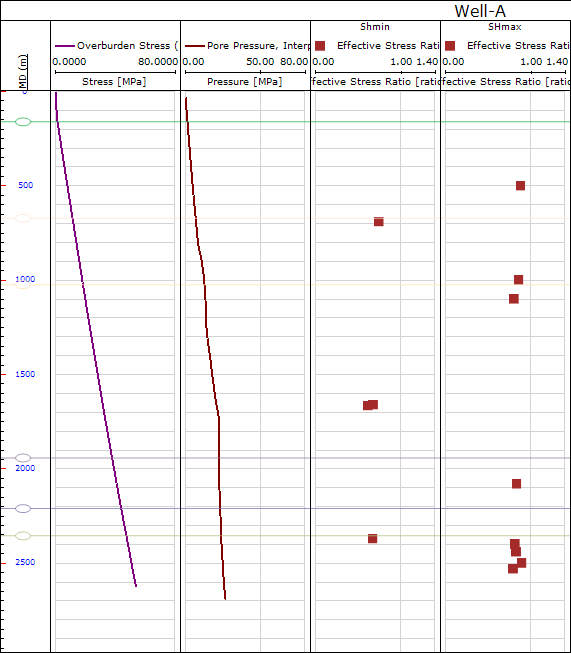
The Horizontal Stress view displays tracks for the interpreted pore pressure and overburden stress curves, as well as the calibration points for Shmin and SHmax.
Horizontal Stress view click to enlarge
The Horizontal Stress Modeling form displays tracks for the Interpreted Pore Pressure and Overburden Stress curves, as well as the calibration points for Shmin and Shmax. Horizontal stress can be calculated by using the Edit Custom Trend tool ( ) from Editing Tools to interpolate the calibration points. The horizontal stress will appear as two additional tracks in the form: Shmin Stress and SHmax Stress.
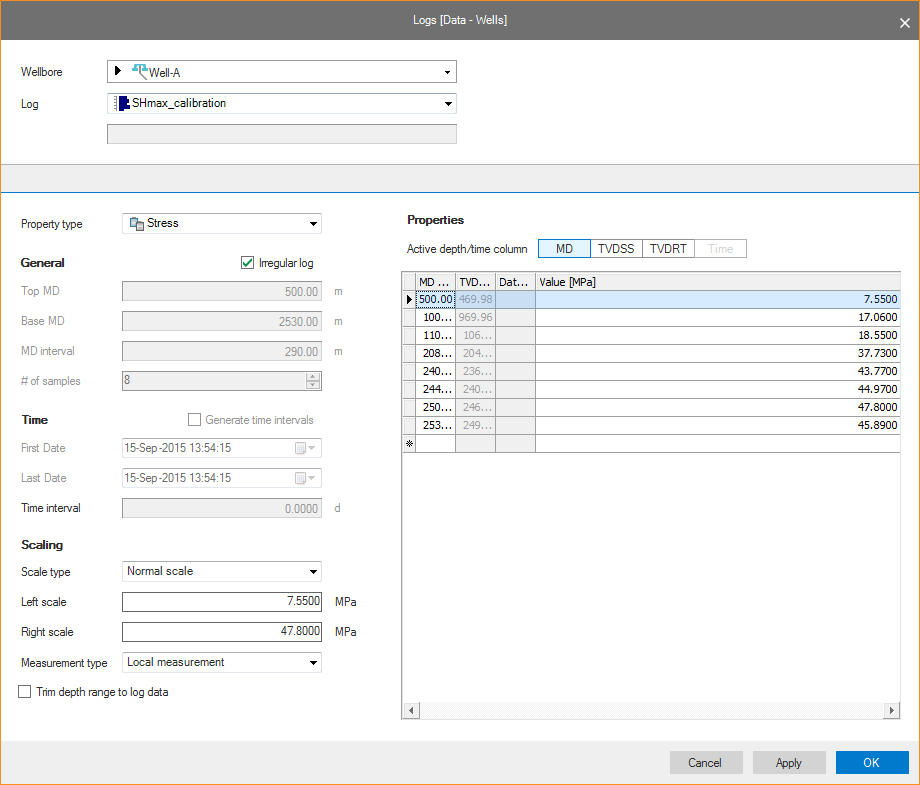
To assess the default curve with respect to calibration points (derived for instance from geological data from the well region, analysis from well break outs or drilling induced fractures), load the calibration points and toggle their display on in the Azimuth item in the JewelExplorer. If the calibration points need to be adjusted, or points need to be added or removed, you can select the Edit option from the context menu of the calibration point log. This opens the Logs view, which will allow you to modify and update the points as necessary.
Logs view click to enlarge
Inspect the match between the calibration points and the default curve. If there is a mismatch, change the default angle and click Create again. See image below.
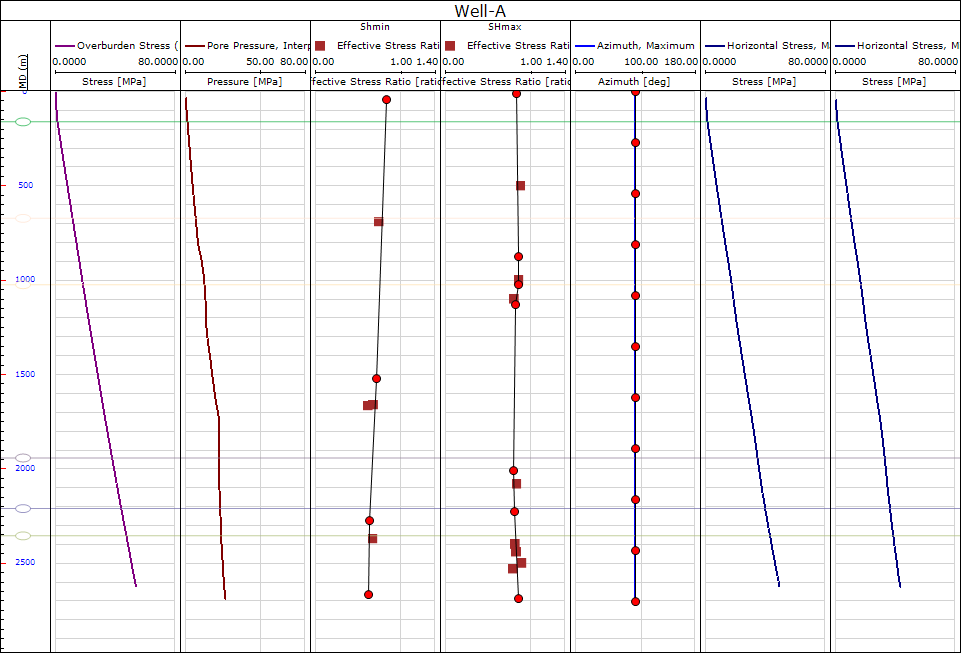
Horizontal Stress Modeling form with horizontal stress inputs (including interpolated Shmin and SHmax), calculated horizontal stress, and azimuth Shmax (with calibration points) displayed click to enlarge