Importing observed breakouts
You can import observed breakout data in Step 1 of the Observed Breakouts form. You can visualize imported logs in the Observed Breakout View along with the calculated breakout and any other imported or created breakout data. To import breakout data, the application uses the User-defined Formatting for Column Imager Files file type, which allows you to manually specify the data and unit type for each column in a given file.
To import observed breakout data

Click the ellipsis button click to enlarge
-
Open the import dialog for breakout data by pressing the ellipsis button in Step 1 of the Observed Breakouts workflow form. Select the breakout data file.
The import dialog for breakout data works identically to the import dialog for any other user-defined file type: You can preview the information for selected files before proceeding with the import, and then manually define the settings for each column of data in the file. The image below shows an example of a file preview in the import dialog. You can preview any file before proceeding to the import process.
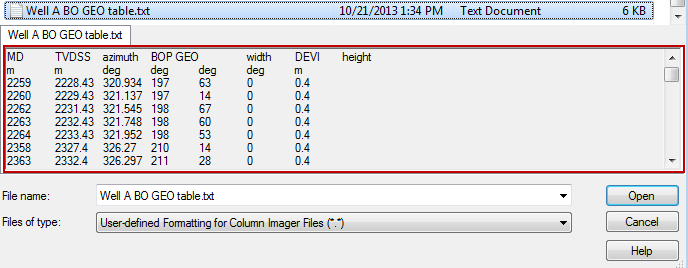
click to enlarge
-
After you select a file for import you can define the type of data and measurement unit to be used for each column in the file.
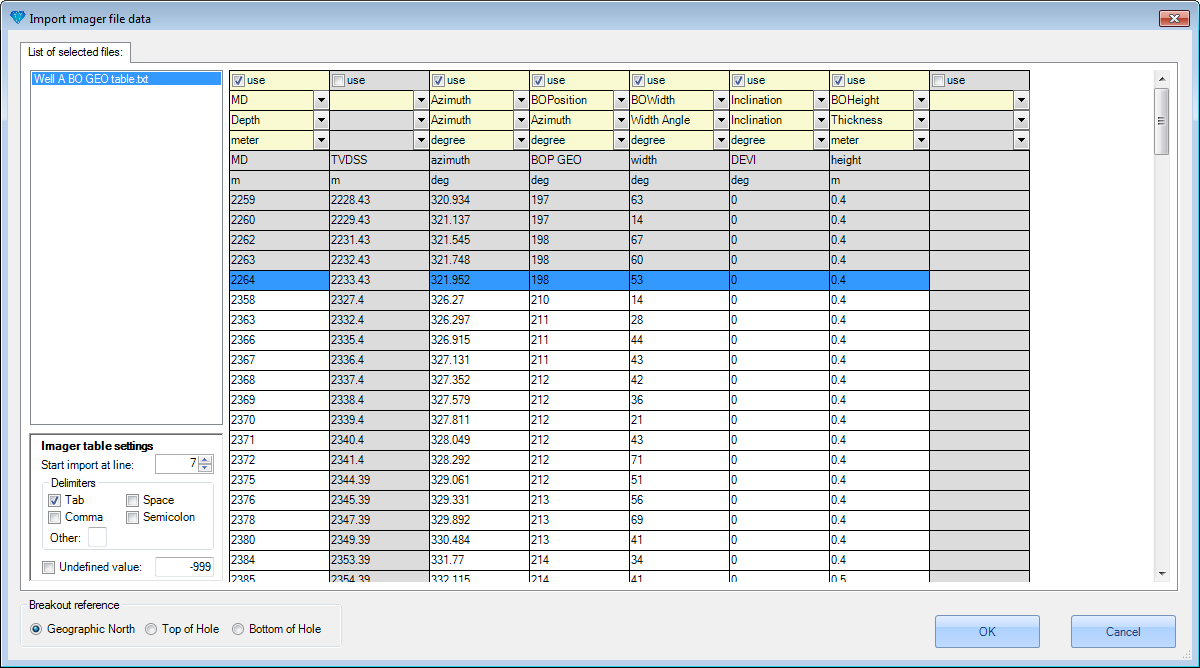
click to enlarge
click to enlarge
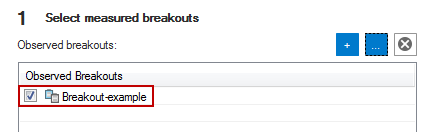
Once imported, the file appears in the table in Step 1 of the Observed Breakouts workflow form. You can display it in the Observed Breakouts view.