Casings tab
The Casings tab is part of the Well Table functionality. To activate it, click on the tab when browsing in the Well Table. In the Casings tab, you can create or edit casing designs for a wellbore using the Casing Scheme form. To access the form, click on the Create or Edit Casing Scheme buttons at the top of the tab. The table on the Casing Scheme form allows you to enter manually your schematic data or copy and paste if your data is in an Excel™ spreadsheet or other data source. The casing scheme is then displayed in the table of the Casings tab, which provides an informative overview of a well's main casing components. Upon creation of each casing scheme, the graphical representation of the schematic in the Well Schematic view also updates.
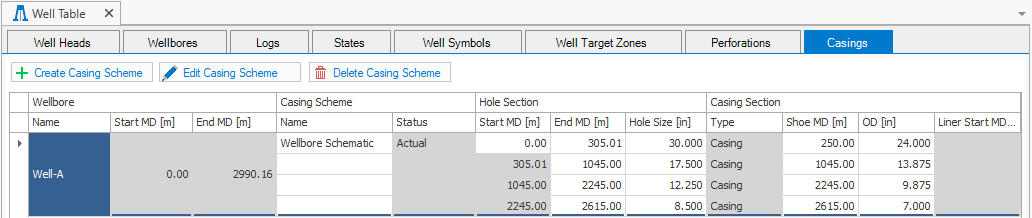
The Well Table with the Casings tab click to enlarge
The following options are available at the top of the tab (For more details on the options, see Creating and editing Casing Schemes):
Create Casing Scheme Create a new casing scheme for the wellbore of your interest using the Casing Scheme form. Enter the well schematic data in the table by typing in the entry fields.
Edit Casing Scheme Edit an existing casing scheme for the wellbore of your interest using the Casing Scheme form. Enter new schematic data in the table by typing in the entry fields.
Delete Casing Scheme Delete a casing scheme from a wellbore. First select the wellbore in the table for which you want to delete the casing scheme. Select the casing scheme you want to delete from the Name drop-down list, under Casing Scheme. Click on the Delete Casing Scheme button to open the delete dialog.