Adding auxiliary information
For various objects in JewelSuite Geomechanics, you can add auxiliary information such as Microsoft Word™ documents, Excel™ tables, PowerPoint™ presentations, PDF documents or images, as well as user written notes, hyperlinks,
To do this, right-click on the object in the JewelExplorer or in the active view and select Auxiliary Information > Add. From the context menu that appears, you can select File, Note, Hyperlink, DMS Link or Screen Capture. Each of these options opens a dedicated form. For the Well View, you first have to create an auxiliary data track, see Template Editor, then right-click in the new track and select Auxiliary information > Add.
The only option to add auxiliary information to seismic data is by using the context menu in the JewelExplorer.
To show or hide auxiliary information for an object in a 3D View or 2D view, either use the checkbox of the data in the JewelExplorer (all auxiliary data is stored in an Auxiliary Data folder under the object it belongs to), or use the Auxiliary Data > Show option in the context menu of the object. To show or hide auxiliary information for a wellbore in the Well View, use the context menu in the auxiliary information track.
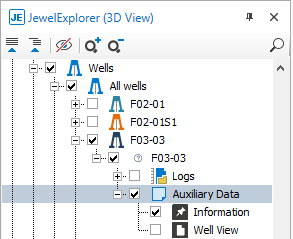
Auxiliary data is stored in the JewelExplorer. click to enlarge
To view the content of auxiliary information, double click on it, or use the auxiliary data context menu option View.
When you add auxiliary information to already existing auxiliary information, the data will be grouped. You can recognize grouped auxiliary data by the title and the icon that are used.

You can identify grouped auxiliary data in your view by the icon and the title. click to enlarge
| Overview of views where you can add and visualize auxiliary information | ||
|---|---|---|
| View | Add | Visible |
| 3D (Time) View |

|
|
| 2D (Time) View |
|
|
| Well View |
|
|
| Cross Section View |
|

|
| Seismic View |
|
|
Supported file types and formats
- Adobe PDF (*.pdf)
- Image (*.bmp, *.gif, *.jpg, *.jpeg, *.ico, *. png, *.tiff, *.tif)
- Video (*.avi, *.mpg, *.wmv, *.mov, *.qt, *.mp4)
- Microsoft Excel™ spreadsheet (*.xls, *.xlsx)
- Microsoft PowerPoint™ presentation(*.ppt, *.pptx)
- Microsoft Word™ document(*.doc, *.docx)