Connecting to DMS
If you perform an action which requires a connection to DMS while you are not connected yet, the Connect to DMS dialog automatically opens. This is for example the case when you use 'Open from DMS', 'Save to DMS', or some of the other buttons of the Data Management Solution button-group.
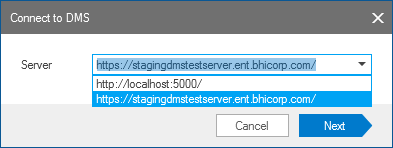
The 'Connect to DMS' dialog click to enlarge
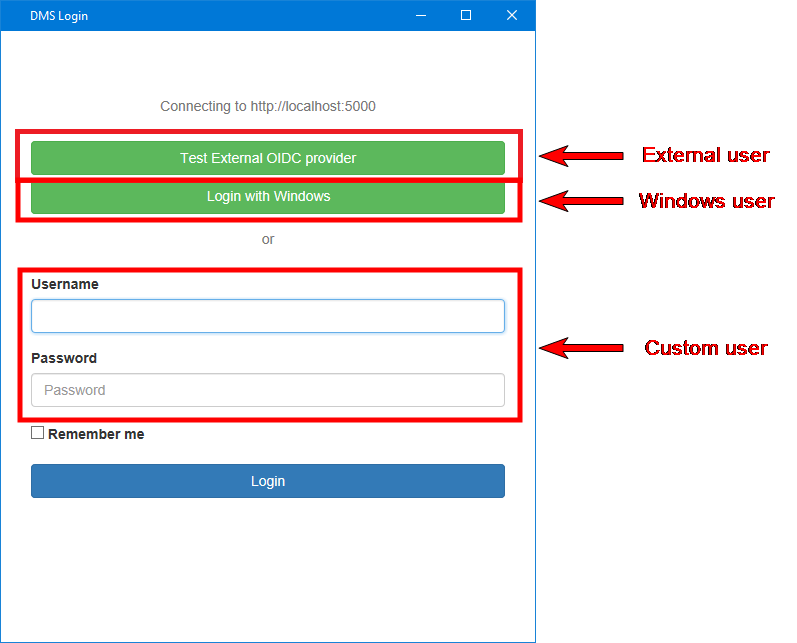
The DMS login console click to enlarge
When successfully connected, the connection indicator symbol at the lower-right side of the status bar of your workspace changes from red to green. When you hover over it, the server name is displayed, see image below.

Connecting to the DMS server click to enlarge
When the connection indicator is orange, it means that you can use all the DMS functionality except for receiving object notifications directly. By reopening the solution or setting up a subscription to a solution, you can then receive the missed object updates.

Connected to the DMS server but it is not possible to receive object notifications. click to enlarge