Customizing views and panes
Opening a view using the Views drop-down list or the Create option in the context menu of the View Explorer, adds a view to the view area, whereas opening a pane from the Panes drop-down list opens a pane at a preset location for panes in the interface. You can recognize a view from a pane not only by the location where it is opened. A view has a tab at the top of the view area, displaying the name of the view. This tab can have different states:
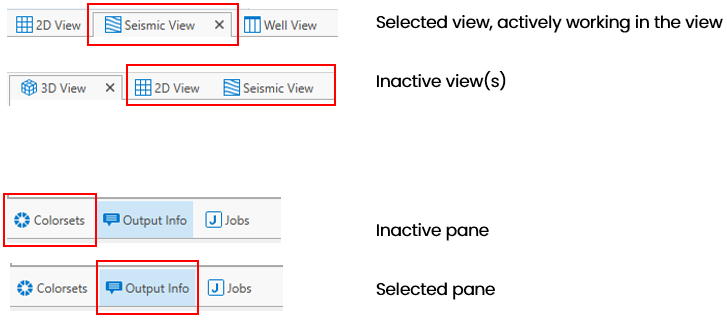
The view tab and the pane header can be used as a visual indicator click to enlarge
A pane has a header with the name of the pane (and if you have the JewelExplorer open, also the name of the active view). The tabs, if you have multiple panes open in one pane area, are at the bottom of the pane.
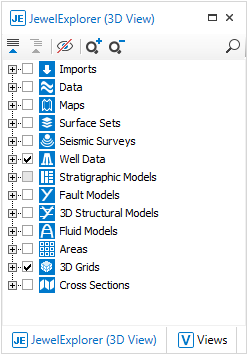
A pane has a header, and has tabs at the bottom click to enlarge
Floating and docking views and panes
You can make views and panes floating by doing one of the following: use the Float option on the context menu of the view or tab, double click the title area, or click in the title of a view/pane and, with your mouse button down, drag it to another location.
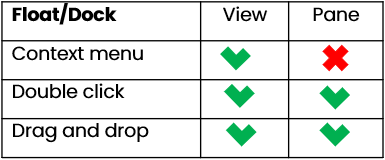
There are several options to float or dock your view/pane click to enlarge
To dock a floating view or pane, select Dock from the context menu (views only), or use the Dock manager. Depending on the applied view, the Dock manager can gain or lose specific features.
The Dock manager will highlight in dark blue where you are about to dock your view/pane.
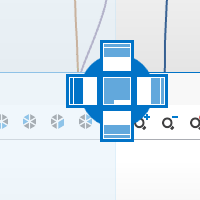
The Dock manager of the pane only allows you to dock in one of the dedicated pane areas. click to enlarge
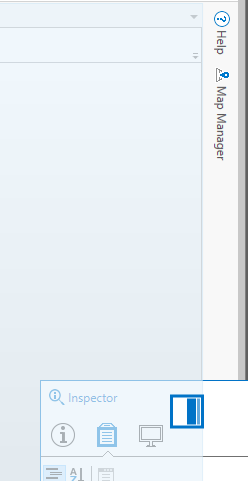
The Dock manager of the pane only allows you to dock in one of the dedicated pane areas. click to enlarge
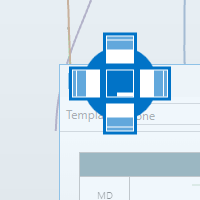
The Dock manager of the view area has more features click to enlarge
To set another view to be the active view, either use the quick menu (Ctrl + Tab) to swap to another view, or use the active view list.
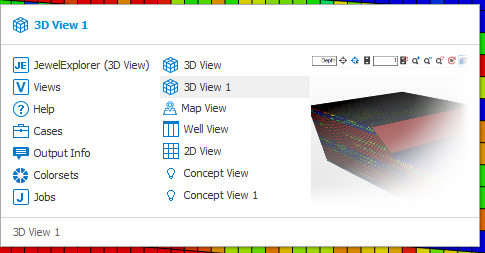
Use the quick menu to change the active view. click to enlarge
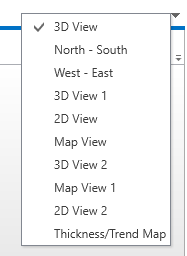
Use the view list to change the active view. click to enlarge