Installing TI library
The installation files for the Training Image Library can be found on the Baker Hughes software portal (https://bakerhughes.flexnetoperations.com)
A user name and password are required to log in and download the installation file. Please contact us at SoftwareSupport@bakerhughes.com for any issues regarding your credentials.
On the Baker Hughes software portal go to the Your Downloads section, and select Baker Hughes Reservoir Software.
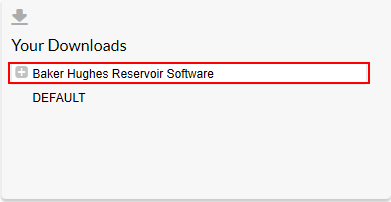
The download portal click to enlarge
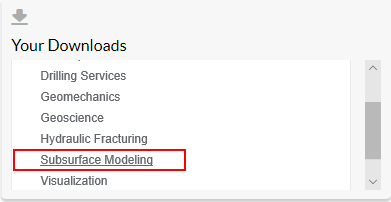
Select Subsurface Modeling from the list of product lines.
The download portal click to enlarge
This will open a new window, with two tabs. Go to the Previous Versions tab and select the JewelSuite MPS Add-in.
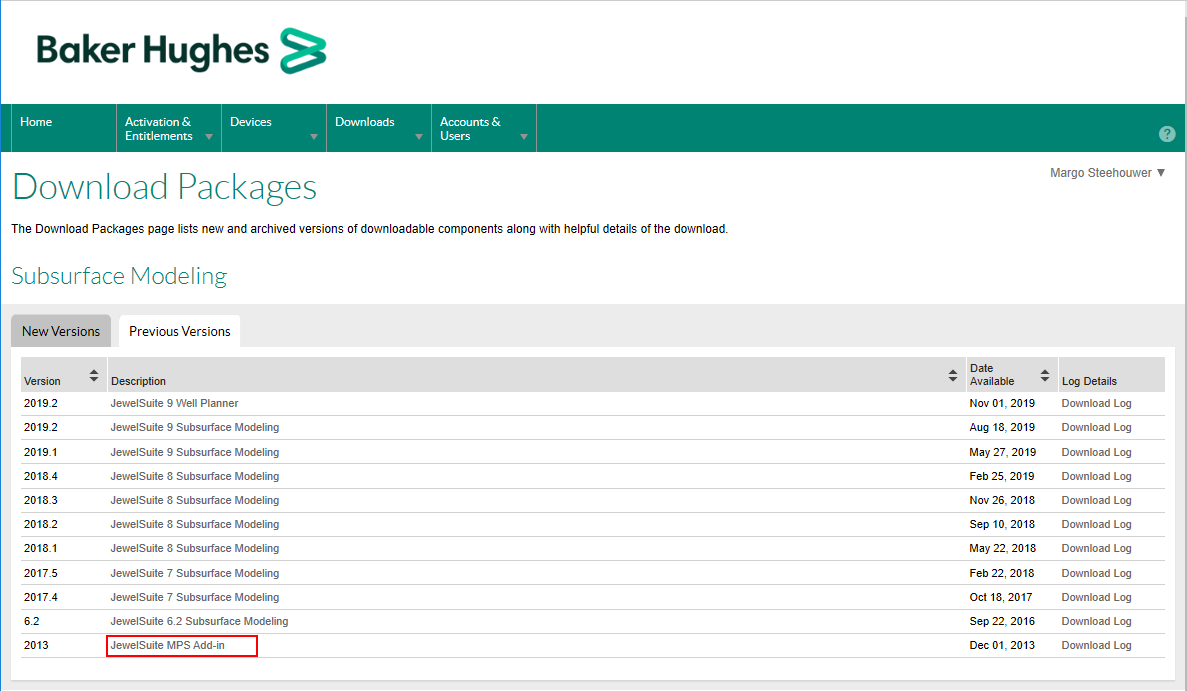
The download portal click to enlarge
This will open a new window where you can select the Training Image Library. Next, under File Name, click JewelSuite MPS Training Image Library Add-in 1.0.3.0.exe.
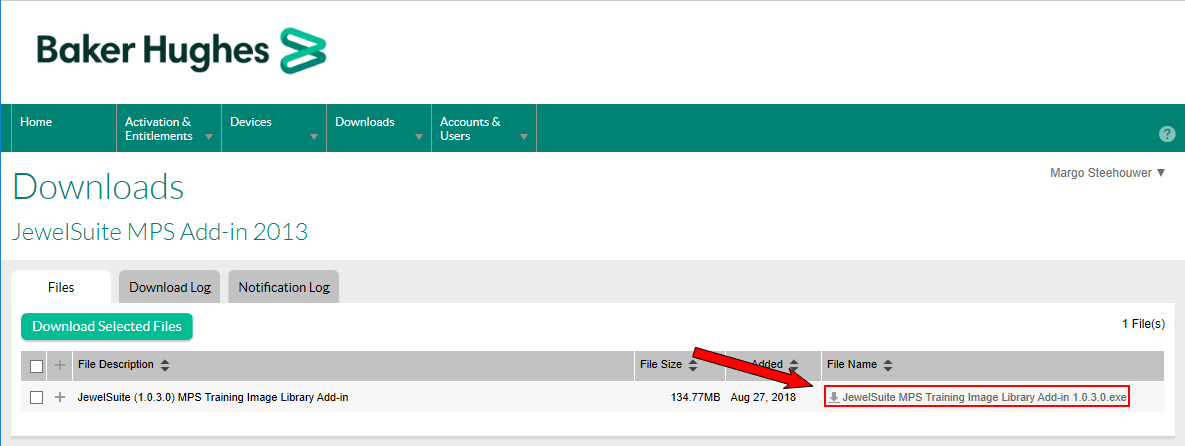
The download portal click to enlarge
This will open a pop-up window where you can select to either Run or Save the add-in. Click Save.
Click on the executable to open the Install Wizard, and click Yes on the next dialog to start the Install Shield Wizard. When the install wizard is finished, (re)start JewelSuite to get access to the training image library.