Linking visibility
The objects you want to show/hide can be checked/unchecked in the JewelExplorer only when your view is the active view. With the option of visibility linking you can show/hide your objects for multiple views simultaneously. You can view the same objects from different view angles, with different zooming and depth/area scaling options.
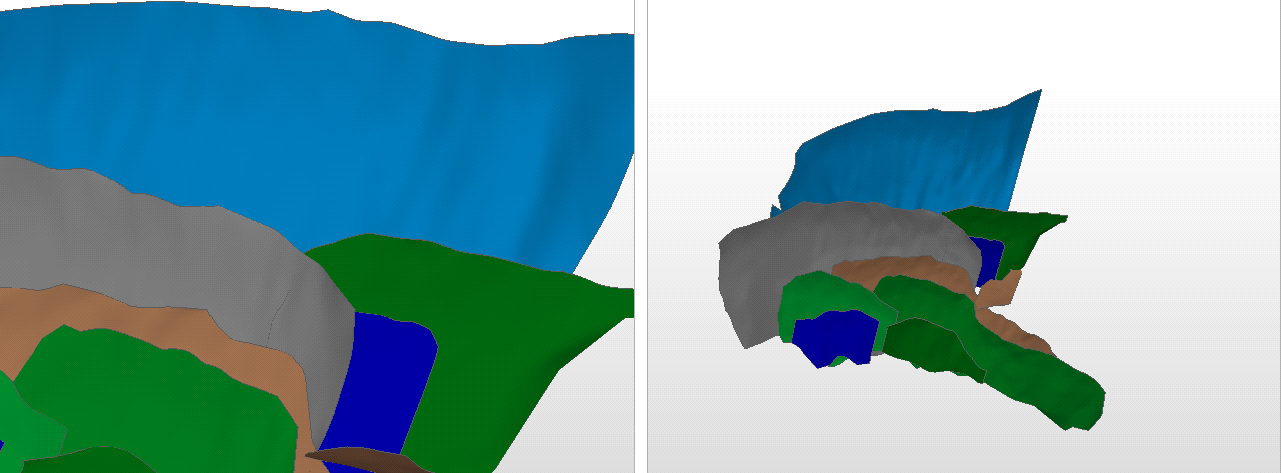
Linking visibility between views; same objects, different view angles click to enlarge
The visibility linking can be used for 2D views, 3D views,
It is important to note that visibility linking does not completely synchronize the objects you display in your linked views. It enables you to control the visibility of your objects simultaneously for the linked views from the moment it is turned on. The objects which were selected prior to enabling the visibility linking will remain. For example, if you have different objects displayed in different views, when you turn on the visibility linking, the objects you have only in one view will not automatically appear in the other view. Likewise, the objects you have only in one view will not automatically disappear from that view.
For more information, see View linking options.
Controlling object visibility
After the visibility linking is enabled, the behavior of visibility control of objects via the parent and child buttons in the JewelExplorer remains the same. Each view will still continue to have its own JewelExplorer.
Toggling off the parent button will hide all the objects in the group, for all linked views. Toggling on the parent button will show only the objects which are selected in the child button for each linked view. In case you have different child objects selected for different views, toggling on and off the parent button will cause different objects being displayed.
The visibility control behavior via the parent and child buttons is explained for an example case shown in the image below:
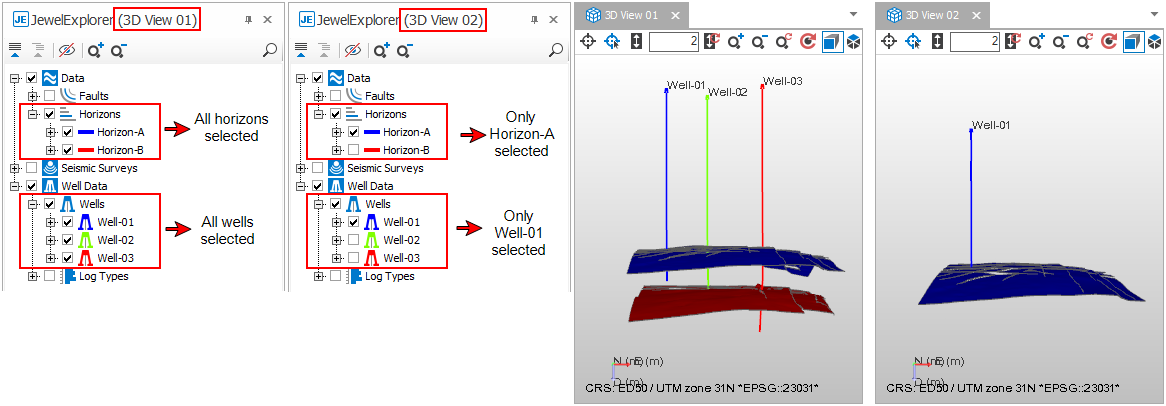
An example to explain the visibility control behavior via the parent and child buttons, when the visibility linking is enabled click to enlarge
In this image you see the state of object selections in the JewelExplorers of two 3D views, before the visibility linking is enabled. After the visibility linking is enabled for these views, toggling off and on the parent 'Horizons' button (in any of the JewelExplorers) will trigger the following:
- For '3D View 01' all horizons will appear
- For '3D View 02' only 'Horizon-A' will appear
Likewise, toggling off and on the parent 'Wells' button (in any of the JewelExplorers) will trigger the following:
- For '3D View 01' all wells will appear
- For '3D View 02' only 'Well-01' will appear