OSDU Data Connector
The connector has been validated primarily against OSDU development and test environments. Compatibility with specific OSDU distributions may vary depending on schema versions, authentication configuration, and deployment-specific customizations.
Purpose and support status
The OSDU Data Connector provides connectivity to OSDU (Open Subsurface Data Universe) environments. It enables selected data exchange workflows in JewelSuite.
The connector is installed automatically with the standard JewelSuite installation. It is available to all users in the supported JewelSuite products and does not require a separate JewelSuite license or deployment. The connector is intended for evaluation, proof-of-concept, development, and early-adopter workflows.
Use the connector to search for supported OSDU records, retrieve associated datasets, add the data to a JewelSuite project, and publish supported JewelSuite objects to OSDU. The connector communicates directly with OSDU services and does not provide a separate OSDU user interface.
Supported products and versions
The OSDU Data Connector is commercially available in JewelSuite Subsurface Modeling and JewelSuite Geomechanics 2026.3 and later. It does not require a separate license or deployment.
Supported data
The connector supports the following OSDU object types. The object records provide the well and wellbore information that JewelSuite uses when it creates or updates project objects.
- Well
- Wellbore
- Wellbore trajectory
- Well log
- Wellbore marker set
Associated dataset support includes trajectory datasets in CSV format and well log datasets in LAS format. The connector retrieves these datasets through the OSDU Dataset API when they are associated with a supported object and available to the connected user.
The connector does not provide complete coverage of OSDU schemas or services. Records that use unsupported object types, schema versions, fields, or dataset formats might not be available for selection or might not import completely.
Prerequisites and security
Before using the connector, make sure that:
- JewelSuite Subsurface Modeling or JewelSuite Geomechanics 2026.3 or later is installed.
- The JewelSuite product documented in this guide is installed.
- You have access to an OSDU environment.
- An OSDU administrator has provided the authentication details and data partition information.
- A valid OSDU connection configuration file is available.
JewelSuite does not generate connection.json. Obtain it from an OSDU or cloud administrator who can provide the settings for your deployment. The file must contain the endpoint, authentication, partition, and legal-tag values required by that deployment. The authentication model determines whether the file contains a scope or a refresh token.
Selecting the project CRS
Configure the project Coordinate Reference System (CRS) before importing spatial data. Select a CRS that is appropriate for the OSDU data and the intended project area.
- Open or create a JewelSuite solution.
- On the Home tab, select Settings.
- In the CRS dialog box, click the globe button next to Name.
- Select the CRS required by your project and OSDU data, then click OK.
The CRS dialog initially displays Please select solution CRS when no solution CRS has been selected. WGS 84 / World Mercator (EPSG:3395) is an example of a global projected CRS. It is not a universal requirement. Confirm the required CRS, units, axis order, and coordinate transformation behavior with your OSDU administrator before importing data. Using an incorrect CRS can place imported wells and related data in the wrong geographic location.
Connect to OSDU
Use the Open Subsurface Data Universe (OSDU) group on the JEWELLABS tab to create the connection.
Establish the connection before opening an import or export workflow.
- Open a solution with the required CRS.
- On the JEWELLABS tab, select Create OSDU Connection in the Open Subsurface Data Universe (OSDU) group.
- In the Create OSDU Connection dialog box, select the required OSDU Instance.
- Click OK to create the connection.
After the connection is established, the connector can query and display supported OSDU data in JewelSuite. If the required instance is not listed, ask your administrator to provide or register the corresponding OSDU connection configuration. If the connection fails, check the endpoint URLs, data partition ID, authentication values, network access, and permissions with your OSDU administrator.
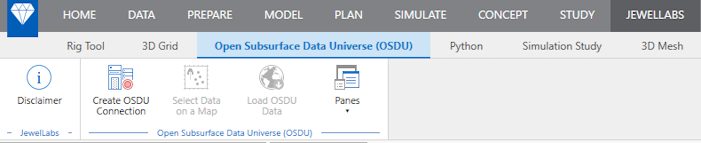
Create an OSDU connection from the JEWELLABS tab. click to enlarge
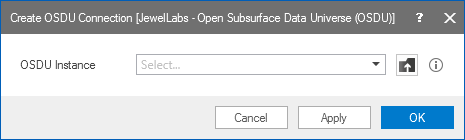
Select an OSDU instance in the Create OSDU Connection dialog box. click to enlarge
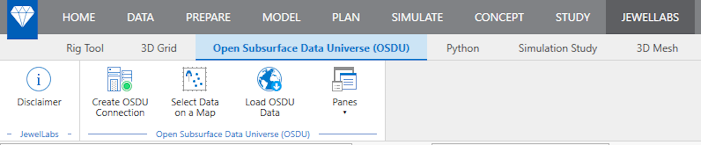
OSDU commands after the connection is established. click to enlarge
Import data from OSDU
Use the Select Data on a Map command in the Open Subsurface Data Universe (OSDU) group to search for records in the connected data partition. Search results and filters depend on the OSDU deployment and on the permissions assigned to your account or client.
- On the JEWELLABS tab, select Select Data on a Map.
- In the map, navigate to the area of interest. Use the map controls to zoom and pan until the required area is visible.
- In the filter pane, apply the available search and filtering options.
- Select the wells or associated data to import.
- Click Next to continue with the selected data.
The connector retrieves the selected supported data and adds it to the current project. The import can include the object record and its associated trajectory, marker, or log dataset when that dataset is supported and available.
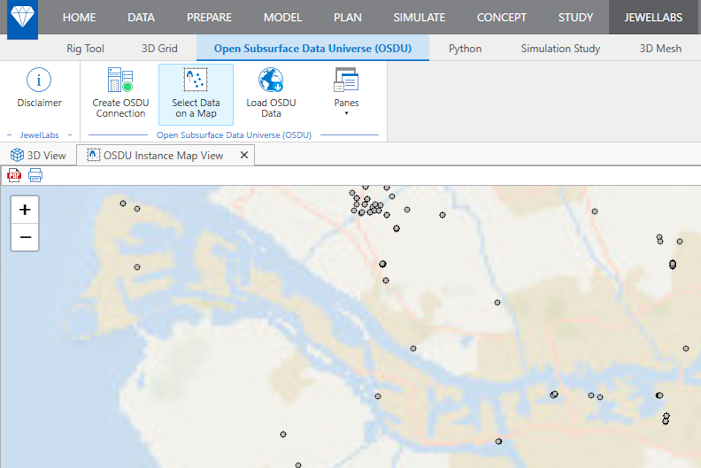
Select data on a map. click to enlarge
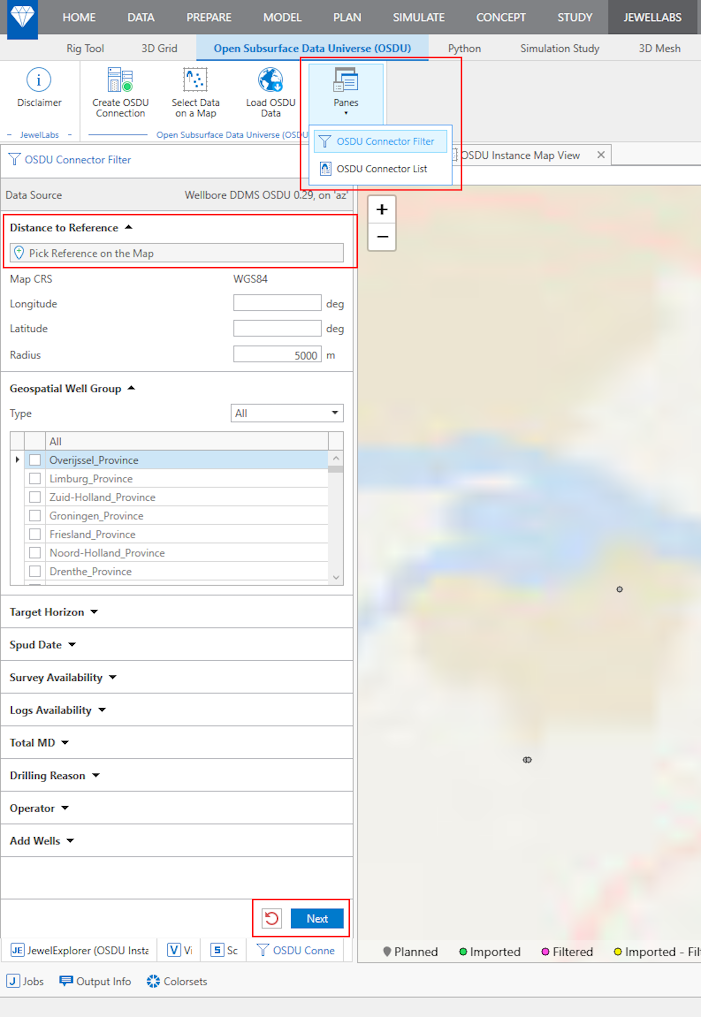
Filter OSDU data in the OSDU Connector Filter pane. click to enlarge

The connector queries OSDU for well information. click to enlarge
Export data to OSDU
Publish exports supported JewelSuite objects to the connected OSDU data partition. Make sure that the object contains the required metadata and that you have permission to create or update records in OSDU.
- In the JewelExplorer, select the supported object to publish.
- Right-click the object to open its context menu.
- Select OSDU > Publish.
- Confirm the publish operation.
The connector creates or updates the corresponding records in the connected OSDU environment. The published record uses the schema version configured for the connector. Existing records might be updated rather than duplicated, depending on the record identity and OSDU service behavior.
Delete data from OSDU
You can delete supported OSDU objects from the JewelExplorer. Deletion requires the appropriate OSDU permissions and can affect other users and applications that depend on the record.
- In the JewelExplorer, select the supported object to delete.
- Right-click the object to open its context menu.
- Select OSDU > Delete.
- Confirm the deletion when prompted.
Do not delete an OSDU object unless you understand the effect on the shared data partition and have confirmed the operation with the data owner.
Configure authentication
The connector supports two authentication models. Use the fields that match the model configured for your OSDU environment. Do not combine the settings from both models in one file unless your OSDU administrator has specifically instructed you to do so.
| Authentication model | Required settings |
|---|---|
| OAuth client credentials | AuthTokenUrl, BaseUrl, ClientId, ClientSecret, DataPartitionId, LegalTag, and Scope |
| Refresh token authentication | AuthTokenUrl, BaseUrl, ClientId, ClientSecret, DataPartitionId, LegalTag, and RefreshToken |
Use the following descriptions when reviewing the values in connection.json:
- AuthTokenUrl The URL that issues the access token.
- BaseUrl The base URL of the OSDU environment.
- ClientId The client identifier registered with the authentication service.
- ClientSecret The secret associated with the client identifier.
- DataPartitionId The OSDU data partition to query or update.
- LegalTag The legal tag applied when data is published.
- Scope The scope requested by the OAuth client-credentials flow.
- RefreshToken The refresh token used by the refresh-token flow.
The optional Cookie setting contains an XSRF token when required by the OSDU deployment.
OAuth client credentials example
{
  "version": 1,
  "name": "Azure OSDU",
  "values": [
    {"key": "AuthTokenUrl", "value": "<token-url>"},
    {"key": "BaseUrl", "value": "<osdu-url>"},
    {"key": "ClientId", "value": "<clientid>"},
    {"key": "ClientSecret", "value": "<clientsecret>"},
    {"key": "DataPartitionId", "value": "<partition>"},
    {"key": "LegalTag", "value": "<legaltag>"},
    {"key": "Scope", "value": "<scope>"}
  ]
}
Refresh token authentication example
{
  "version": 1,
  "name": "AWS OSDU",
  "values": [
    {"key": "AuthTokenUrl", "value": "<token-url>"},
    {"key": "BaseUrl", "value": "<osdu-url>"},
    {"key": "ClientId", "value": "<clientid>"},
    {"key": "ClientSecret", "value": "<clientsecret>"},
    {"key": "DataPartitionId", "value": "<partition>"},
    {"key": "LegalTag", "value": "<legaltag>"},
    {"key": "RefreshToken", "value": "<refresh-token>"}
  ]
}
Advanced schema configuration
Administrators can configure the connector in the following file:
<JewelSuite Installation Folder>\Joa.JewelEarth.OSDU.Connector.Domain.Core.dll.config
Make a backup of the file before editing it. Changes take effect after you restart JewelSuite.
The following settings are available in the appSettings section:
| Setting | Description |
|---|---|
| OsduCredentialFilesFolder | Specifies the folder that contains the OSDU credential files used by the connector. |
| OsduAlternativeTrajectoryAndLogLoading | Controls the alternative trajectory and well-log loading method. The default is False. |
| OsduGetRetrievalInstructions | Controls whether the connector requests dataset retrieval instructions. The default is False. |
| OsduSimpleRestLogging | Controls simple REST request logging. The default is True. |
| OsduQueryOnlyFirstWellLog | Controls whether the connector queries only the first well log. The default is True. |
| OsduPublish...Kind | Specifies the OSDU schema kind and version used when publishing each supported object type. |
| OsduQuery...Kind | Specifies the OSDU schema kind and version used when querying each supported object type. The default value uses a wildcard (*) to query all available versions. |
The publish and query settings use the following object-specific names:
- OsduPublishWellKind and OsduQueryWellKind
- OsduPublishWellboreKind and OsduQueryWellboreKind
- OsduPublishWellboreTrajectoryKind and OsduQueryWellboreTrajectoryKind
- OsduPublishWellboreMarkerSetKind and OsduQueryWellboreMarkerSetKind
- OsduPublishWellLogKind and OsduQueryWellLogKind
By default, the connector queries all available versions of the supported Well, Wellbore, WellboreTrajectory, WellboreMarkerSet, and WellLog schemas. To restrict a query to a specific schema version, replace the wildcard (*) in the corresponding OsduQuery...Kind value with the required version number. The OsduPublish...Kind values specify the schema versions used for publishing.
For example, the following settings query all versions of Well and publish it using version 1.2.0:
<add key="OsduPublishWellKind" value="osdu:wks:master-data--Well:1.2.0" />
<add key="OsduQueryWellKind" value="osdu:wks:master-data--Well:*" />
Technical details
The connector uses the OSDU Query API v2 to retrieve supported object records and the OSDU Dataset API v1 to retrieve associated datasets. It relies on a limited set of fields shared across Well DDMS schema versions. As a result, fields that are specific to one OSDU distribution or schema version might not be imported into JewelSuite.
Known limitations and support
- Interactive user sign-in is not supported.
- Authentication configuration must be performed manually.
- Search and filtering capabilities are limited.
- Only the object types and dataset formats listed in this topic are supported.
- Compatibility varies with OSDU schema versions, authentication configuration, and deployment-specific customizations.
- Workflow and usability improvements may be introduced in future releases.
When reporting an issue, collect the JewelSuite version, OSDU environment details, authentication model, relevant log files and error messages, and the steps to reproduce the issue. Remove connection files, secrets, and tokens before sharing diagnostic information.