Upscaling functions
Example 60 Upscale grid property to 2D values (stack values)
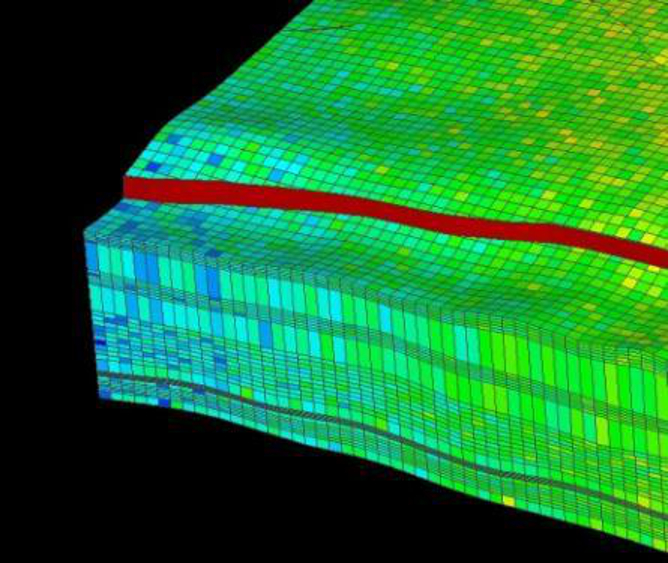
Input click to enlarge
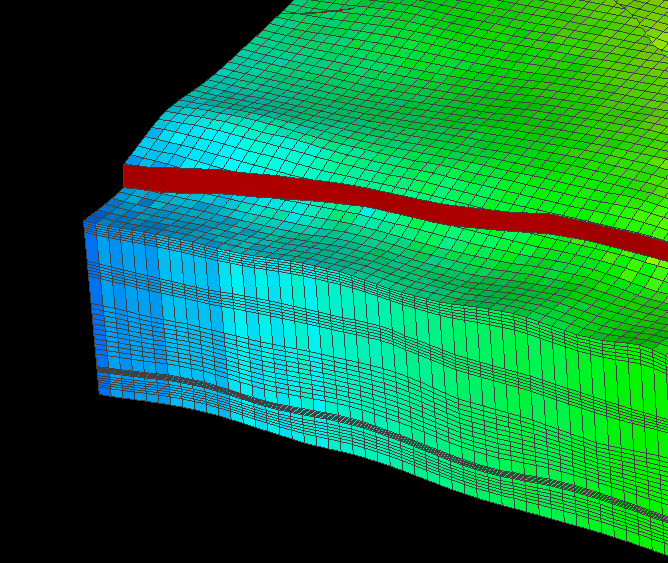
upscale(dim2, $P$, AMean) click to enlarge
Example 61 Upscale grid property to 1D values (layer values)
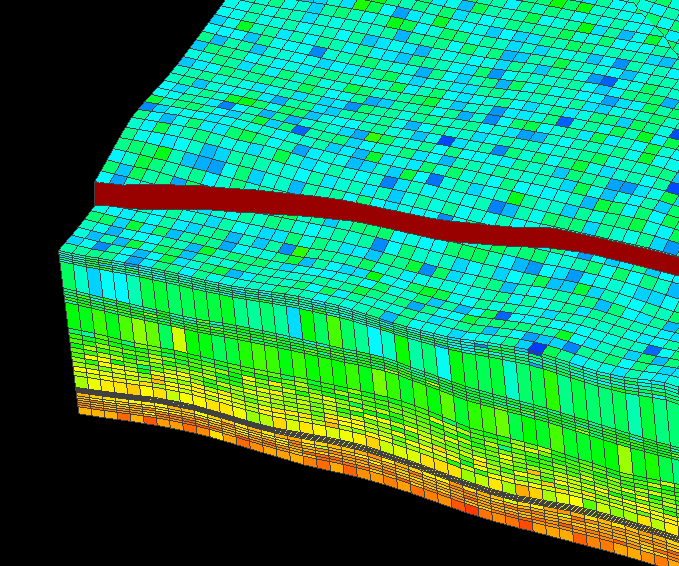
Input click to enlarge
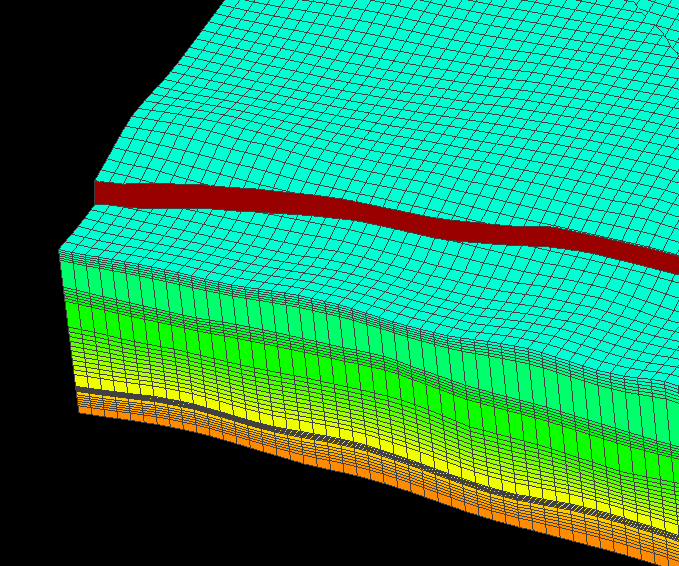
upscale(dim1, $U$, AMean) click to enlarge
Example 62 Upscale using the Count method
Count calculates the number of cells in the specified grid volume depending upon the upscaling type selected (whole object, layer or stack). The second parameter in the upscaling dialog, Property, is ignored when using the Count method. For the simple grid in the image below, the result of the count method is as follows:
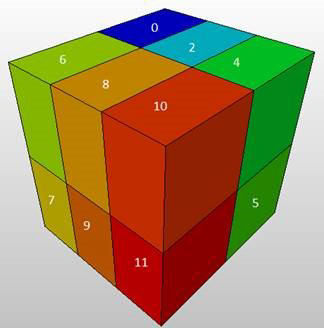
Using the count method on a simple 12 cell grid click to enlarge
For whole object [upscale(wholeObject, $Lithology$, Sum)]: 12
For each layer [upscale(eachLayer, $Lithology$, Count)]: 6
For each segment of stack/each stack [upscale(eachStack, $Lithology$, Count)]: 2
Example 63 Upscale using the Offset method
The Offset method shifts values inside of the volume, depending on the upscale type selected (whole object, layer or stack). The following example depicts a volume with the Offset method applied to the stacks in the volume, causing the values to shift down for the property $Test$ [upscale(eachStack, $Test$, Offset)]:
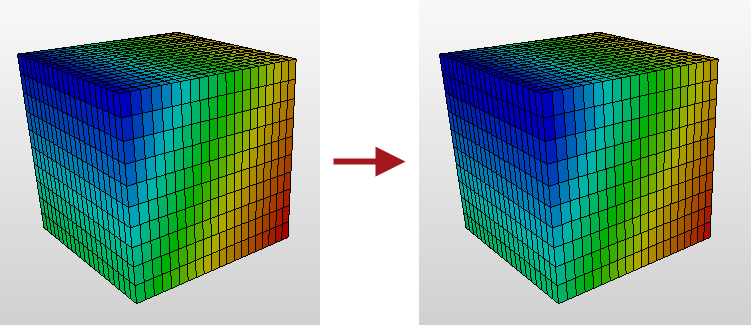
The Offset method applied to the stacks for the $Test$ property, notice that the values from the cells in the left image are shifted down in the right image click to enlarge
Example 64 Upscale using the Partly sum method
The Partly sum method is most useful when applied to stacks. This method aggregates the values of each cell in a stack, moving in the downward direction. For example, when applying this method to a volume with 8-cell stacks, the value of cell C1 is assigned to cell C1, the value of C1 plus cell C2 is assigned to C2, the value of C1 plus C2 plus C3 is assigned to C3, and so on. The following example depicts a volume with the Partly sum method applied to the stacks for the property $Test$ [upscale(eachStack, $Test$, PartSum)]:
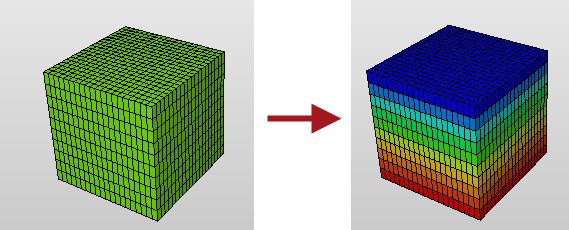
The Partly sum method applied to the stacks for the $Test$ property as described above click to enlarge