Property templates
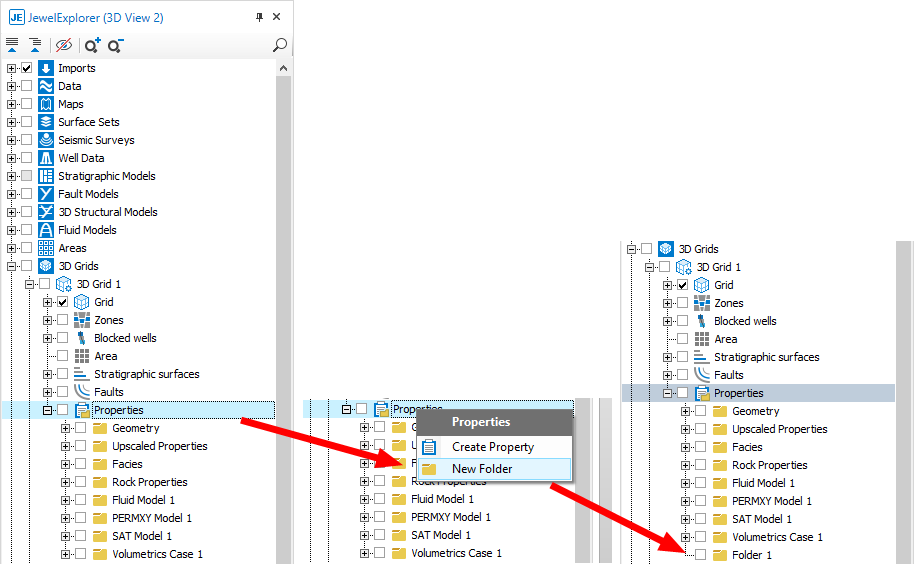
You can create your own folder(s) to store properties in the JewelExplorer. click to enlarge
Property templates can be defined in the Property Catalog to give each object property a logical meaning. Many default property templates are available, such as Depth, Porosity, and Saturation. You can also create your own property templates.
Each property template has a number of attributes that can be set, such as default value, default colorset, unit category, value type, and discrete or continuous. These are used when the property template is attached to an object property.
Very important is the concept of discrete versus continuous property templates.
Discrete property templates indicate a property with discrete property values / classes. These values can either be discrete values (such as 0, 1, 2, etc.) or names (such as SAND, SHALE, COAL, etc.). Common used properties of this type are:
- Actnum: indicating if a grid cell is valid or invalid.
- Lithology: indicating the lithology of a cell.
- Facies: indicating the facies of a cell.
- Region: indication the region of a cell.
Continuous property templates indicate a property with continuous values / classes. These values represent a range between a given minimum and maximum property value (like minimum = 0.05 and maximum = 0.25). All values in between these values are divided into a number of property classes (by default 10 classes), where every property class also has its own minimum and maximum (like 0.05-0.07, 0.07-0.09, …, 0.23-0.25). Common used properties of this type are:
- Depth: indicating cell depth values (minimum is shallowest cell in the grid, maximum is deepest cell in the grid).
- Porosity: indicating cell porosity values (minimum is the cell with the lowest porosity and maximum is the cell with the highest porosity).
- Cell Volume: indicating cell volume values (minimum is the cell with the smallest volume and maximum is the cell with the biggest volume)
Property templates are used in the following situations:
- Creating new objects
- Creating new object properties
- Creating new object properties using existing properties
- Importing data
- Exporting data
- Displaying values in the user interface
Creating new objects
When new objects are created, by default additional object properties are / can be created (which can also be controlled by the Property Catalog – see Property Definitions). These newly created object properties will automatically get the appropriate property templates (so the property template ‘Depth’ for Depth properties, etc.).
Creating new object properties
There are many areas of the application where new object properties can be created. In all of these areas the corresponding property template needs to be specified to give a logical meaning to the newly created property.
Properties generated with the Property Calculator
With the Property Calculator, you can create properties for all of the types of objects based on simple to very complex equations. The property template can be specified using the Type selection:
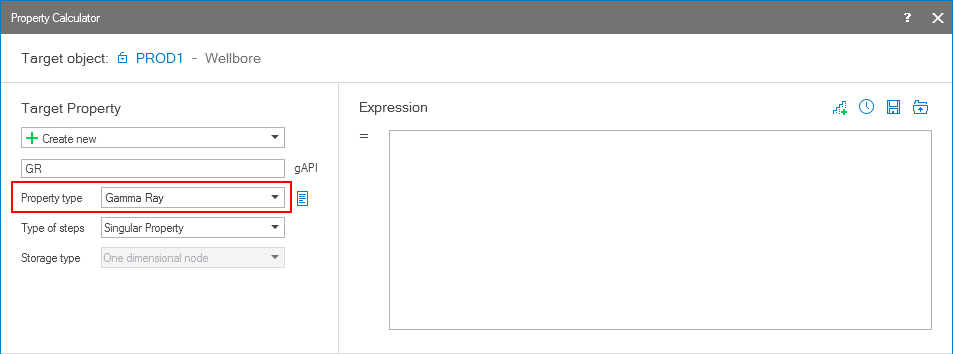
The Property Calculator click to enlarge
Property modeling
In property modeling, properties can be calculated for geological and simulation grids. For most types of modeling the property template used is dependent on the input logs, grid properties, and histograms. In some cases, like with Distribution modeling, you need to manually set a specific property template in the facies or rock property modeling forms prior to execution.
Creating new object properties using existing properties
In this case, existing object properties are used to create new properties on the same or other objects. The property template of the existing property will be used as a template for the new property; you do not have to specify the property template since this is done automatically.
This form of property creation occurs during:
Importing property data
When you import property data, the corresponding property template can be specified on the Data Import Validation form.
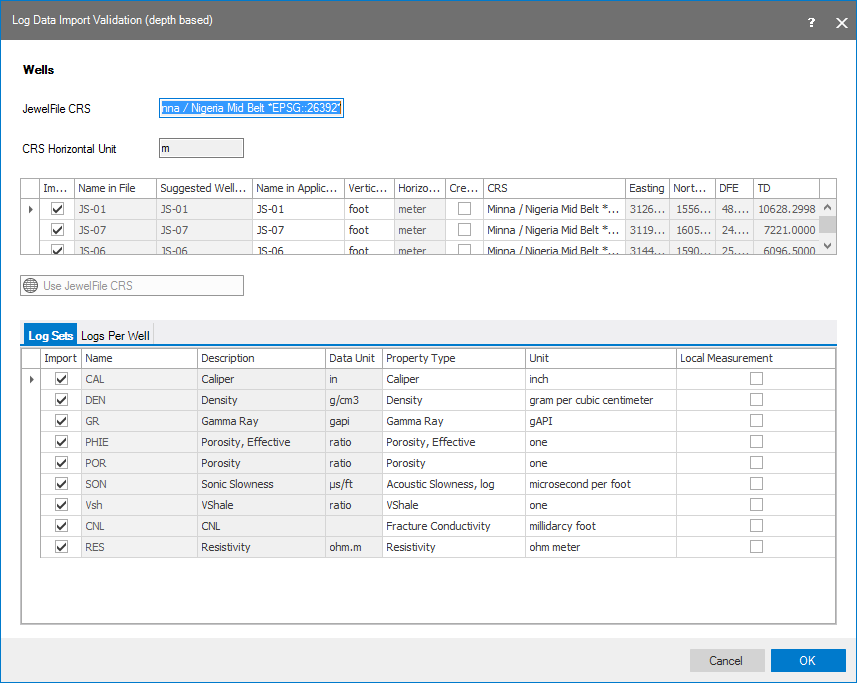
Data Import Validation form – import properties click to enlarge
Exporting property data
When you export property data, the specified property template is used to determine the specified user units; the properties values will then be exported in these user units.
Displaying values in the user interface
When property data is displayed in the user interface, the corresponding property template is used to determine the display units. These display units will be used in the user interface, such as:
- On forms and controls
- In the JewelExplorer
- In the Inspector
- In the graphical views (axis annotation and property legend)
- In the Well View (axis annotation)
- Charts (histogram, scatter plots,
- Reservoir simulation views (all spreadsheet views)
Example
When the ‘Cell Center Depth’ property of a JewelGrid is displayed, the corresponding property template ‘Depth’ will be determined. Attached to this Depth’ property template is the ‘Depth & Elevation’ quantity. In case the units for this quantity are feet, all depth values will be displayed in feet in the user interface.
Displaying properties using colorsets in the 2D or 3D View
In the property template you can select which values to use as the minimum and maximum values for the selected colorset, when you display the property in the 2D or 3D View. Select the Global Display checkbox and click Apply or OK to use the values in the 'Display Min' and 'Display Max' columns of the Property Catalog form as the minimum and maximum values of the colorset (all data values smaller/greater than these values will be displayed in the same color). If you unselect the Global Display checkbox and click Apply, the minimum and maximum values of the property itself are used for the colorset minimum and maximum values.
For most properties the Scale Type cannot be modified, these cells are grayed out. If you can change the Scale Type, the cell is white and has a drop-down list where you can choose between Normal and Logarithmic. For already existing properties, the colorset is not updated.