Using the Well View
In the Well View, you can display a summation track, which can provide valuable and additional information about your reservoir at well level in terms of saturation, porosity, etc.
It is possible to add, view, edit and delete auxiliary data to a wellbore in the Well View using the context menu of the auxiliary information track.
Displaying data in a Well View
You control the display of data in the Well View using the JewelExplorer, the Template Editor and the visualization options in the toolbar at the top of the view. The JewelExplorer is the most important component of data visualization in the view, as only the wells or well groups that are selected (i.e. have their associated box checked) in the JewelExplorer are displayed. Wells that are not associated with a well group (wells that are organized under the general Wells folder) are displayed in the Well View in the order in which they were initially created. Wells that are part of a well group are visualized in the Well View in the same order as they appear in the well group. For more on well groups, see Grouping and filtering wells.
The template system is an important component of data visualization in the Well View. Using the template system, you can save views that you have created or load other custom and pre-defined views. You can also edit the settings for each track within your template using the Template Editor. See the Well View template system for more information. Once you have the data displayed, you can make further adjustments via the toolbar and the mouse. With the toolbar, you can datum, filter and change the depth projection, among other things.
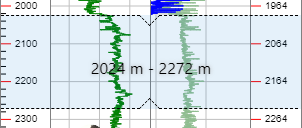
Highlighted area with depth range click to enlarge
You can manually scale the data in the Well View in the vertical direction. To do so, right-mouse click on a track, and drag a box at the depth range you want to view in more detail. While you drag the mouse, the area that will be stretched is highlighted in blue, while the depth range is displayed for your reference.
The toolbar at the top of the Well View can be used to change the projection, apply datum and filtering, change the vertical scale and access the Template Manager (  ).
).
Template Indicates the template to be used in the Well View display. Templates can be renamed, imported, exported or deleted using the Template Manager .
 Edit Template Opens the Template Editor, which you can use to create and edit tracks, logs and log settings.
 Save Depending on the active template, you can choose to save the view to a new template or update the active template. If you click the save button while one of the pre-defined templates is active, your only option is to create a new template (pre-defined template may not be overwritten), and you are prompted to provide a name for the new template. If you click the save button while a custom template is active, you can choose to create a new template or update the active template. Templates with unsaved changes are indicated by the template name being italicized.
 Reapply The reapply option 'resets' the view with the selected template. For example, if you have applied the
Template Manager Opens the Template Manager from which you can rename, import, export and delete templates.
- 01 - Raw Logs
- 02 - Measured Logs
- 03 - Petrophysical Logs
- 04 - Seismic Calibration
- 05 - Geological Display
 Zoom Displays the current zoom level of the Well View. Select from a number of predefined zoom levels or press Ctrl and scroll the mouse wheel to zoom to a custom level. The reset button allows you to return the value to 100% after the zoom level has been changed.
 Scale Controls the vertical scale of the view.
 Fit wells Scales the view such that the full depth of every displayed well becomes visible without having to scroll vertically.
Depth projection (Measure) Controls the depth projection of the view.
Projection Select the projection, if applicable.
Datum Select the marker you want to datum on. You can set datuming options using the Datum form, opened by clicking the button adjacent to the drop-down list. As an alternative to setting a datum using the drop-down list, you can also right-click the marker of interest and select Set as Primary Datum.
 Datum Opens the Datum form where you can specify the depth, active marker set, primary, secondary, or tertiary markers, on which to datum. See Datuming in a Well View for more on this.
 Probe (shortcut key: Ctrl+I) Activates the Probe tool for use in the Well View. With the Probe tool active, a small dialog box containing various information appears when an object in the Well View is hovered over.
 Validation Opens the Marker Validation form where you can validate your markers against a selected stratigraphic model. All invalid markers (i.e. markers that are not picked according to the stratigraphic model) will be listed in the table on the form, and can subsequently be marked in the Well View by clicking the next toolbar icon
  .
.
 Export to PDF Opens the Export to PDF form where you select a folder location and specify a file name to save the current Well View as a *.pdf file.
 Filter Opens the Filter form with which you can adjust the Well View filters. For details, see Filtering in a Well View.
Context menu options for objects displayed in the Well View
Right-clicking outside of a track in the Well View (i.e. in the gray area), or on a track, well or track header, log or a marker opens a short context menu.
Hide Hides the track from the Well View and unchecks that same track in the Template Editor.
Edit Template... Opens the Template Editor which allows you to add tracks, add logs and edit log settings.
Edit Log... Opens the Logs form where you can edit existing logs with the wellbore and log already selected along with the associated well log data, see Creating and editing logs. This option is only visible for context menu of logs in the track.
 Move wellbore left Moves the wellbore to the left in the Well View. This option is only visible for wells that are grouped in a well group. Moving a well in the Well View also moves the well in the well group in the JewelExplorer.
 Move wellbore right Moves the wellbore to the right in the Well View. This option is only visible for wells that are grouped in a well group. Moving a well in the Well View also moves the well in the well group in the JewelExplorer.
Annotations
Add... Open the Add Annotation form where you can fill in a text for the log annotation, edit the values and change the display settings.
Expand All Show all annotations for the selected log.
Collapse All Hide all the annotations for the selected log. Only the anchors are shown.
Delete All Delete all the annotations for the selected log.
Set as Primary Datum Select the marker as the primary datum. The Datum in the toolbar of the Well View is also updated. This option is only visible while using the context menu for markers in the Well View.
 Delete Marker Removes the marker from the well track. This option is only visible while using the context menu for markers in the Well View.
Distance measurement
In the margin between each of the wells in the Well View you can find the distance between the two wells. This measurement is taken between the well heads or, if a primary datum is selected, at the datum, and is calculated in a horizontal plane.
Synchronicity with the Marker and Thickness tables
Changes made to marker data in the Marker and Thickness tables are immediately reflected in any open Well View. This includes adding or removing markers, as well as changing depth data for a marker. Likewise, changes made to marker data in the Well View are immediately reflected in the Marker and Thickness tables.