Python module setup
Python scripting allows for the usage of the Python language to control JewelSuite software through, but not limited to, JewelEarth's API. It gives you access to the wide range of libraries available for Python such as machine learning and numerical libraries.
In order to use Python you have to manually install it on your machine. To do this, follow the below setup instructions.
Installing Python
- Make sure that JewelSuite is closed before you proceed with the next steps.
- From https://bakerhughes.flexnetoperations.com download all the contents of the PythonModule folder to your local computer. In case you do not have access to the download portal, please contact SoftwareSupport@bakerhughes.com.
- Double click the JewelEarth Python <version> executable. This will install Python in the following location : C:\Users\{UserProfile}\PythonModule which is the default location that will be used by JewelSuite. It is possible to change to a different default location, see Changing the default Python Module location.
- The PythonModule folder can be found in your user profile directory after all the files have been extracted.
Opening Python
- Open JewelSuite and open the Horizons.jewel solution from \PythonModule\Solutions.
- Go to JewelLabs > Python > Open Python Module.
- The Python module opens as a floating pane. You can dock and pin the pane.
- If Python is initialized successfully, you are ready to (run examples and) use Python. The examples are located in {JewelSuiteDir}\Python\Examples.
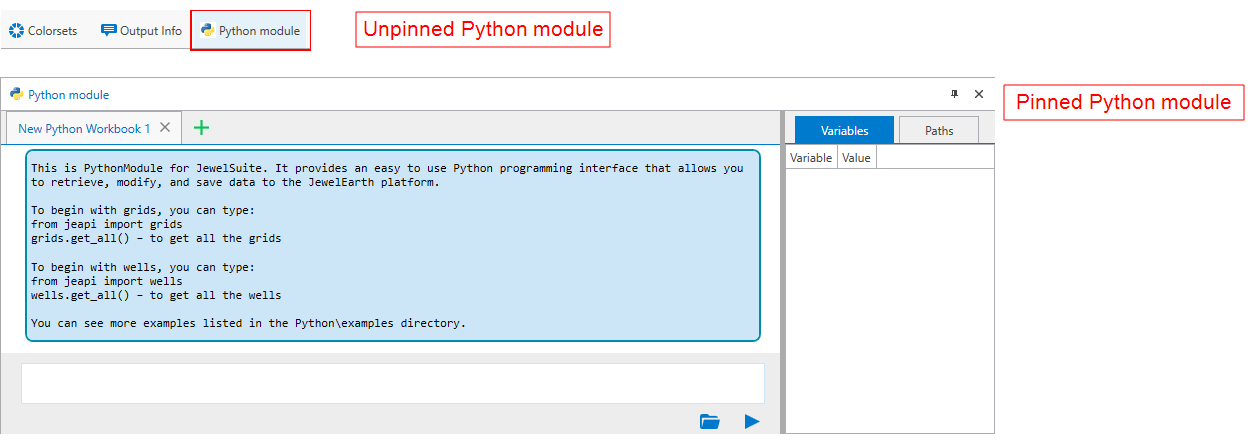
The Python module pane, unpinned and pinned. The Variables tab is populated once you assign a variable. click to enlarge
Using Python - running commands
The Python module has different sections, see image below.
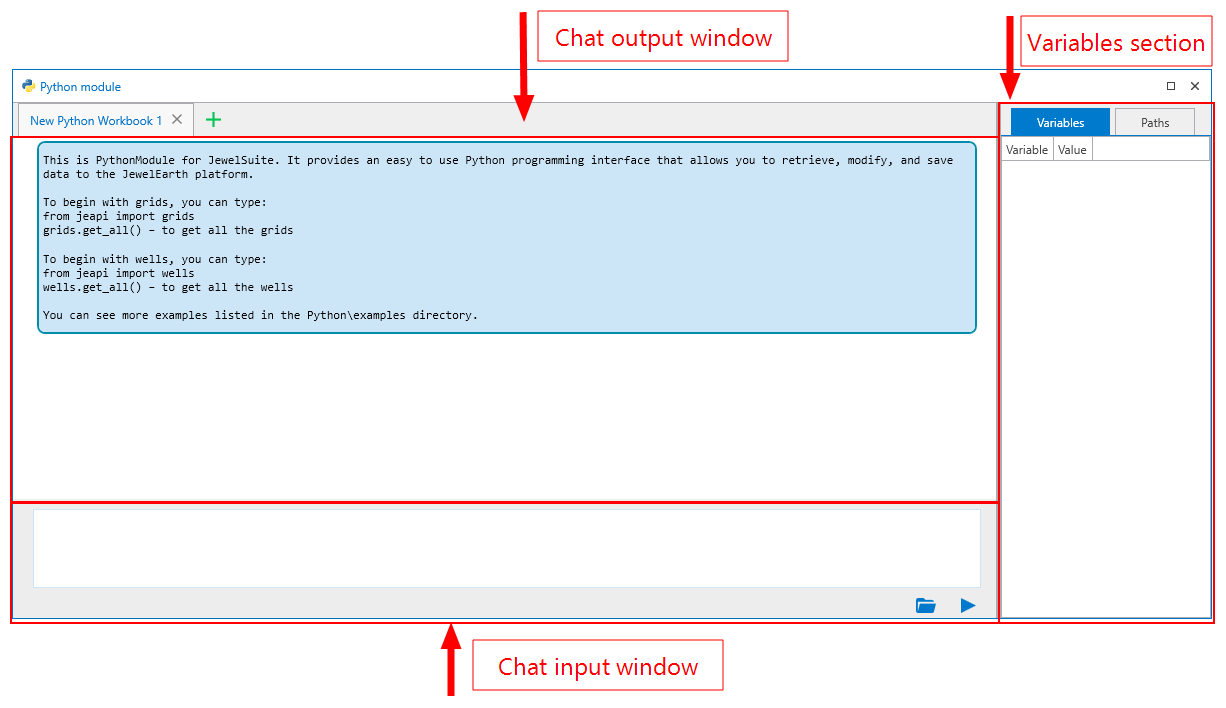
The different sections in the Python module. click to enlarge
A chat-like user interface is provided between you and the Python interpreter. This means that you send Python text messages, in this case these are code, then the reply from Python will be given on another chat cell indented to the left.
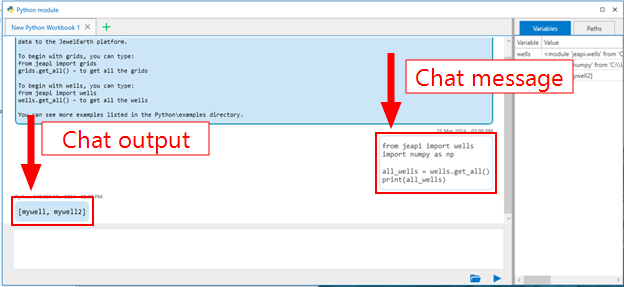
The different chats in the Python module. click to enlarge
- Type a command in the chat input window. Entering multiple command lines is also supported. To go to the next line, press Shift + Enter.
- To run your code, press Enter or click the play icon
 at the bottom right of the chat input window.
 - When new code is sent to Python, the variables list is updated accordingly. If you have many variables, an easy way to keep them organized is by opening a new Python Workbook with the green plus icon
 in the toolbar. Variables are only available in one workbook.
 - Once a variable is imported, you can use the lower part of the module to add more commands to your variables. To open a list of all available functions and properties to call for a variable, type the name of the variable in the chat input window, followed by a period. To close the list, press Esc.
- Use the up and down arrows or your mouse to select an operation from the list. Press enter to get the operation in the input chat window.
- Press enter or click the play icon at the bottom right of the chat input window to run the command.
The command line(s) move to the chat output window. Commands that you have entered are listed in a white box with a blue border (chat message), messages that come from Python are listed in a blue box (chat output). To edit a command, select the command in the output window and click the pencil icon. To run the command again, click the play icon.

Click the pencil icon to adjust your command. Next, click the play icon to run the command again. click to enlarge
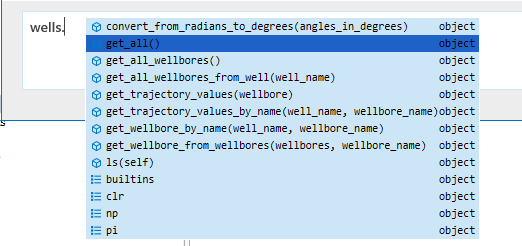
You can select a command from the list with predefined functions and properties. click to enlarge
Using Python - Running examples
The examples are located in {JewelSuiteDir}\Python\Examples.
- To run an example, click the folder icon in the bottom right corner
 of the chat input window.
 - Browse to the folder location, and select an example. Click Open.
- The command or commands in the example are run immediately.
- The information from the example (e.g. the used commands) and the results are listed in the output chat window.
Running Jupyter Notebook
- Go to .
- Double click on the Python folder.
- Go to Python\Examples\notebooks and double click launch_jupyter_notebook.bat to start jupyter in a local hosted html window.
- A few standard notebooks are listed here:
- Click on a notebook (*.ipynb) to open it in a new window.
- To run the example, select the cell and click Run in the toolbar or use the key combination Shift + Enter. You can also select multiple cells to run.
- When jupyter notebook is running the selected cell, it will be indicated with a [*] in front of it.
- To edit a cell, double click in it to enter the edit mode. Make your change(s) and click Run again to update the code.
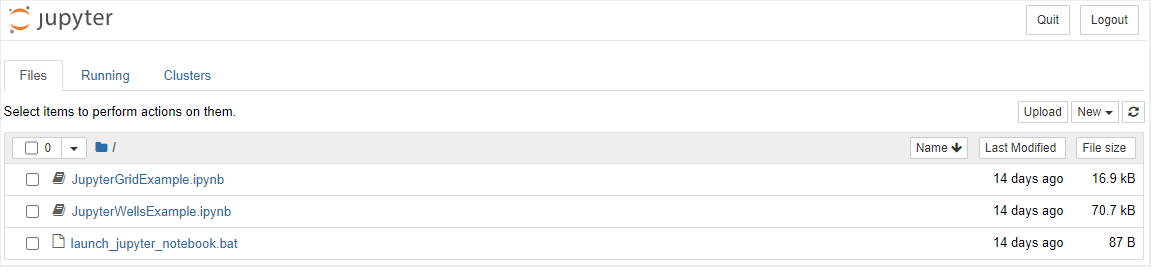
Jupyter with standard notebooks listed. click to enlarge
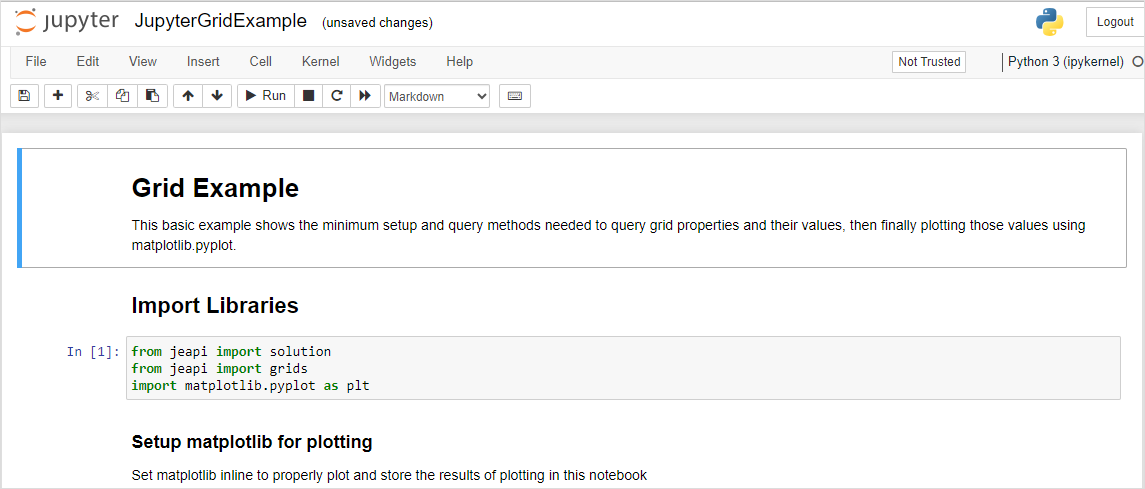
Open a notebook to run or modify it. click to enlarge
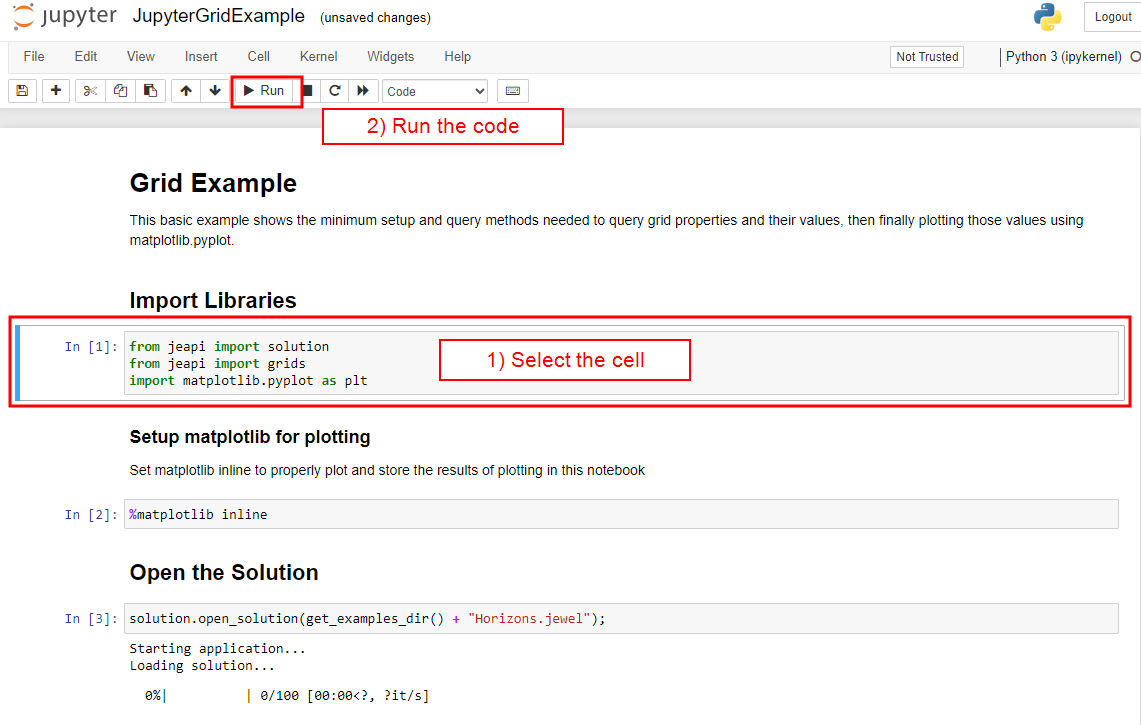
Click Run to run a notebook . click to enlarge
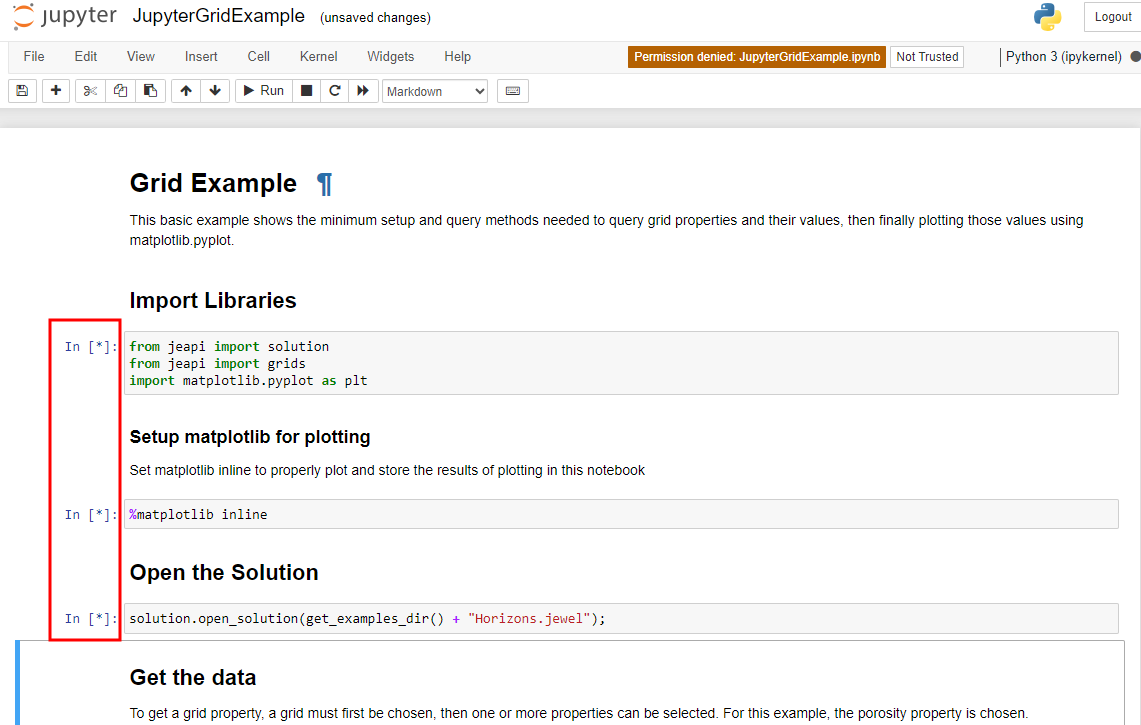
While code is being run, it is indicated with an asterix. click to enlarge

You can edit and rerun code. click to enlarge
Running Python in a console
- Open a command window in the JewelSuite Batch Server directory.
- Execute the set_python_environment.bat.
- Run Python <path to script>. The examples are located in {JewelSuiteDir}\Python\Examples.
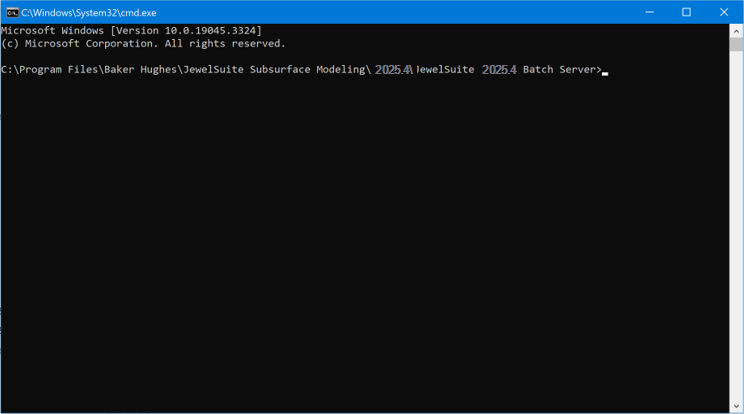
Command window in Batch Server directory. click to enlarge
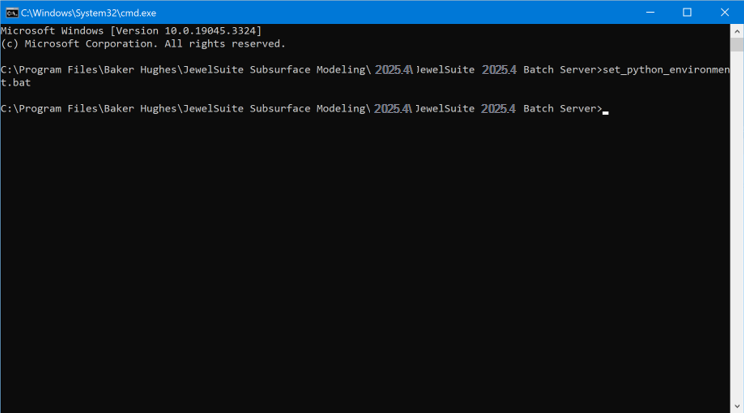
Execute set_python_environment.bat. click to enlarge
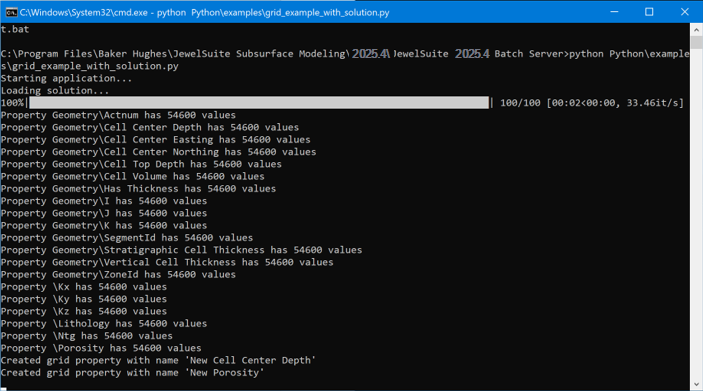
Run Python. click to enlarge
Troubleshooting initialization
To locate Python, JewelSuite attempts to use settings that are typically found under C:\Users\{UserProfile}\AppData\Local\Baker Hughes
When the Python Module is first started, it will create an entry called “PythonHome”, under AdditionalSettings:
"AdditionalSettings": {
….
"PythonHome": "C:\\Users\\{username}\\PythonModule\\Python37"
}
If Python.exe is not found in this directory, JewelSuite will assume this is not the Python home directory and will not initialize the Python engine.
Changing the default Python Module location
You can change the default Python interpreter used by JewelSuite by editing the
The entry PythonHome under AdditionalSettings is created the first time the PythonModule is started in JewelLabs and otherwise, it will be missing. When editing the PythonHome entry, make sure the path points to the location of the Python.exe and Python{version}.dll locations.
Manually installing libraries
Some of the required libraries ()are not pre-packed with the application and have to be installed manually. To do so:
- Close JewelSuite.
- Open a command window in %USERPROFILE%\PythonModule\Scripts.
- Enter the following command:
- The result should look like the image below:
- The library can now be used like any other library within JewelEarth.
pip install lasio
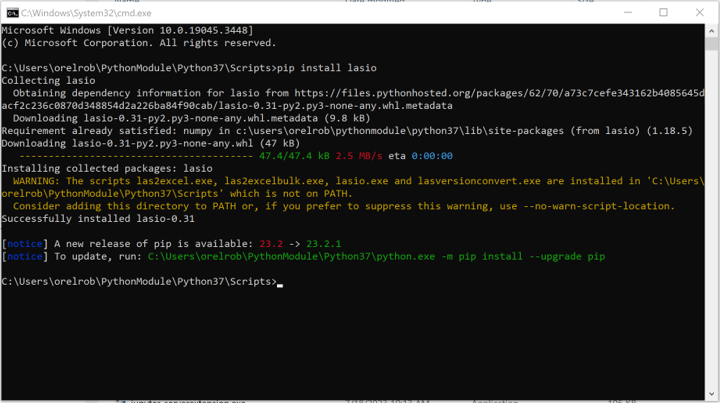
Run Python click to enlarge