All Logs context menu
Sort Logs Per Property Template Sort the logs in the JewelExplorer according to the property template they use. The logs will then be grouped in folders such as Gamma Ray, Lithology, Porosity, etc.
Autocreate Colors Automatically create unique colors for all the items contained within it.3D Log Display the log in either 1D or 3D. When your wellbore is highly deviated, the 3D display in the transition zone between the vertical and horizontal part of the wellbore is only properly handled when the 3D log threshold angle is set to 0 degrees. The default value for the threshold angle, after importing the logs to the solution, is 5 degrees. You can change this angle in the Property Inspector, having the Wells folder selected in the JewelExplorer.
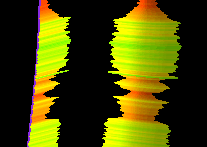
1D (left) and 3D click to enlarge
Show Histograms Show a histogram view in which you can select which logs to display. See Histogram view.
Show Scatter Plots Show a scatter plot view. See Scatter Plot view.
Export
Export Logs in ASCII Format Export the logs in the ASCII (*.log.ascii) format.
Export Logs in LAS Format Export the logs in the LAS (*.las) format.
Delete Delete the object from the solution. Depending on the type of object, geometric representations, subfolders or objects it may contain are deleted as well.