Blocked Wells context menu
Show All Show all the items contained within the folder in the JewelExplorer in your (3D) View. This is equivalent to checking all the visibility checkboxes of all items and sub-items (children) inside the folder in the JewelExplorer tree.
Hide All Hide all the items contained within the folder in the JewelExplorer in your (3D) View. Equivalent to unchecking all the visibility checkboxes of all items and sub-items (children) inside the folder.
Mesh Color Pick the color to be used to display the mesh.
Render Mode Display it as a solid surface, as a wireframe, or as a solid surface with wireframe mesh. For a surface in a 3D mesh model, you can also select to display as a solid surface with wireframe mesh and nodes, as a solid surface with nodes, as a wireframe, as a wireframe with nodes or as nodes only.
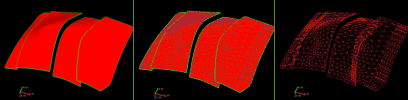
Render modes. Left to right; solid, solid with wireframe mesh, and wireframe mesh only. click to enlarge
Transparency Make it semi-transparent. Adjust the opacity value from the Property Inspector.
Lighting Turn a lighting effect on or off. The lighting effect can enhance the visibility of contours.
Create All Residual Log Shift Logs Create the residual log shift logs for all the blocked wells to investigate whether mismatches exist in your model between well markers and the tops or bases of grid layers, to which the well log data is upscaled. For more on this, see Visualizing the residual log shift.
Delete Delete the object from the solution. Depending on the type of object, geometric representations, subfolders or objects it may contain are deleted as well.