Computing mismatches between markers and horizons
Use the Compute Mismatch tool to calculate the mismatches between selected markers and associated horizons and from these values create a 3D grid property.
- Select the grid you want to update.
- Select the marker interpretation of interest.
-
Select the horizons you want to include in the update by checking the Use column. The list contains all stratigraphic surfaces used in the definition of the selected grid. You can omit the markers above or below the interval of interest.
Marker List of markers in the selected grid.
Depth Relative depth position (top to bottom) of the surfaces, indicated by a sequential number.
Horizon Name of the horizon associated with the Marker.
-
Specify the property to create.
Name Name of the well mismatch property to create, click into the box to specify a name.
Folder Name of the JewelExplorer folder in which to store the property. Use the drop-down list to select an existing folder as the destination, or provide a name for a new property folder.
- To interpolate the mismatch values calculated at the wellbore locations, check the Interpolate check box. During interpolation, you can create a mismatch grid property for all grid cells. See Mismatch examples. If you choose not to interpolate, the mismatch property is created only for the grid cells intersected by the wellbores. All other grid cells are labeled 'Invalid'.
- If you choose to interpolate, use the Power slider to set the power that is applied for the Inverse Distance Weighted interpolation algorithm.
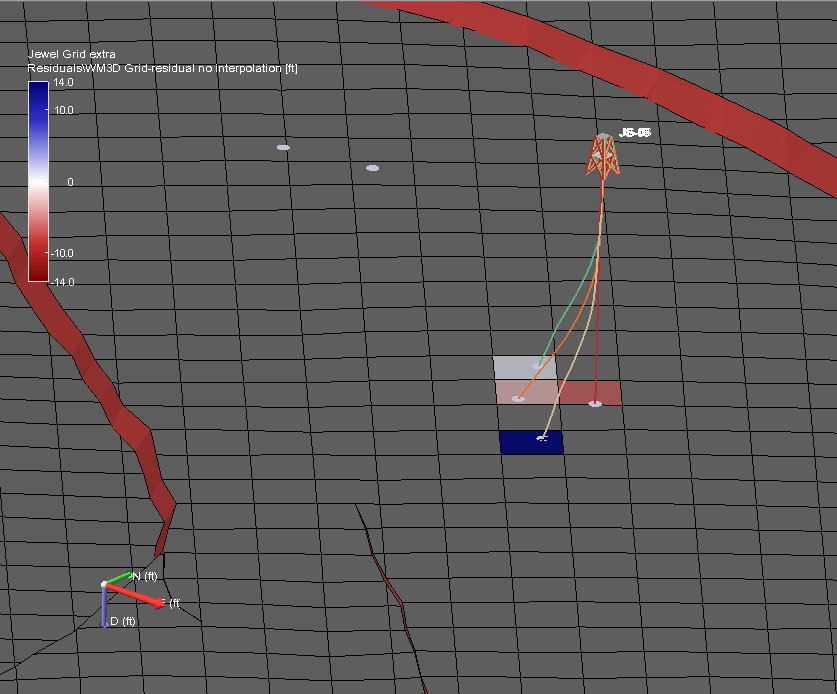
Mismatch property, no interpolation. Grey cells are ‘Invalid’ click to enlarge
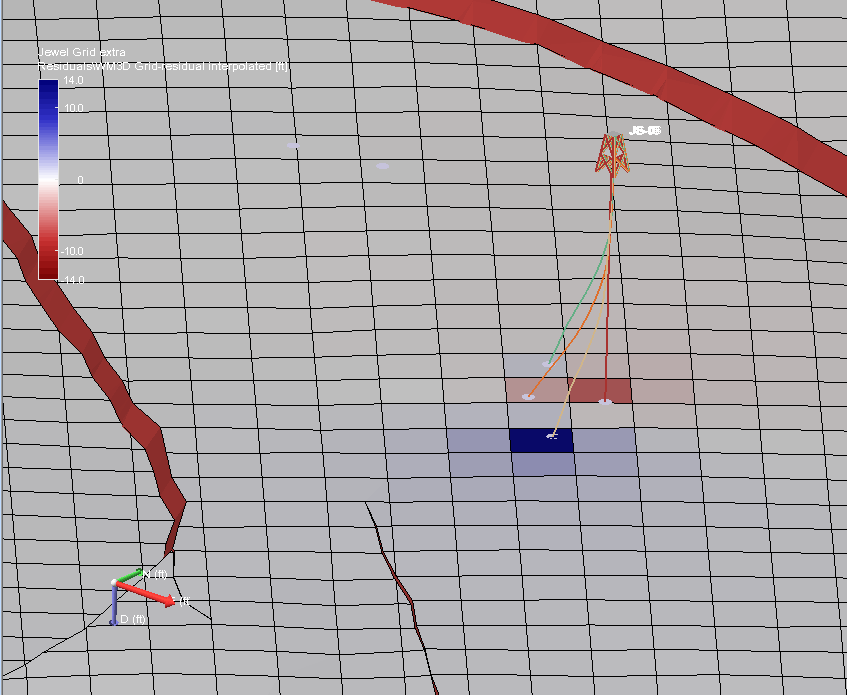
Mismatch property interpolated across grid click to enlarge
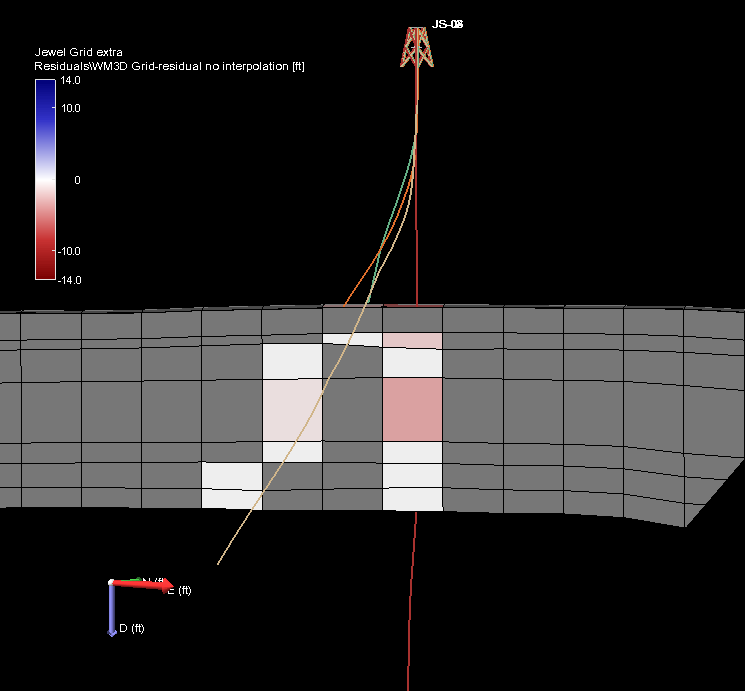
Mismatch property, no interpolation, J-slice. Grey cells are ‘Invalid’ click to enlarge
Mismatch property interpolated across grid, J-slice click to enlarge