Using the Diagnostics Tool
You can use the Diagnostic Tool (model > 3D Mesh > Tools) during different stages of the modeling process, to run multiple quality tests on the tri-meshes contained in your model. The Diagnostic Tool can find different types of issues within the model which might give you unexpected results during subsequent modeling steps. The tool lists all issues in a table and opens a dedicated Diagnostic View where all the issues are highlighted. You can use the table to set the focus in the view on one issue and look at the issues found one by one. The table also provides the surface type and TVDSS information about the issue which can be used to search and filter relevant issues.
The best way to QC and solve such issues is to use the Tools button group, or manually using the editing tools. You can also review the quality of the triangles belonging to your tri-mesh by displaying any of the Mesh Quality properties, available in the context menu of a tri-mesh (Properties > Default Geometry Properties > Mesh Quality). However, during the subsequent modeling workflows, you still might run into unexpected issues. Using the Diagnostic Tool to run selected tests on your fault model allows you to spot issues that you want to resolve before continuing with building your reservoir model.
How to use the diagnostic tool
- On the Diagnostic Tool form, in the Model drop-down list, select the model that contains the tri-meshes that you want to check for issues.
- Under Tests, select the issue(s) you want to test the model for. For more information about the different tests, see below.
- Click Run Tests. After running the test(s), the results can be analyzed in the Test Results table and a dedicated Diagnostics view.
- The issues that were found are listed (per category) in the Test Results table at the right side of the form. The table has three columns - first column shows the Issue name, second column shows the respective surface Type and the third column shows the respective depth in TVDSS for the listed issue. Use the column headers to sort the test results, or use the context menu to search and filter the results. The results are grouped in test type, and by default each test type is sorted on surface type followed by the issue name.
- A dedicated Diagnostic View is opened, displaying all the tri-meshes with issues.
- In the table, select the tri-mesh or issue that you want to highlight in the Diagnostic View. Only selected tri-mesh(es) are visualized.
- Use either the tri-mesh tools (prepare > Post-Processing Tools > Tri-mesh Tools, only for tri-meshes in surface sets), the structure builder tools (under the Structure Builder button of the strip that you are working in) or the editing tools (Workspace > Tools) to solve the issues. Rerun the test(s) and check if the issues are corrected to your satisfaction.
- Click Close to close the form. This will also close the Diagnostic View.
If the edited model was used in subsequent modeling steps, you have to rerun these modeling steps as well.
Selecting a test
Folded edges The tri-meshes of your model should not have sharp bends or kinks. Bends are measured via the angle between two adjacent triangles. All triangles with an angle below a maximum specified by you are considered folded and will show up in the results list. The two triangles creating this angle are highlighted in red in the dedicated Diagnostic View.
For more information, see Folded edges.
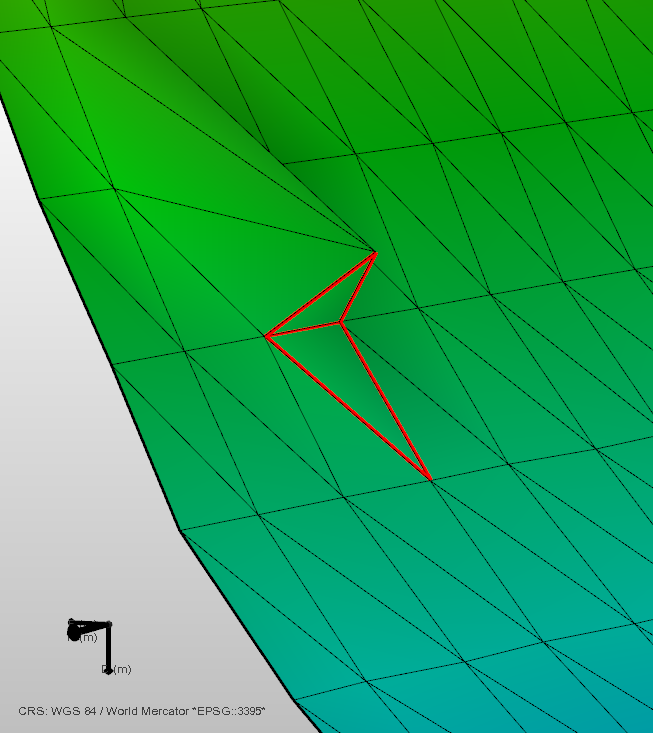
The two triangles that are creating a folded edge are highlighted in red in the Diagnostic View. click to enlarge
Flat triangles Very spiky, elongated triangles may cause unstable results in different processing steps. Flat triangles are measured via the angle between two triangle edges. All triangles with an angle below a maximum specified by you are considered flat triangles and will show up in the results list. The triangle is highlighted in red in the dedicated Diagnostic View.
For more information, see Flat triangles.
Internal boundaries An internal boundary is formed when a tri-mesh contains a gap, which is the case when the edges of one or more triangles are not connected to other triangles. This test identifies and locates these edges. Fault gaps in structural model horizons, when they are watertight in the respective horizon-fault combination, are recognized by the diagnostic tool as 'correct' and will not be flagged as internal boundaries. Ideally, every tri-mesh should be continuous and free of any gaps. Gaps in your faults may not segment your model in a consistent way and local flexures and artifacts in subsequent modeling steps can be the result. All the internal boundaries of the tri-mesh are highlighted in red in the Diagnostic View.
Intersection quality Creating a 3D mesh for finite element simulation is based on a consistent set of input tri-meshes which have strict requirements with respect to their contacts. Contacts between tri-meshes require that nodes match in location along the common boundary ('associated nodes', see Definition of watertight and associated surfaces).
This test analyzes the boundaries and color-codes the boundaries and its nodes to give visual feedback. The issues found can be viewed in the dedicated Diagnostic View. Free boundary sections are highlighted in orange. Watertight sections are highlighted in yellow. Blue nodes and edges indicate associated sections. Please note that zero offset intersections between horizons and faults are not shown unless they contain free nodes or edges. For more detailed information, see Intersection quality.
- Free boundary sections are highlighted in orange.
- Watertight sections are highlighted in yellow.
- Node-associated watertight sections are highlighted in blue.
- Nodes that are associated with only one surface are highlighted in red.
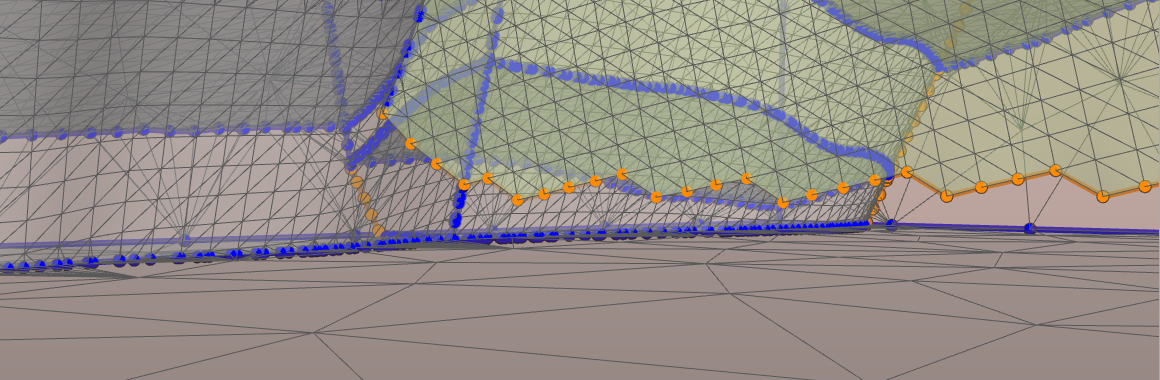
Example in which the tool identified a free boundary section, highlighted in orange. click to enlarge