Creating a facies model and assigning data
With the Create Model form (model > Facies > Create Model), you can create a new model, assign data and define sub-sets of your grid to model individually. Each sub-set is called a Volume of Interest (VOI) in the workflow. After this step, you follow the workflow on a per-VOI basis.

 Click here for an overview and the highlights of the workflow.
Volume of Interest (VOI) A sub-set of your 3D grid. It allows you to populate your 3D grid with facies by modeling each VOI separately.
Defining VOIs VOIs are determined by selections you make on the Create Model form, more specifically the property you select under 'Volume definition' (optionally in combination with nesting via the option 'Nest classes from').
Going through the workflow on a per-VOI basis It is recommended to take each VOI one by one through the workflow. You start with assigning a modeling method to one VOI. Only once you have completed defining the model parameters for one VOI, you should proceed with the next VOI. This lets you to focus on each VOI separately, analyze its data and fine-tune its modeling parameters. At the end of the workflow, you can run your model in parallel for all or only certain VOIs you selected.
Workflow steps Since each modeling method has its own specific set of modeling parameters, the workflow will automatically take you to the next relevant step. Some steps might be skipped depending on the method you selected or the data you have. For example, assigning a training image is only relevant when you are using MPS and assigning a variogram is not necessary for MPS.
Facies model The container which holds all the associated metadata: upscaled property, volume definition (i.e. VOIs), modeling method and modeling parameters per VOI, etc.
Facies grid property The resultant grid property, which is a combination of all modeled VOIs. Once you have run your model, it will be available in the JewelExplorer (3D Grids > Your 3D Grid > Properties > Facies > Your Facies Grid Property). It is read-only and has the same name as the facies model.
Toolbar on the Create Model form
You can duplicate, rename, or delete your existing facies models via the toolbar on this form.

|
Duplicates the currently selected model in the drop-down list (i.e., the active model). |

|
Opens the Rename dialog, where a new name can be given to the active model. |

|
Deletes the active model. |
To create a new model, assign data and define VOIs
- On the Create Model form, select
 Create new from the drop-down list, and type a name for the model.
 - Select the Grid from the drop-down menu. (If you already have an existing Facies Model and you want to assign another grid, see Assigning another grid to an existing facies-, rock- or function-based property model.)
- Select the Upscaled property that you want to use as input for modeling. The property needs to be stored in the 3D Grid> 'Upscaled Properties' folder in the JewelExplorer to be available for selection. Only discrete grid properties can be selected. If you have not created this property yet, create it with the model > Facies > Tools > Upscale Well Log tool.
- Select a property from the Volume definition drop-down list, to define sub-sets of your grid. Each sub-set is called a 'Volume of Interest' (VOI) in the workflow. Each VOI can get it's own unique set of modeling parameters (e.g. modeling method, data transformation, variogram, etc.) as you progress through the workflow.
- (Optional) When you are creating your facies model, you can further subdivide your volume definition into classes. You can do this by selecting an existing discrete property under Nest classes from. This enables you to specify different modeling methods/specifications for your modeled facies not only per volume definition, but also per discrete property class.
- In the Volume definition table, all the classes are listed with the Nest option checked. Uncheck the volume definition classes for which you do not want to have this extra refinement.
- With the 'Nest classes from' option checked - Each class in your volume definition combined with each class in your nesting model/property results in a VOI.
- With the 'Nest classes from' option unchecked - Each class in your volume definition results in a VOI.
- In case you want to make any edits to the facies classes (e.g. add a facies class, change the display color), click on the Edit Facies Classes button to open the Edit Facies Classes form where you can make your changes.
- Click Apply to create the model and keep the form open, or click OK to create the model and proceed to the Assign Method form.
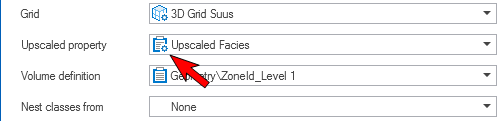
When the property symbol of an upscaled property has a cogwheel, it means the property is associated with a 'well log upscaling case' on the Upscale Well Log form. This means that if you select the property on the Upscale Well Log form, all upscaling settings are retained. click to enlarge
For example, fluid dependent diagenesis has altered your facies properties. By nesting fluid compartments (that you select under Nest classes from) in your Volume definition, you can not only model your facies per selected volume definition (e.g. geological zones), but also per fluid compartment.
The VOIs in your facies model are calculated as follows: