Normalizing your facies trend maps
With the Normalize form, you can normalize your facies trend maps so that the probability values for each facies trend map sum up to 1. The priority order, which is initially 1 for each facies class by default, defines which facies probability will be honored first.
To normalize facies trend maps
- On the Normalize Map form, select the facies trend map from the Facies trend map drop-down list.
- In the Normalization Priority table, assign a priority order to each of the facies classes. Select a number between 1-10 from the drop-down list.
- Click OK to normalize your facies trend maps and close the form, or click Apply to normalize and keep the form open.
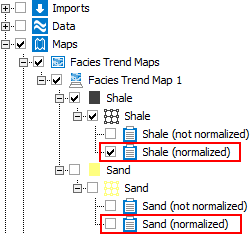
After completing this step, a normalized facies trend map (as a probability property per facies) will appear in the JewelExplorer. click to enlarge
When you have completed the workflow, you can assign the resultant normalized facies trend map as a 2D (lateral) trend in the Facies Modeling workflow. For more information on this, see Trends & Proportions.