Training Image (TI) Library
The Training Image Library button (model > Facies > Tools) gives you access to a large collection of 2D and 3D training images (TIs). If the training image library is not installed yet, see Installing TI library for instructions. The majority of the training images are 3D and represent fluvial systems, ranging from straight to meandering to braided rivers. Four major facies associations are available (flood plain, channel, levee and splay) which are defined in the training images in different combinations, for example floodplain with channels, or floodplain with channels and levee, etc. You can use filters to further narrow down the selection, for example you can use a filter on channel thickness, sinuosity or levee size.
2D training images are also available (with laterally variable dimensions; thickness is 1 grid cell) including a reef environment, turbidite environment, fluvio-marine environment, carbonate karst environment and two fluvial environments; fluvial belt and fluvial belt with channel. The 2D TIs can be used for simulating 2D as well as 3D grids. The 2D training images can be recognized by the name 'Shape2D' (hover over the image to display the information).
Each TI can be fully or partly imported, by making an areal selection of the image on the screen. After import, the TI will appear in the JewelExplorer, under the 3D grids folder, after which it can be used for MPS modeling during the Assign TI step of the Facies Modeling workflow on the Facies strip.
To import a training image from the TI Library
- In the Tools button group of the Facies sub-strip, click the TI Library button to open the Training Image Library. Upon opening, no filters are applied and all 681 TIs are displayed. To apply filters to narrow down your selection, see section Applying filters further below.
- Select one or more TIs by clicking on the image(s). A green check mark appears for each selected TI.
- Optional. You can import a sub-set of a TI by defining the sub-area manually on the screen. Make sure the TI is selected, then define the area by drawing a red rectangle on the training image. To undo the sub-set selection (i.e. clear the rectangle), right-mouse click on the TI and select Clear selection.
- Minimum requirements for a 3D training image: 25 x 25 x 14 cells (in I, J and K direction).
- Minimum requirements for a 2D training image: 25 x 25 cells (in I and J direction).
- Click Import at the base of the screen to import the TI(s). The TI(s) will appear in the 3D grids folder in the JewelExplorer.
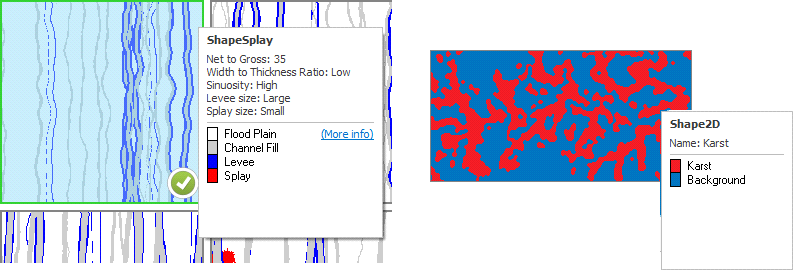
Example of a 3D training image (left) and 2D training image (right) in the TI Library. After you have selected a TI (indicated by the green check mark) you can define a sub-area by drawing a rectangle on the screen (see upper left image). Hovering over an image will display the legend, on which you can click More info to access background information of the relevant TI click to enlarge
Applying filters
You can apply the following filters to the Training Image Library:
Shape The Channel, Levee and Splay filters work on the 3D training images, while the 2D filter displays all available 2D training images. When you select multiple filters at the same time, the resulting display will contain the sum of the individual filters, for example, if you select Channel and Splay, a total of 540 TIs will be displayed (135 'Channel' and 405 'Splay').
Channel Check this box to display 3D TIs containing 2 facies types: Flood Plain and Channel (135 in total).
Levee Check this box to display 3D TIs containing 3 facies types: Flood Plain, Channel and Levee (135 in total).
Splay Check this box to display 3D TIs containing 4 facies types: Flood Plain, Channel, Levee and Splay (405 in total).
2D Check this box to display 2D TIs (6 in total).
Net to Gross Defines the net fraction.
Width to Thickness Ratio Defines the width of the channels.
Sinuosity Defines the curvature of the channels.
Thickness (Channel) Defines the channel thickness.
Levee size (Levee and Splay) Defines the size of the levee and/or splay (only availble when Levee and/or Splay are selected under Shape).
Splay size (Splay) Defines the size of the splay (only availble when Splay is selected under Shape).