Generating the azimuth of SHmax property
Geomechanical modeling also needs the orientation of the maximum horizontal stress. You calculate this property with the Azimuth form (MODEL > Geomechanics > 3D Grid Geomechanical Properties > Azimuth).
To generate the SHmax property
- At the top of the form, select the 3D grid for which you want to generate the azimuth of SHmax property.
- Define the azimuth of SHmax as a constant value or, if available, derive it form a well profile. In the latter case, the values are mapped horizontally at a constant depth in the grid.
- Click Apply or OK to generate the azimuth of SHmax property. Apply will keep the form open, OK will move to the next step of the workflow, Fracture Gradient. The property will be added to the sStatic Geomechanical Properties' folder under the 3D grid in the JewelExplorer.
You can model the azimuth of SHmax as a new property or use an existing property.
Constant
The azimuth of SHmax is assumed to be constant over the entire model area.
Create new property Select to model Azimuth of SHmax as a new property. Specify a property name (the default name is ‘Azimuth SHmax’).
Use existing Select to model Azimuth of SHmax on an existing property. The existing property values are overwritten.
Azimuth Enter a value for Azimuth of SHmax.
From profile
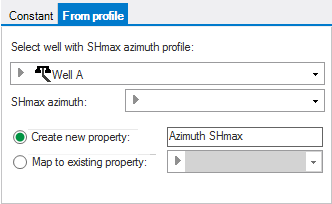
From profile tab click to enlarge
With the From profile option, you derive the Azimuth of SHmax property from existing azimuth SHmax data in a well. The azimuth values from the well will be applied horizontally at constant depth in the grid.
Select well Select the well whose SHmax azimuth profile you want to use.
SHmax azimuth Select the SHmax azimuth log from the available logs (logs with the azimuth property type).
Create new property Select to model the azimuth of SHmax as a new property. Specify a property name (the default name is ‘Azimuth SHmax’).
Map to existing property Select this option to model the azimuth of SHmax on an existing property. The existing property values are overwritten.