Creating a function-based property model
With the Create Function-based Property Model form (model > Rock Properties > Function-based Property Modeling > Create Model), you can create a new model, assign data and define sub-sets of your grid. Each sub-set is called a Volume of Interest (VOI) in the workflow. After this step, you can assign a function to each VOI separately.

 Click here for an overview and the highlights of the workflow.
Volume of Interest (VOI) A sub-set of your 3D grid. It allows you to populate your 3D grid with properties by assigning a function to each VOI separately.
Defining VOIs You define your VOIs based on the selections you make on the Create Model form, under 'Volume definition' and 'Nest within'.
Assigning a function per VOI Once you have created the functions with the Function Tool you assign a function to each VOI. While you assign a function, you also assign the grid properties or models that are input to the function(s). At the end of the workflow, you can run your model for all or only certain VOIs you selected.
Function-based property model The container which holds all the associated metadata: volume definition (i.e. VOIs), function per VOI and assigned grid properties or models that are input to the function(s).
Function-based grid property The resultant grid property, which is a combination of all modeled VOIs. Once you have run your model, it will be available in the JewelExplorer (3D Grids > Your 3D Grid > Properties > Rock Properties > Your Function-based Grid Property). It is read-only and has the same name as the function-based property model.
Toolbar on the Create Model form
You can duplicate, rename, or delete your existing function-based rock property models via the toolbar on this form.

|
Duplicates the currently selected model in the drop-down list (i.e., the active model). |

|
Opens the Rename dialog, where a new name can be given to the active model. |

|
Deletes the active model. |
To create a new model, assign data and define VOIs:
- On the Create Model form, select
 Create new from the drop-down list, and type a name for the model.
 - Select the Property Type you want to create from the drop-down list.
- Select the Grid from the drop-down list. (If you already have an existing Funcion-based Property Model and you want to assign another grid, see Assigning another grid to an existing facies-, rock- or function-based property model.)
- Select a (geometry) property from the Volume definition drop-down list to define sub-sets of your grid. Each sub-set is called a 'Volume of Interest' (VOI) in the workflow. You can assign a function to each VOI separately.
- As an option, you can use the Nest within drop-down list, to nest a property within the selected Volume definition. Otherwise, you can leave it set to None.
- Once the Nest within options is selected, in the adjacent table on the form, the Nest checkbox will be automatically checked for all the Volume definitions. Uncheck the volumes for which you do not want to apply nesting.
- Click Apply to create the model and keep the form open, or click OK to create the model and proceed to the Assign Function form.
For example, to model your property and its corresponding facies in a consistent manner, you can nest your facies model within your zones. To do this, you can select your facies model from the Nest within drop-down list.
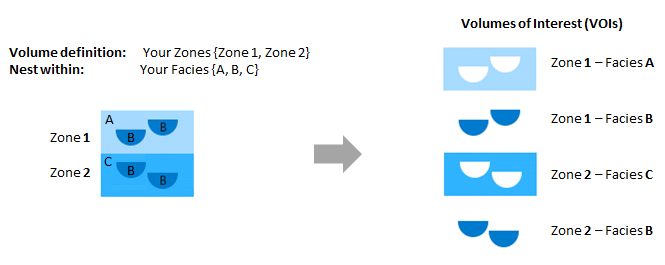
You can define your Volumes of Interest (VOIs) on the Create Model form, using the 'Volume definition' and 'Nest within' options. click to enlarge
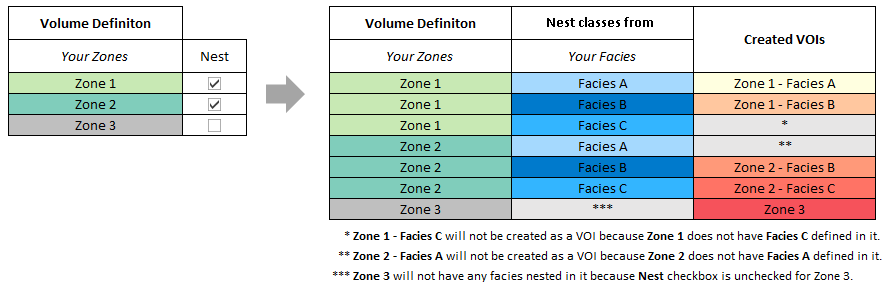
You can use the 'Nest' checkbox in the adjacent table on the form, to select volume definitions for which you want to apply nesting. click to enlarge