Transform & Trends View
The Transform & Trends View is a customized view which works interactively with the Transform and Trends form model > Rock Properties > Transform & Trends). The view shows the data before and after the transformation, once a transformation is selected on the form. Each time a transformation is added or removed, the view will automatically update.
When you assign several transformations (in case of a transformation scenario) for each transformation a separate histogram is added to the view (see image below), showing the data distribution after the transformation and all foregoing transformations. Note that the order in which the transformations are carried out is important; a different order can lead to different results (see Rules when applying data transformation). The order is defined by the order in the Transformations list on the Transform & Trends form, starting from the top.
When you assign 1D, 2D or 3D Trend to your VOI on the Transform & Trends form, the Transform & Trends View will show the histogram 'After Trend' as well as a scatter plot of the de-trended data.
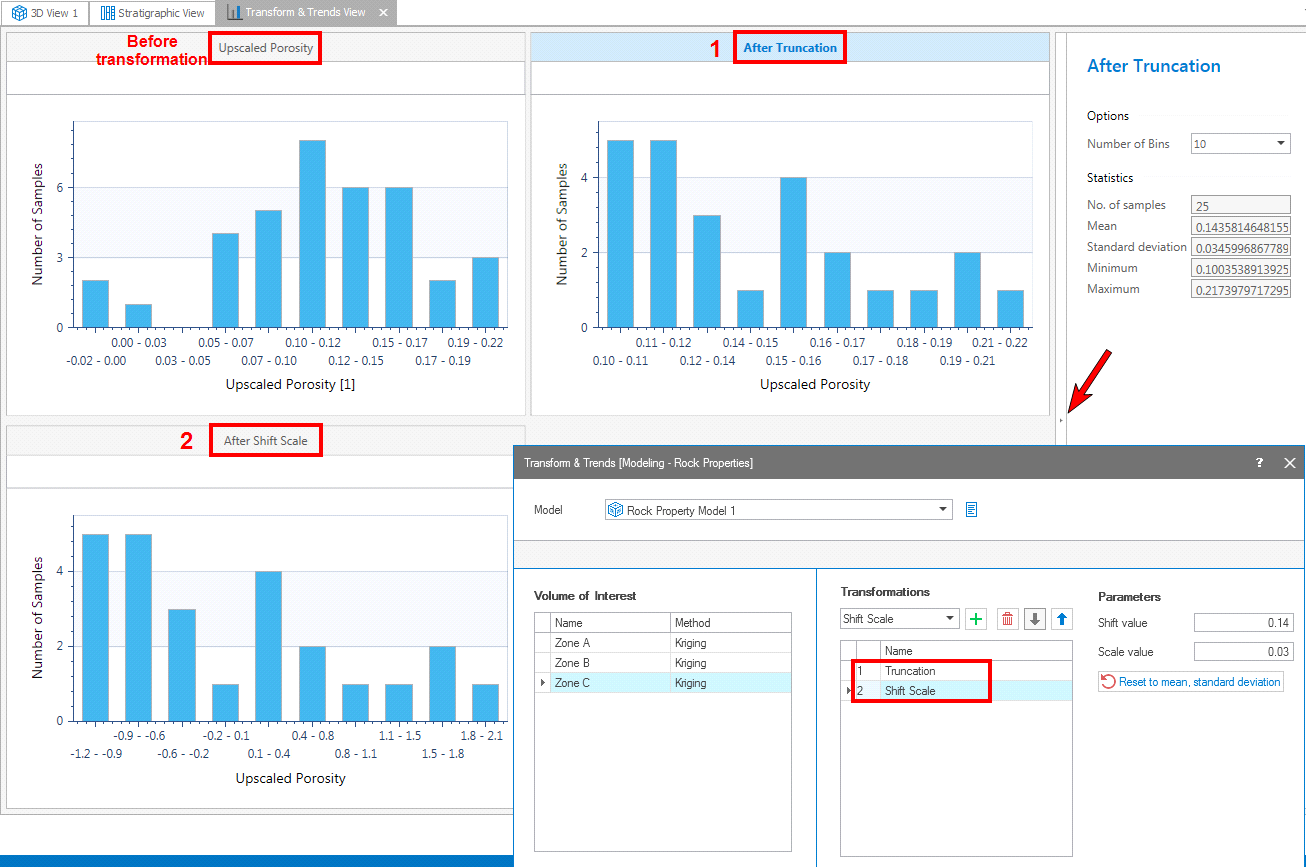
Example for the Transform & Trends View. As can be seen on the Transform & Trends form (lower-right image), Truncation and Shift Scale are selected for VOI 'Zone C'. The Transform & Trends View reflects the corresponding data distributions ('After Truncation' shows the distribution after Truncation; 'After Shift Scale' shows the distribution after Truncation and Shift Scale). The red arrow indicates where to click to show/hide the sidebar. click to enlarge
Controlling the Transform & Trends View display settings
The Transform & Trends View has a sidebar on the right-hand side that contains controls for manipulating the chart that is currently active. See the red arrow in the image above where to click in order to show or hide the sidebar. The active chart can be recognized by a blue bar above the chart (in the above image, 'After Truncation' is the active chart). In the View itself there are various controls on how to display the data.
- Maximizing a single chart - Click on the pop out icon
 to maximize the size of the selected chart. To return to the original size, click on the pop in icon
  .
. - Changing format and units - A right mouse button click on the horizontal or vertical axis opens a context menu. You can change the units and the format by making a selection from the options provided to you.
- Zooming - In the plot area, left mouse button click and keep pressed down to activate zooming. You can move your mouse in any direction. A preview window indicates the new display window. When you let go of the left mouse button, this is the part of the chart that is shown. To zoom out, double click in the chart area.
- Zooming along axes -
- Scroll axis relative to other axis - Hover over the center of the vertical or horizontal axis with your mouse until the tool tip changes into a bidirectional arrow. Left mouse button click and keep pressed down while moving the mouse will scroll the selected axis relative to the other axis.
- Scale Settings - Available for all charts. In the plot area, right mouse button click to open the context menu. Select the Scale Settings option to open the Scale Settings dialog box and enter the preferred minimum and maximum data for X-axis and Y-axis.
- Show/hide legend -
A right mouse button click in the view opens a context menu with the Show/hide legend option. When the legend is shown, you can also use it as a display filter: when you click on a name, that data is hidden from the chart, and the legend is grayed out.
Any chart view has a dedicated toolbar at the right side. You can open and close this toolbar using the little arrow.
Options
Number of bins Define the number of property categories that you want to divide your property into when displaying the histogram. The default number of bins is 10.
Statistics
The statistics section shows the basic statistics (# of samples, Min, Mean, Max and Standard deviation) of the active chart.