Performing data transformations
With the Transform & Trends form (model > Rock Properties > Transform & Trends) you can apply data transformations to an upscaled grid property so that it can be used in property modeling. One or more data transformations can be applied to a Volume of Interest (VOI). It depends on the modeling method that you assigned on the Assign Method form, whether data transformations are required or not:
- Data transformation is not applicable to the modeling method Constant. If your VOI is assigned Constant, the Transform & Trends form is automatically skipped and you can proceed with the Control Method form.
- When using Kriging or IDW, data transformations are optional (the form opens automatically after 'Assign Method')
- When using SGS, a Normal Score transformation is auto-selected on the form (the form opens automatically after 'Assign Method').
Upon opening the form and selecting a Rock Property Model, simultaneously a customized Transform & Trends View opens, displaying the data distribution (histogram) of the upscaled data of the selected VOI. Subsequently, when you select one or more transformations for your VOI, per transformation a separate histogram is auto-generated in the view, showing the data distribution after the particular transformation.
For parameter settings per data transformation type, see Data transformations - parameter settings.
Assigning one or more transformations
You can apply one transformation to the (upscaled) data in your VOI, or apply a scenario consisting of multiple transformations, which are carried out in the order as specified on the form.
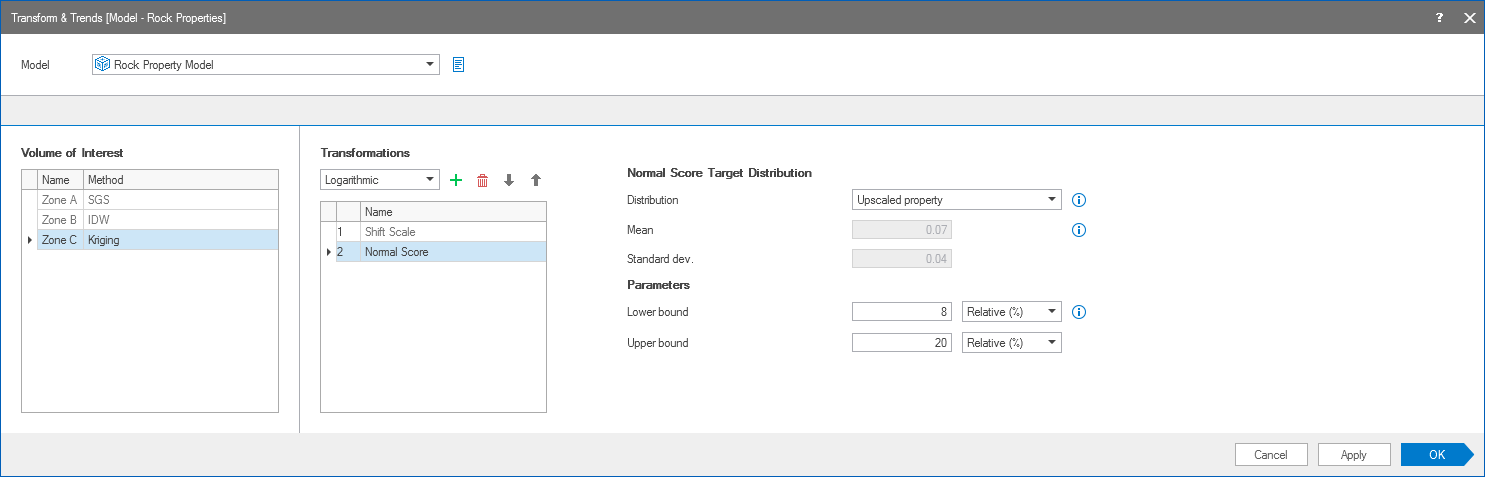
The Transform & Trends form. In the example, 'Shift Scale' and 'Normal Score' are selected for VOI 'Zone C'. You can add, remove, or change the order of transformations with the icons at the top of the Transformations section. click to enlarge
- At the top of the form, select the Model that contains your upscaled grid property. Simultaneously, the customized Transform & Trends View opens, initially showing the data distribution of the upscaled data.
- In the Volume of Interest table, select a VOI to which you want to apply one or more transformations. For modeling method 'Constant', transformations do not apply.
- In the Transformations section, select a transformation from the drop-down list and click the green cross to add the selected transformation to the transformations list. You can add more transformations if you want, but be aware of the Rules when applying data transformation. The listed transformations will be carried out once you click Apply or OK in the order as listed on the form. Use the icons (arrows for 'up', 'down' and delete
 ) to update the list of selected transformations.
 - To modify the parameters related to each transformation, click on a transformation in the list: the Parameters section on the right side of the form updates with the selected transformation. For more information about the parameters for each transformation, see Data transformations - parameter settings.
-
After you have defined the data transformations for your VOI's, click Apply to execute the transformation(s) and keep the form open, or click OK and move to the next step in the workflow Experimental Variogram.
 behind the entry fields to open the Uncertainty Parameter dialog. For how to use the controls on the dialog, see The Uncertainty Parameter dialog. For information about parametric uncertainties and how to use them in JewelSuite Subsurface Modeling, see Incorporating uncertainty in static or dynamic modeling.
icon.
behind the entry fields to open the Uncertainty Parameter dialog. For how to use the controls on the dialog, see The Uncertainty Parameter dialog. For information about parametric uncertainties and how to use them in JewelSuite Subsurface Modeling, see Incorporating uncertainty in static or dynamic modeling.
icon.
For rules of thumb to capture trends, see Capturing trends with JewelSuite Subsurface Modeling - rules of thumb.