Upscaling Grid Properties
The Upscale Grid Property form
To upscale a 3D grid property:
- Select the grid to use for grid property upscaling.
- Select the grid property to upscale within the selected grid. You can only upscale one property at a time.
-
Specify the upscaling method. In case a weighted method is selected, a 'Weight' property may also be specified. Each of the upscaling methods is described below.
 Property upscaling methods
Sum The sum of the values of all corresponding cells.
Min The minimum of the values of all corresponding cells.
Max The maximum of the values of all corresponding cells.
Arithmetic/Geometric/Harmonic mean The arithmetic/geometric/harmonic average of the values of all corresponding cells.
Arithmetic/Geometric/Harmonic mean weighted The arithmetic/geometric/harmonic average of the values of all corresponding cells weighted with that corresponding cell’s weight property value.
Most occurring The most occurring of the values of all corresponding cells, for discrete properties only.
Root Mean Square The square root of the arithmetic mean of the squares of the values of all corresponding cells.
Median The median of the values of all corresponding cells.
-
Optionally, a filter can be applied to the upscaled property. Filtering can be used to restrict the upscaling process to a specific aspect of the 3D grid like area, property, or zone. You can specify two filter criteria: a primary filter and secondary filter. To apply a filter, select the filter option, select the filter ID, and select the class. Use the secondary filter to refine the primary filter selection. In case you select both the primary and secondary filter option, the logical 'AND' operation will be applied: upscaling will only be applied to the intersecting areas. The two tables below describe the filtering options.
Mapping filters
Primary filter / Secondary filter Check this option if you want to use a discrete property for filtering.
Filter property Select the discrete property to filter on, for example, a zone property in you want to upscale property data per zone.
Classes Select one or more discrete property classes to filter on, for example, Zone1 and Zone2 in case you want to upscale property data ONLY for Zone1 and Zone2.
Selecting a filtering class
For each filter selected a list of classes can be chosen from. For making quick, broad selections you can right-click in the list and select one of the following options from the context menu.
Select all Selects all the regions or layers in this list.
Invert selection Inverts the selection so that those already selected are deselected, and those not selected become selected.
Select none Deselects all the regions or layers in this list.
Any discrete property can be used for filtering, which makes it very flexible to create any average map you want, for example using a region property.
Examples
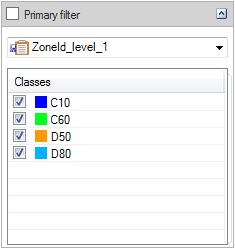

Example 1: To create an average porosity property for every zone in the model at level 1, select the porosity property as the 'property to map', select an averaging method and use the filter settings in the image click to enlarge
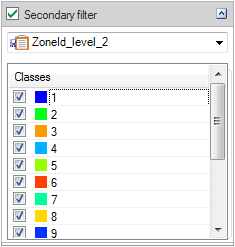

Example 2: To create an average porosity map for every zone in the model at level 2, select the porosity property as the 'property to map', select an averaging method and use the filtering settings in the image click to enlarge
- When you create an upscaled property, the name of the source property is used and you can add a prefix or a suffix to distinguish it from the original. One additional option, Replace all values, allows you to overwrite an existing property with the same name. If not selected, a new property with the same name and sequential number is created, for example, this operation will result in a property named 'Porosity_upscaled(1)' if 'Porosity_upscaled' already exists and the 'Replace all values' option is not selected.
- Click the Create button to create the upscaled grid property. The property will be available as an additional property of the selected grid and can be selected in the JewelExplorer for display.