Zone
The name of the zone.
 Context menu
Right click on a zone listed in the zones folder in the JewelExplorer to perform various tasks:
Hide (Show) Hide or show it in your view.
Show Legend Show or hide a legend for it in your 3D View.
Show / Hide
Show Gaps Shows the gap between discontinuities.
Show Pillars Shows the pillars for the complete grid.
Show Discontinuity Pillars Shows the pillars for discountinuities in the grid.
Display Settings
Mesh Color Pick the color to be used to display the mesh.
Render Mode Display it as a solid surface, as a wireframe, or as a solid surface with wireframe mesh. For a surface in a 3D mesh model, you can also select to display as a solid surface with wireframe mesh and nodes, as a solid surface with nodes, as a wireframe, as a wireframe with nodes or as nodes only.
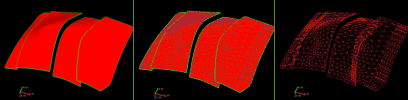
Render modes. Left to right; solid, solid with wireframe mesh, and wireframe mesh only. click to enlarge
Mesh Display Level Set the detail level of the display of the mesh.
Top and Base Layers Visible If the grid is a JewelGrid, it will have an additional top and base layer due to the JewelGrid system technology. Show or hide these layers.
Reset Boundaries Reset the display boundaries of the grid to the full dimensions.
Transparency Make it semi-transparent. Adjust the opacity value from the Property Inspector.
Lighting Turn a lighting effect on or off. The lighting effect can enhance the visibility of contours.
Contours Show or hide contour lines relating to the display of properties on a grid or surface.
Contour Labels Show labels on contour lines.
Contouring Options Open the Contouring Options form to specify a wide range of contouring settings.
Interpolation This display setting affects the (color) interpolation of the object displayed in your view. Without interpolation, the color boundaries are sharp; with interpolation switched on, the boundaries are smoothed.
Create
Point Set Create a point set in the 3D grid.
Properties
Set Active Property Select the property that you want to show on the grid. The folders and properties listed here are based on the items available under 'Properties'. The folders act as a filter.
View History Open the Audit Trail to view a history of changes, including user name, date, context, workflow process, workflow panel, and description. For more on the Audit Trail, see Using the audit trail.
Delete Delete the object from the solution. Depending on the type of object, geometric representations, subfolders or objects it may contain are deleted as well.