Creating a pseudolog from a volume
Use the Create Pseudolog from Volume tool to calculate logs for wells (both planned and existing) that intersect a selected geological grid, 3D mesh or seismic volume. The pseudolog shows the values of grid cells or the seismic volume that are intersected by a well trajectory and is added as a new log property to the well. You can display it in the appropriate views (3D, 2D, Well View) and use it as a QC tool.
The Pseudolog from Volume tool can be found in:
When you create a pseudolog, the application automatically creates in the JewelExplorer:
- The pseudolog under the Logs item of the wellbore.
- A 'blocked well' as a grid item under the 3D Grid. A blocked well consists of the grid cells which are intersected by the well trajectory.
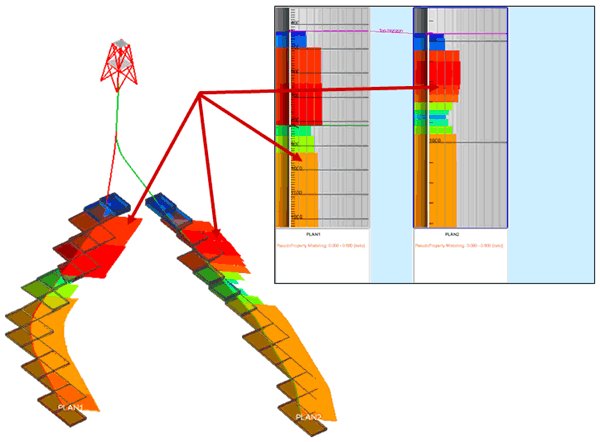
Pseudologs in 3D and in the Well View click to enlarge
To create a pseudolog:
-
From the Source drop-down list, select the grid, 3D mesh or seismic volume for which to run the pseudolog operation.
- Under 'Properties', select All properties or Geometry to act as a filter on the properties listed in the column below. From that list, select one or more properties for which you want to create the pseudolog(s). The Realization field automatically becomes active when a property has more than one realization; select the realization that you want to use as input for your pseudolog.
- Under 'Create Logs on Wells', select the wells to create the pseudologs for.
-
The options under 'Seismic & 3D Mesh Settings' are available for selection when the selected 'Source' is a 3D mesh or a seismic volume. Select either MD step or Derive MD step from log:
MD step Enter a measured depth step (MD) value in the entry field as the fixed increment of the created pseudolog. The MD step value to specify depends on the thickness of the grid cells. Always use a value significantly smaller than the smallest grid cell thickness to make sure that all property values are preserved in the pseudolog. Otherwise, grid cells might be skipped, which causes loss of data in the pseudolog (see example below). For example, if the grid cells have a thickness of three meters, using a pseudolog step value of one meter should be sufficient. The following settings for the new pseudolog are defined as follows:
- Property template: based on the selected grid property (e.g. of type 'Porosity').
- Log increment: as specified on the form (MD step).
- Log start MD and end MD: from blocked well start MD and end MD.
Derive MD step from log Select this option to create a pseudolog based on an existing log template. This means that the created pseudolog inherits the following properties of the selected log:
- The property template (e.g. type 'Porosity').
- Log increment (e.g. log step size).
- Log start MD and end MD (inherited per wellbore).
When you create pseudologs from a grid, the MD step option is not available because the pseudologs automatically uses the step size and template of the blocked well. Log values are added at each depth value where a new cell is entered in the blocked well.
When the selected log is not available for a wellbore, an MD step of 1 m is used for that well instead. - To create the pseudolog(s) for the selected well(s), click Apply or OK. The newly created log(s) will be available in the JewelExplorer under Well Data > Wells > target wellbore(s) and under Well Data > All Logs.
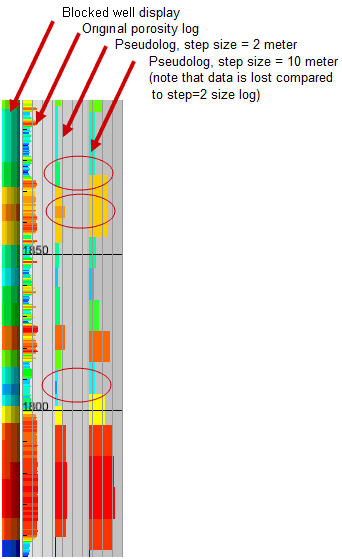
Pseudologs with different step sizes click to enlarge