Trim intersecting surfaces
Use the Trim Intersecting Surfaces tool to remove all nodes of a polyline set above or below a horizon, unconformity or intrusion. Other removal options related to handling large segments or single nodes are available as well.
- Under Model select the source (e.g. Surface Set, Seismic Interpretation) that contains the polyline set that you want to trim. After selecting the source, all polyline sets present in that source will be listed under Surface to Trim.
- From the list of polyline sets under Surface to Trim, select the polyline set that you want to trim. You can select more than one polyline set to trim.
- Under Surface for Trimming, select the data source and surface that will bound the selected polyline set(s). Only surfaces that have a 2D grid or tri-mesh representation can act as the bounding surface and will be available for selection.
- Select Above Surface or Below Surface to remove all nodes of the polyline set(s) which are above or below the selected surface for trimming. The image below shows an example for removed segments 'Above Surface'.
- Click Apply or OK to trim the polyline set.
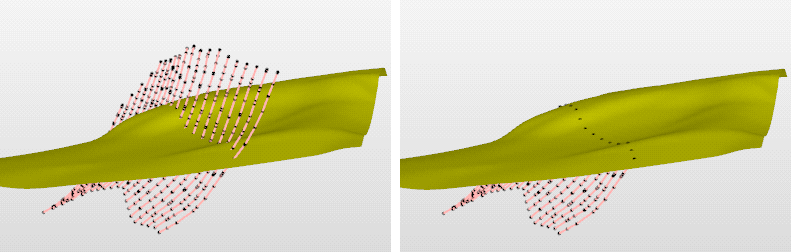
The polyline set (non-trimmed in left image) is trimmed by the green unconformity with the setting remove segments 'Above Surface' (right image). click to enlarge