Cleaning your input data
The Clean Up Data step of the Create Surface workflow (prepare > Surfaces > Create Surface > Clean Up Data) is an optional step. Cleaning up your data means you can appoint areas/parts of your input data that you want to ignore during surface construction. For example parts of a tri-mesh with poor data quality or some markers of a marker set you do not trust. Instead of deleting this data, you make use of a special property called 'active property' in which unwanted data is set to inactive. Per input representation you can create such property. By making use of a property, the original input data is preserved and any previously performed clean-ups can easily be updated or reversed. Also you can create a surface with varying clean-ups.
Except for markers, data clean-up is performed in a dedicated 'Surface Clean-Up View', which automatically opens when you select a representation on the Clean Up Data form. In the view, with the 'active property' selected, you set parts of the representation to inactive with the Editing Tools > Property Tools. To set markers as inactive you use the Marker Table, as this cannot be done in the view.
 Tips and tricks for the Clean Up Data form
When you open the Clean Up Data form, you see a table showing the representations assigned to the surface definition, checkboxes in front and behind these representations and two tools above the table. Below follow some general remarks on the behaviors of the form:
- The checkboxes in front of the representations in the table have two functions:
- To specify for which representations you want to create the 'active property' - Check the box(es) of the representation(s) for which you want to generate the 'active property'. Then click the 'Generate active property' icon above the table (Image 1 below). A green checkmark in the last column of the table indicates when such property exists for the representation (Image 2 below). You can find the property under the respective representation in the JewelExplorer, carrying the name 'Active_your surface definition'. For markers the location is Well Data > Marker Set > your marker > 'Active'_your surface definition'.
- To specify which 'active properties' you want to use during surface construction - When you click Apply/OK at the base of the form, 'active properties' will be used (during surface construction) only for the objects that have their boxes checked. 'Active properties' of unchecked representations will be ignored during surface construction meaning all the data of those representations is considered input. This allows for easy comparisons of output surface 'with inactive data' and 'all input data used'.
- The checkboxes of the representations are for information only, and indicate the type of representation (polyline set, 2D grid, tri-mesh, point set and marker) is present for the event.
- An existing 'active property' cannot be overwritten. To re-generate the 'active property' for a representation that already has one, you first have to delete the existing 'active property' from the JewelExplorer.
- At any moment the Surface Clean-Up View can be opened by selecting a representation (or checking its checkbox) in the table on the form.
- You can open the Editing Tools > Property Tools in two ways: either by checking the checkbox in front of a representation and subsequently clicking the 'Open editing tools' icon
 at the top of the table, or via Workspace > Tools > Editing Tools. Before you start editing, verify that the name of the representation you want to edit is displayed at the top of the editing tools floating palette, if not, click on the representation in the view, table or JewelExplorer. For general info on the editing tools, see Editing Tools. For how to edit a property with the Property Tools, see Graphically editing properties.
 - Setting markers to inactive is done in the Marker Table (Workspace > Views > Marker Table), not in the Surface Clean-Up View.
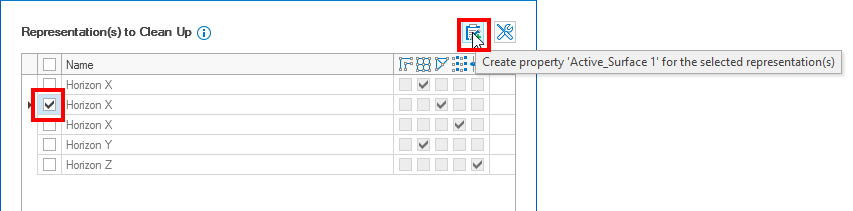
Image 1 - To create an 'active property', check the box of a representation and click the 'Create property' icon at the top of the table. click to enlarge
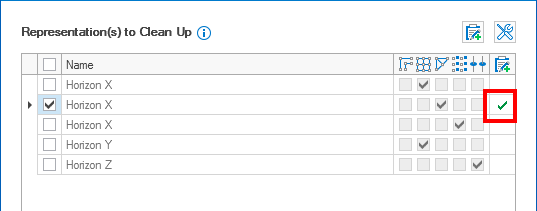
Image 2 - A green checkmark in the last column indicates the 'active property' exists and is ready for editing. click to enlarge
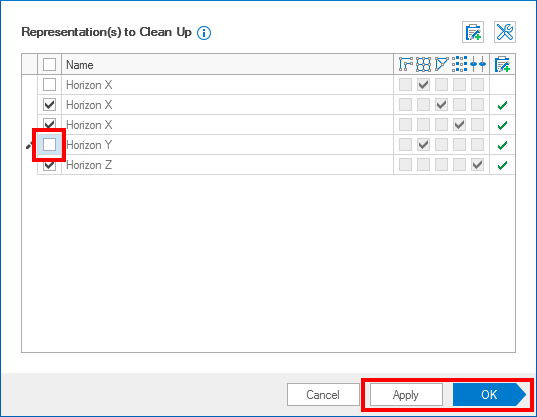
Image 3 - To actually use an 'active property', the checkbox of the corresponding representation must be checked upon Apply/OK of the form. In the example above, Horizon Y has an 'active property' but as its checkbox is not checked upon Apply/OK, the property will be ignored during surface construction (all data in the representation will be used as input). click to enlarge
- Open the Clean Up Data form.
- Select your surface definition from the Surface definition drop-down list. The table on the form will fill with all representations that were assigned in the previous workflow step.
- Check the checkbox(es) for the representation(s) you want to clean up, then click the 'Create property' icon
 at the top of the table. A pop-up appears with the question whether you want to generate the 'active properties'. Click 'Yes' to the question:
 - A green checkmark appears in the table behind each representation to indicate that the 'active property' has been generated.
- The JewelExplorer has expanded for each of the checked representations with the 'active property' selected.
- The Surface Clean-Up View displays the (last checked) representation. The view displays the representation you last selected in the table and updates with each new selection. You can also display multiple representations at the same time in the Surface Clean-Up View by selecting multiple representations in the table on the form (hold down Ctrl key + select).
- Make sure the checkbox in front of the representation you want to edit is (still) checked (this enables the Editing Tools icon), select the representation in the table (click on its name, it turns blue) and click the 'Open editing tools' icon at the top of the table. The editing tools floating palette opens for the selected representation (verify the name at the top of the palette, see image below).
- Click on a tool in the Property Tools section on the palette. This opens the Settings section where the 'active property' is auto-selected (if not, you can select it from the drop-down on the palette).
- You are now ready to start editing the representation in the Surface Clean-Up View, i.e. setting nodes/areas to inactive. For details on how to do this, see Graphically editing properties.
-
(This step assumes the 'active property' for the marker has been created, see step 3 above.)
Open the Marker Table (Workspace > Views > Marker Table) which is initially empty. In the JewelExplorer, under Well Data > Wells, check the checkbox of subsequently the well and the marker to fill the columns of the Marker Table with the associated data.
-
Look for the column 'Active_your surface definition'. The current state of the marker is 'Active'. Set it to 'Inactive' and close the table. You can verify that the marker is inactive by displaying it in the Surface Clean-Up View. To do this, select the Marker Set representation it in the table on the Clean Up Data form (in the view, the inactive marker will be displayed in gray). For general info on the marker table, see Marker Table.
- When you have finished editing the 'active properties', check the checkboxes of the representations for which you want to use the 'active properties' during surface construction. When the checkbox of a representation with an 'active property' is not checked, the 'active property' will not be used during surface construction and all the data points of the representation will be used as input, see image 3 under 'Tips and tricks' above.
- Click Apply or OK at the base of the form to move to the next workflow step Resolution and Clipping.
To generate the 'active property'
To edit the 'active property' (for markers, see step 7)
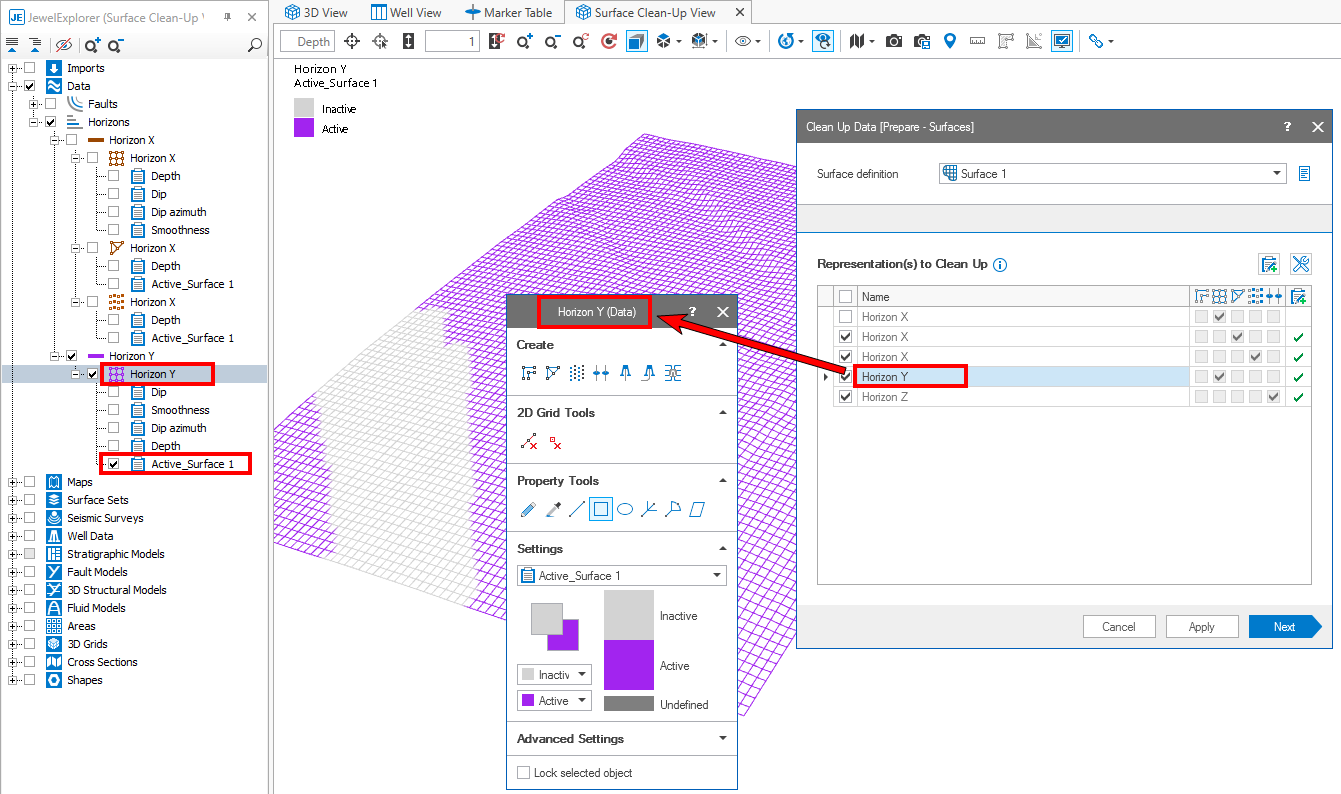
The editing tools floating palette and the Surface Clean-Up View respond to the representation you select in the table (Horizon Y in the example above). Note the gray band on the 2D grid in the view: these are nodes set to inactive. click to enlarge
To edit the 'active property' of a marker
To make sure the 'active property' is used during surface construction