Triangulating faults in your surface set
The Triangulate Faults step at the end of the Surface Sets workflow (prepare > Surfaces > Triangulate Faults) enables you to triangulate faults in your surface set that do not have a tri-mesh representation.
To generate the tri-mesh representations:
- Open the Triangulate Faults form (prepare > Surfaces > Triangulate Faults)and at the top of the form, select the relevant Surface Set from the Surface set drop-down list.
- Click the + sign in front of Faults to expand the column and review the available data representations for your faults (polyline sets and point sets can be used as input to the triangulation).
- The Input Representation column automatically shows 'valid' input data representations, i.e. point set or polyline set. When both representations are present for an event, the polyline set get priority.
- Under Select, make sure the checkbox is checked for each fault you want to triangulate and select the input representation to use from the drop-down list in the Representation column.
- Click the + sign at the front of the Triangulation Settings column header to expand the column and view the triangulation setting columns.
- Choose from various Boundary Method settings for each surface. You can select a boundary method per surface, or change it for all surfaces at once. To specify a method for all surfaces, right-click in the table and select Set boundary method globally. This opens a context menu with all boundary methods.
- Select Convex hull to create a convex hull around the data points. (This is generally a good method for horizons. )
- Fit to data – area fit, no gaps is an algorithm that closely follows the input data and allows concave shapes but no gaps. The result is influenced by the step dimensions of the input area.
- Fit to data – tight fit is the algorithm that most closely follows the input data and allows gaps to occur. Although the most accurate as far as representing the input data is concerned, using it may be a trade-off between accuracy and the work required to produce a surface suitable for modeling. Your data will be accurately represented, but you may have to repair the surface later using the tri-mesh editing tools or, to avoid this, use a less accurate bounding method.
- Select Boundary polygon and then a 'boundary' (polyline set with a single closed polyline) from the drop-down list in the Boundary Polygon column (which lists all such polygons in your solution) to use to cut out the resulting tri-mesh. All data values generated outside the boundary will be blanked.
- Choose from various Projection Type settings for each surface. The triangulation algorithms require that the nodes of the input representation (polyline set or point set) are projected onto a plane, and a projection vector is computed automatically based on these nodes. Sometimes it is desirable to override the auto-calculated projection vector
- Select User defined and enter values for Projection Dip and Projection Azimuth.
- Select Reset to default to return to the default projection settings.
- Select Set from [View] to derive the Projection Dip and Projection Azimuth based on the orientation of the selected View.
- Click the + sign at the front of the Dimensions column header to expand the column and view the Length and Height of the surface as well as its Area.
- Click Apply or OK to generate the tri-mesh(es). The generated tri-mesh(es) will appear in the Surface Set folder next to the existing data representation(s).
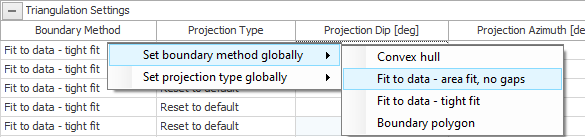
Select the boundary method of your choice from the context menu. click to enlarge
Select the method that you want to use. This method will appear in the Boundary Method column for all surfaces in the table.
Leave the checkboxes checked in the Honor Polyline Segments column to state that all polyline segments will be available again as edges of the generated tri-mesh.