Creating thickness maps
The first step of the Thickness Maps workflow (prepare > Thickness Map > Thickness Maps Workflow > Create Map) enables you to create a new thickness map, or activate an existing one to review or modify it.
To create a thickness map
- On the Create Thickness Map form, select
 Create new from the drop-down list.
 - Type in a name in the adjacent field.
- Click Apply to create the thickness map and keep the form open, or click OK to create the map and proceed to the Assign Data step.
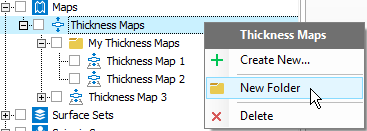
The thickness maps are stored in the JewelExplorer. click to enlarge
The thickness maps you create will be stored in the Thickness Maps folder in the JewelExplorer. You can also create a new folder under the Thickness Maps folder in the JewelExplorer via its context menu, drag and drop the thickness maps of your choice to the newly created folder.
To activate an existing map
You can set an existing map as default, so that it is automatically selected when you open any of the forms within the workflow.
- On the Create Thickness Map form, select the map of interest from the drop-down list.
- Click Apply to activate the map.
- Close the form, or click Next to proceed to the Assign Data step.