2D View and 2D Time View
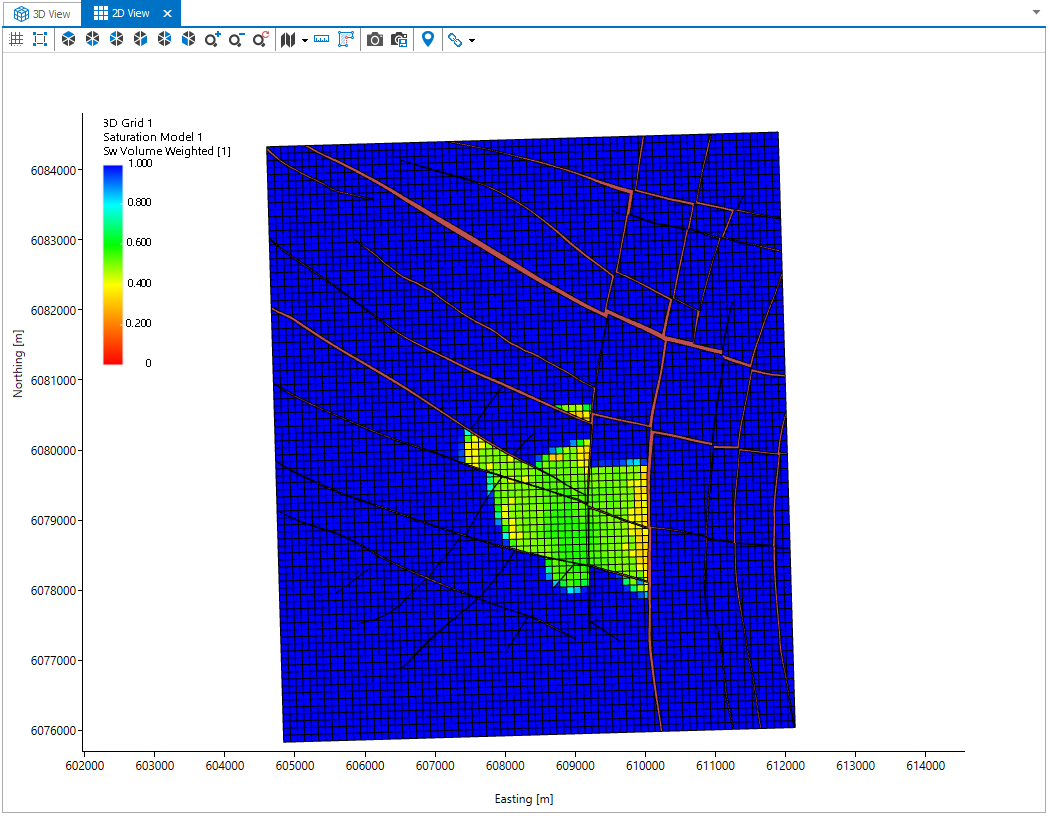
A 2D View click to enlarge
The 2D View shows a visualization of all available data in 2D, using various projection angles (e.g., top, base, west, east, north, and south). The 2D View can be opened via the Views button in the top-right corner of the application, by pressing Alt+F2 on your keyboard, or you can use the Create option of the context menu in the View Explorer.
The 2D View displays objects in the depth domain - it is a depth domain view.
Right-click Displays the context menu of the selected object. All objects have their own context menu and the options available depend on the active view.
Middle-drag or Left+Right-drag Allows you to pan the view.
Right-drag Right mouse click and hold to zoom in. While dragging, a blue rectangle indicates the area where you zoom in to.
Scroll wheel Allows you to zoom in and out. You can change the ‘mouse wheel forward’ from zoom out to zoom in on the Display Settings form (home > Settings).
Context menus
Most operations in the 2D View are performed by right-clicking and making a selection from the context menu. All object based context menus are the same as in the 3D View (see Using the object context menus).
The 2D View contains a toolbar that you can use to control the view. To learn more, see 2D View toolbar.