Creating templates in the CoView
Using frameworks and templates makes creating a map in the CoView a fast and straightforward process. For all the data that you display in the CoView (available under the Contents tab in the CoView Manager), you can apply a template that determines the display settings and styling. Templates can only be applied to objects of the same type. Templates are saved and stored in the Template Manager.
As long as a template is connected to an object or object type, any updates you make in the styling will update the template. To prevent the template from updating, first disconnect it from the object before you make any changes in the styling of the object.
To create a template
- Since templates belong to objects or object types, you first have to make sure that in the Selection section of the CoView Manager the object (type) that you want to style is selected. Selecting an object is done with a single left mouse button click. You can distinguish the selected object by a highlighted blue background.
- Make sure that the display settings that are available for the object (type) in the Display section have been adjusted to your preferences. To do so, first uncheck the Default settings option.
- Open the Create Template form. You do this either from the context menu of the object (type), or by clicking on the Create Template icon
 in the Display section. To open the context menu, right mouse click on the object in the Selection section.
 - On the Create Template form that opens, a predefined name is already listed. You can keep it as is, or enter another name for the template. Click OK to save the template, apply it as the active template for the selected object, and close the form. Performing administrative actions on templates, such as renaming, importing and exporting and deleting, is handled in the Template Manager.
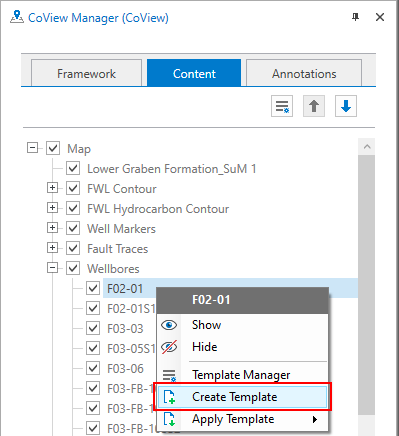
Use the context menu to create a template. click to enlarge
The template that you have just created, is listed as the active template in the Display section. Any update you make in the display settings, is automatically saved to the template. If you want to make changes in the display settings without saving them to the template, you can disconnect the template from the object by clicking on the Disconnect Template icon  .
.
If you have more than one template for the same object, you can select which template to apply. Click on the Apply Template icon  to open a form where all the available templates for that object type are listed. From the drop-down list, select the template that you want and click OK to save your selection, apply the template and close the form.