The Concept View
The Concept View (Workspace > Views or the Create option of the context menu in the View Explorer) is a graphical display of one or more volumetric concepts that you created with the CONCEPT strip. Each volumetric concept is a set of domain models, representing one approach to your modeling task. If you want to perform calculations with the STUDY strip (for example to perform a volumetric calculation) it is a prerequisite that you use a volumetric concept as input. Volumetric concepts can contain parametric uncertainties (via their respective domain models), conceptual uncertainties, or both at the same time. These uncertainties are subsequently incorporated in the uncertainty calculations of the study strip. For more on uncertainty modeling in JewelSuite Subsurface Modeling, see Incorporating uncertainties.
The Concept View has two main purposes:
- To graphically display your volumetric concept(s), including the assigned domain models. By its horizontal design (modeling steps are displayed sequentially from left to right) it provides a framework for your concept(s). It also indicates whether uncertainty parameters are defined in the respective domain models, in which case an uncertainty parameter symbol
 is printed next to the model name in the view.
 - To assign conceptual uncertainty, which means assigning a different probability to each volumetric concept (for this, you need to have at least two volumetric concepts in the volumetric scenario). You assign conceptual uncertainty in the form of a weight factor to domain models, or to a volumetric concept as a whole. The assigned probabilities will be propagated to the volumetric calculation, however, only when you use Latin Hypercube as the sampling method on the Sampling Strategy form.
To use the view
The view it is initially blank. Select a volumetric scenario at the top of the view (if you have not created a volumetric scenario yet, create one with the Volumetric Concepts workflow). Upon selection, all concepts that it contains are shown as horizontal 'strings' of the modeling steps and their associated domain models (e.g. Fault Model A, Fluid Model B). At each modeling step where multiple models are assigned, the 'string' branches off and forms another volumetric concept. Modeling steps to which no domain model is assigned will appear as 'None' in the view.
Applying concept probabilities
The Concept View provides the functionality to apply probabilities to volumetric concepts. This can be done in two ways, at concept level and at domain model level. When probabilities are applied to domain models, they are rolled up to concept level (see explanation below).
Probabilities are applied in the form of weight factors. Initially all volumetric concepts and domain models have equal probability, i.e. no concept or domain model has a higher probability to be sampled than another and all weight factors are set to '1'. You can alter the weight factors as follows:
- Alter the weights of domain models by clicking on the value next to the model name in the Concept View. The Concept Weighting dialog opens, where you can enter the weight value, then click Apply or OK.
- Alter the weights of volumetric concepts by clicking in the Weight column next to the concept name at the left-hand side of the Concept View. The Concept Weighting dialog opens, where you can enter the weight value, then click Apply or OK.
The weight factors are rolled up to concept probability. The derived concept probability is propagated to the sampling of realizations (and ultimately to the results of the volumetric calculation) that you perform with the study strip.
How concept probability is calculated
The weight factors are rolled up to a concept probability as follows:
The product of all weights of the concept is divided by the sum of the product of weight factors
See the image below:
Concept 2 (blue concept):
- Concept weight factor = 9
- Domain model 'Structural Model' weight factor = 1
- Domain model '3D Grid' weight factor = 1
- Product of weight factors: 9 x 1 x 1 = 9
Concept 1 (red concept):
- Concept weight factor = 1
- Domain model 'Structural Model' weight factor = 3
- Domain model '3D Grid' weight factor = 2
- Product of weight factors: 1 x 3 x 2 = 6
Sum of product of weight factors: 9 + 6 = 15
Probability Concept 2 (blue concept): 9 / 15 = 0.6, hence 60%
Probability Concept 1 (red concept): 6 / 15 = 0.4, hence 40%
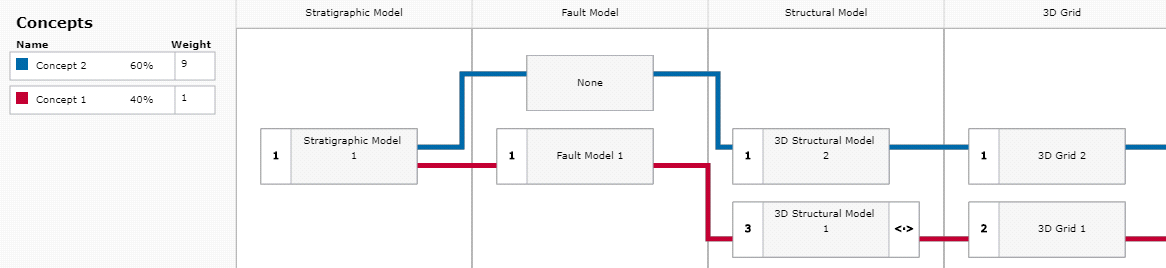
Example of applied concept weights and domain model weights that are rolled up to concept probabilities. Only the four leftmost columns of the Concept View are shown. click to enlarge
When you have populated the view, you can print it using the Print to PDF option at the top of the view.

|
Print to PDF Opens the print dialog with the option Print to PDF preselected. Optionally, you can select any other print option listed in the Select Printer window. |