The Property Tool
The property tool uses the existing functions in the solution, created with the Function Tool, to create new properties for various data objects in the JewelExplorer. Data objects for which new properties can be created are 3D grids, 3D meshes, wells, surface representations (e.g. tri-mesh, polylines), voxel grids and markers. Depending on the type of data object, the new properties are stored in the corresponding object property sub-folder in the JewelExplorer.
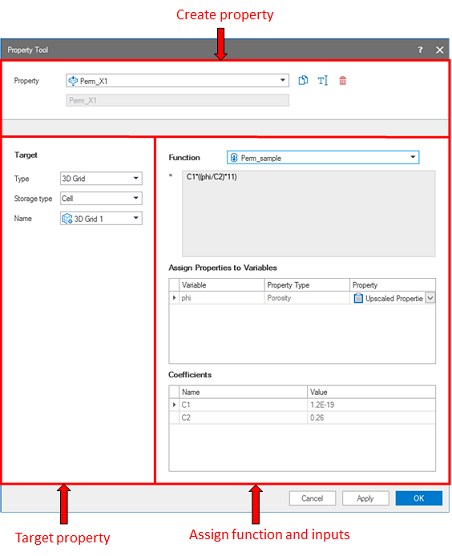
Different areas on the Property Tool form. click to enlarge
- Use the Create property area to create new property or edit an existing property
- In the Target property area, you can describe the 'metadata' of the property such as the target property type, storage location and source data.
- The Assign function and inputs area consists of the input properties as variables and coefficients. You can assign a function for the target property and assign properties to the variables.
Property name Create new property or select an existing property from the drop-down list. Use the adjacent field to enter the name of the new property. You can duplicate, rename, or delete your existing properties via the toolbar adjacent to the field.

|
Duplicates the currently selected property in the drop-down list (i.e. the active property). |

|
Opens the Rename dialog, where a new name can be given to the active property. |

|
Deletes the active property. |
Object type Select the object type from the drop-down list for the target property from the function. There are nine options to chose from the list of object types. Each type of object has one or more options for storage type which are listed in the table below.
Storage type Select the storage type for the target object property.
| Object type | Storage type |
|---|---|
| 3D Grid | Object, Layer, Stack, Cell |
| Well | Log |
| 2D Grid | Node |
| Tri-mesh | Node, Triangle |
| Polyline set | Node |
| Point set | Node |
| Marker set | Node |
| 3D Mesh | Element, Node |
| Voxel grid | Object, Depth slice, Trace, Cell |
Source Select an input data source, when the object type is selected as a 2D grid, tri-mesh, polyline set, point set or marker set.
Name Select the target object. The new property or attribute is stored under the target object. For example, a 3D grid property model is stored in the 'Functions' folder of 3D grid properties. A new well log created using the existing log measurements, and applied for multiple wells or well groups, can be accessed in the 'Logs' folder of the well.
Function (read only) Use the drop-down list to assign a function from the drop-down list.
Assign properties to Variables List of variables used in the function expression. Use the drop-down list to assign an input property to the variable.
Coefficients (read only) The coefficients used in the function expression are listed in this section with coefficient names and their values.
Creating a new property
- In the Create property area, select Create new from the drop-down list and enter a name for the new property model in the adjacent field. To edit an existing property, select an existing property model from the drop-down list. Use the toolbar to duplicate, rename or delete an existing property model.
- In the Target property area, define the Object type of the property model using the drop-down menu. Consequently, select the appropriate Storage type for the property model or attribute with storage type options as listed in the table above. If applicable, select the Source of the target object. In the end, select the target property Name from the drop-down menu which should list all the available objects. The new property model or object attribute is saved in this target object and can be located in the JewelExplorer.
- Assign a Function from the drop-down menu for the target property model. The function expression, defined using the Function Tool, is shown in the field below.
- Use the Assign Properties to Variables section to assign existing properties, associated with the target object, to the variables in the function expression.
- Click Apply to create the property model and continue working with the Property Tool, or click OK to create the Property model and exit the form.