About unconformities and intrusions
Two general types of surfaces are recognized when creating a grid; continuous surfaces, such as horizons, and discontinuity surfaces, such as faults. Such differentiations of surface types is of importance in the gridding process because faulted grid cells are allowed along discontinuity surfaces, while this is not the case for grid cells along continuous surfaces.
Unconformities and intrusions can also be present in the Structural Model. Unlike horizons and faults, unconformities and intrusions can be treated either as continuous or as discontinuity surfaces, depending on your modeling strategy. As continuous surfaces, the unconformity or intrusion will be treated similar to horizons. Use this option if the unconformity or intrusion is concordant to the adjacent layers. As a discontinuity surface, the unconformity or intrusion is treated the same way as a fault, where the unconformity or intrusion can truncate grid cells and cut through other surfaces. See images below for the differences, and see How to model an unconformity for further explanations.
There are certain requirements for an unconformity or intrusion surface to be properly honored during surface construction: it should have a tri-mesh surface representation, its boundary must be smooth and it should not contain holes. To be classified as a discontinuity surface the unconformity/intrusion must be included in both the stratigraphic model and the fault model. Use the Assign Data form in the model > Faults strip to incorporate an unconformity and/or intrusion in your fault model (see Assigning data to a fault model).
In the Structure Builder (Model > Faults > Structure Builder), you can choose to include unconformities in inspection and clean-up tasks.
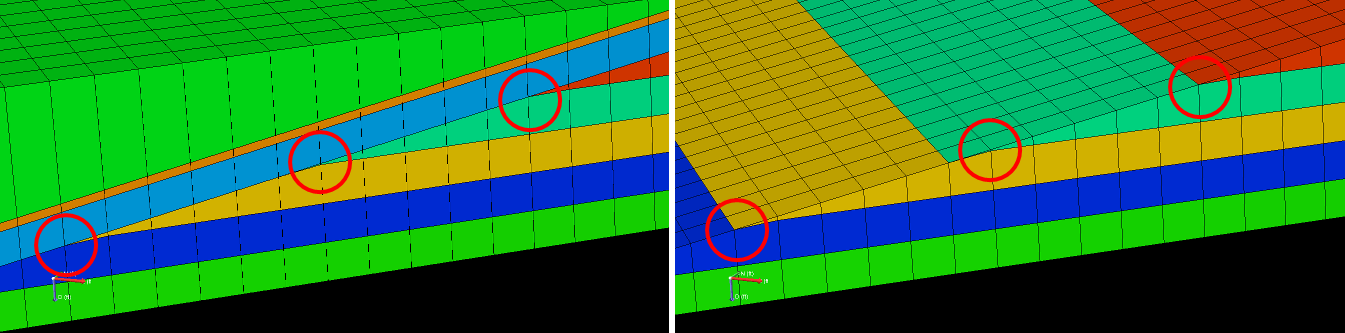
Unconformity not assigned to the fault model. Intersection with underlying layers occurs at cell boundaries click to enlarge
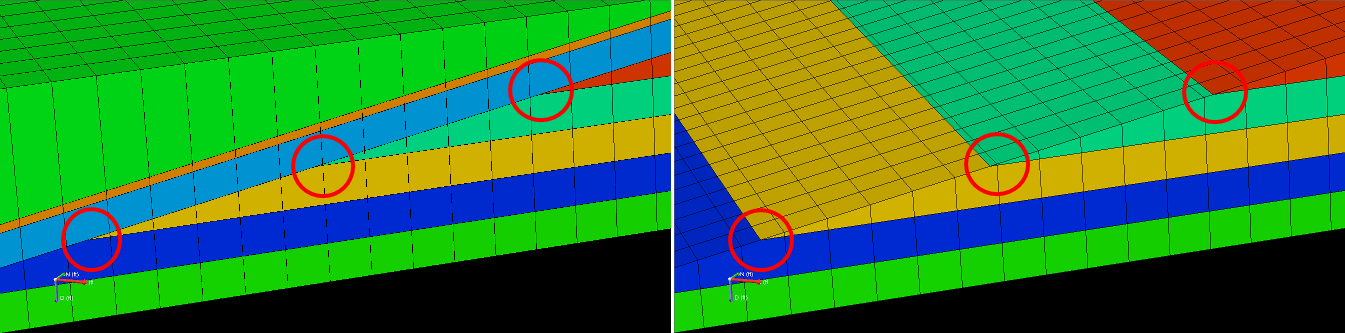
Unconformity assigned to the fault model. Intersection with underlying layers does not necessarily occur at cell boundaries click to enlarge